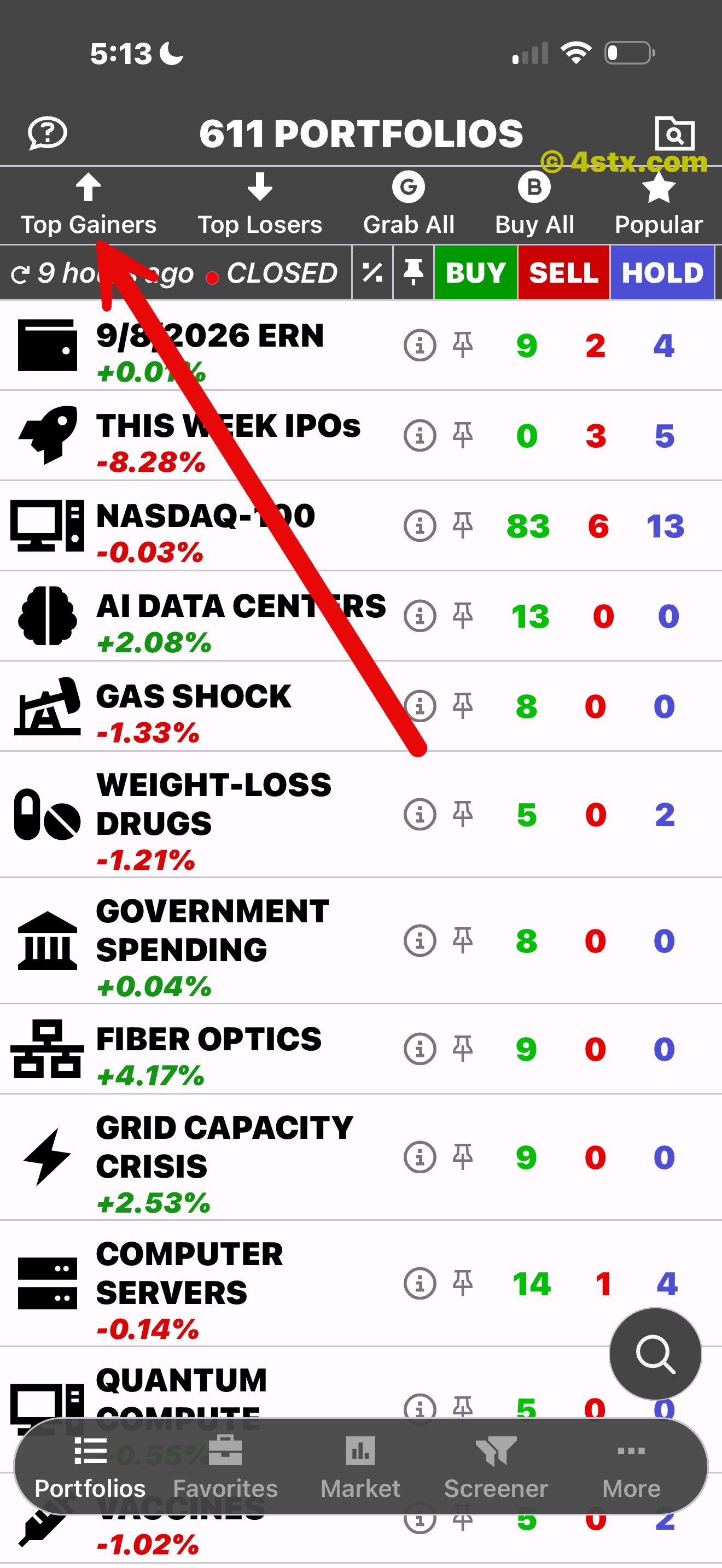
Top Gainers
Open the strongest price movers in one tap.
611 portfolios. One clearer view.
Explore stocks through curated portfolios, compare StockRank ratings, and move from the big theme to the chart and company behind it.



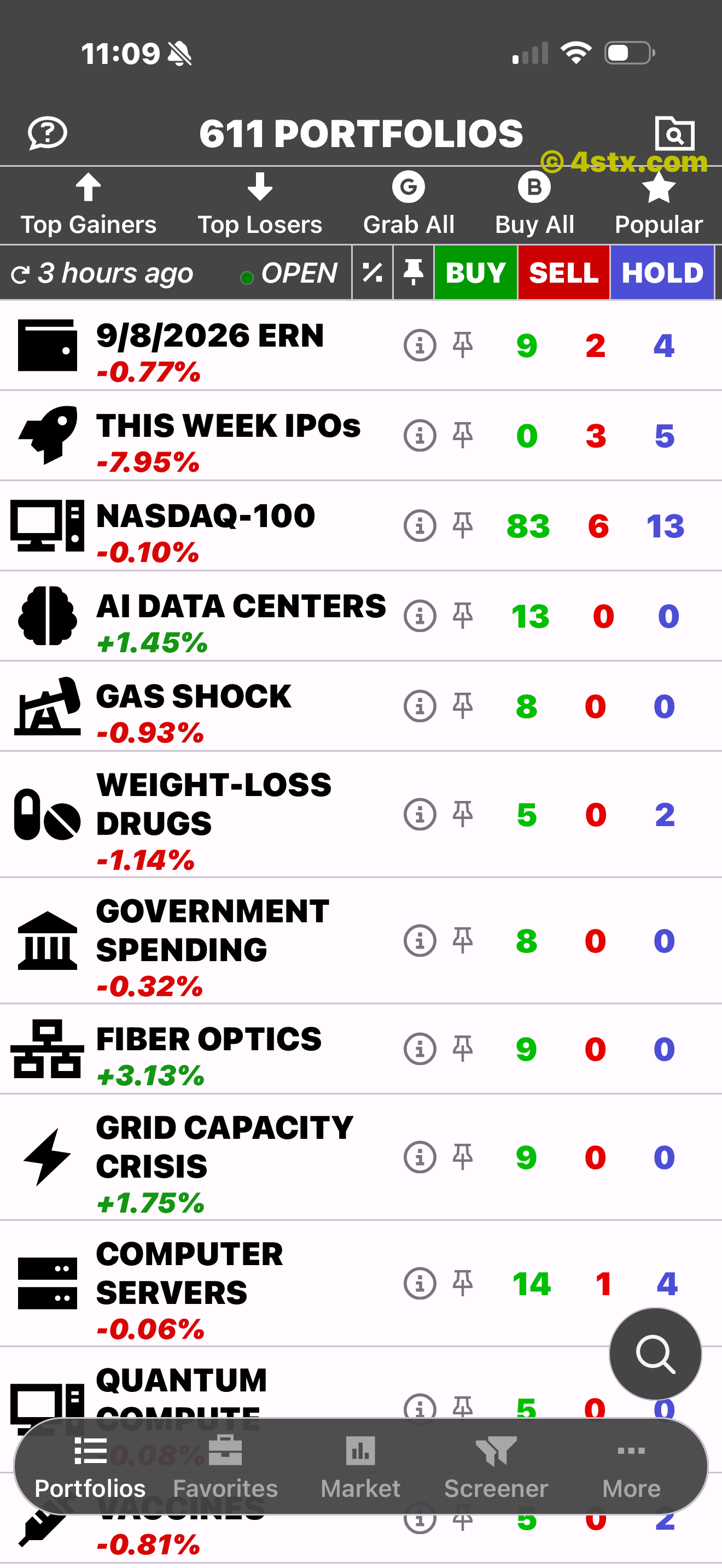
Start with what is moving
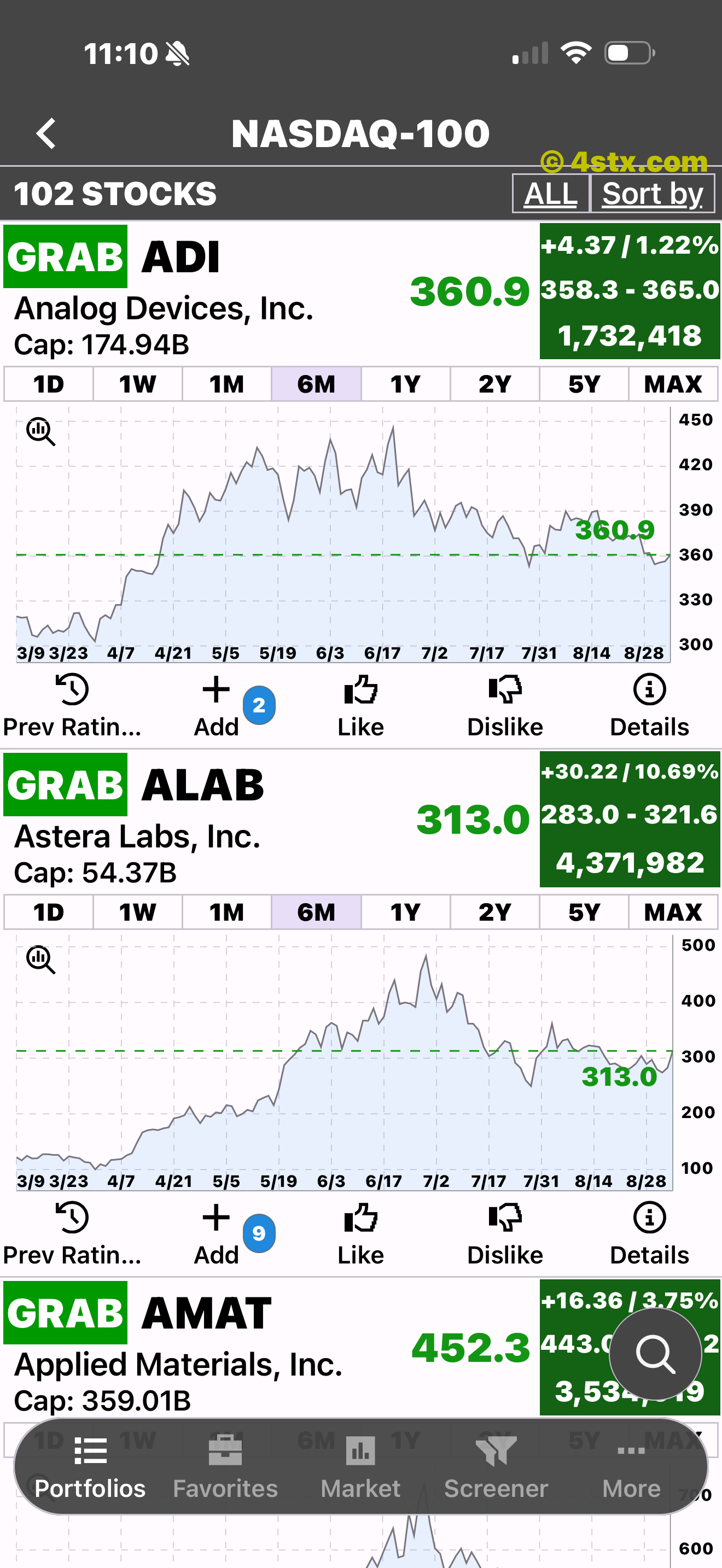
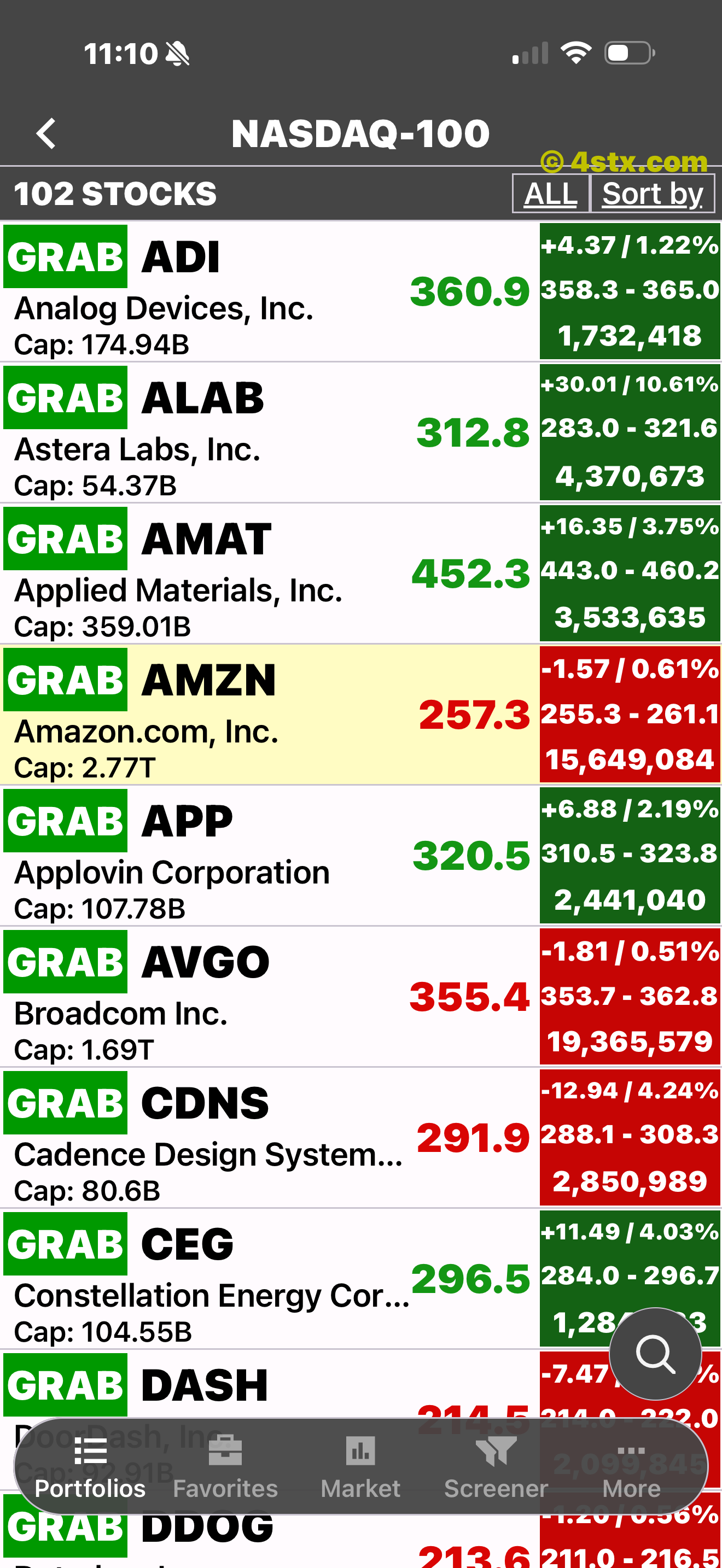
Browse thematic and event-driven portfolios, open one, then compare the stocks inside with rating, price, market cap, daily move, range, and volume.
Know where to tap
Each red arrow points to the exact control to use. Start with a portfolio shortcut, then move between the five main areas from the bottom navigation.
Portfolio shortcuts
These five controls sit above the portfolio list and open focused views without making you search first.
Open the strongest price movers in one tap.
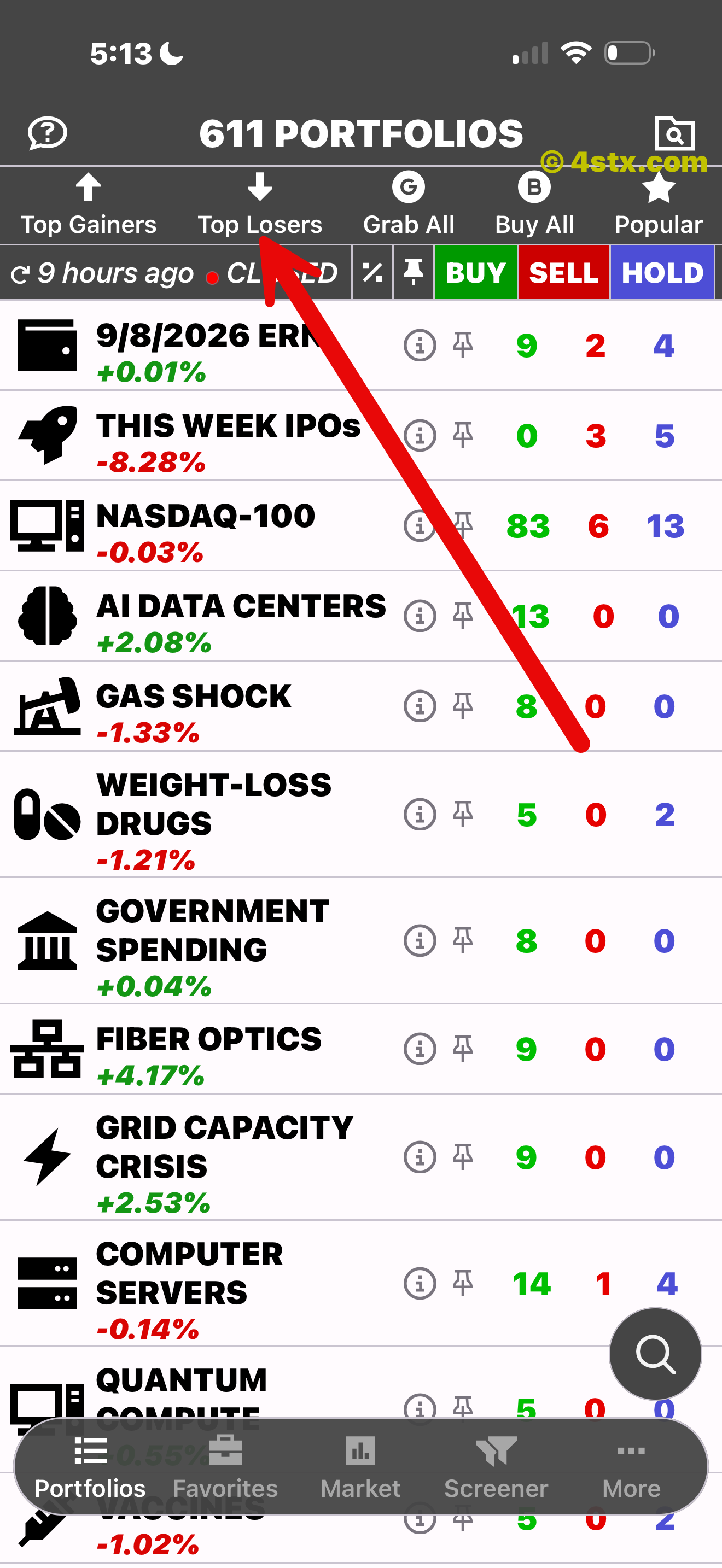
Open the largest visible declines.
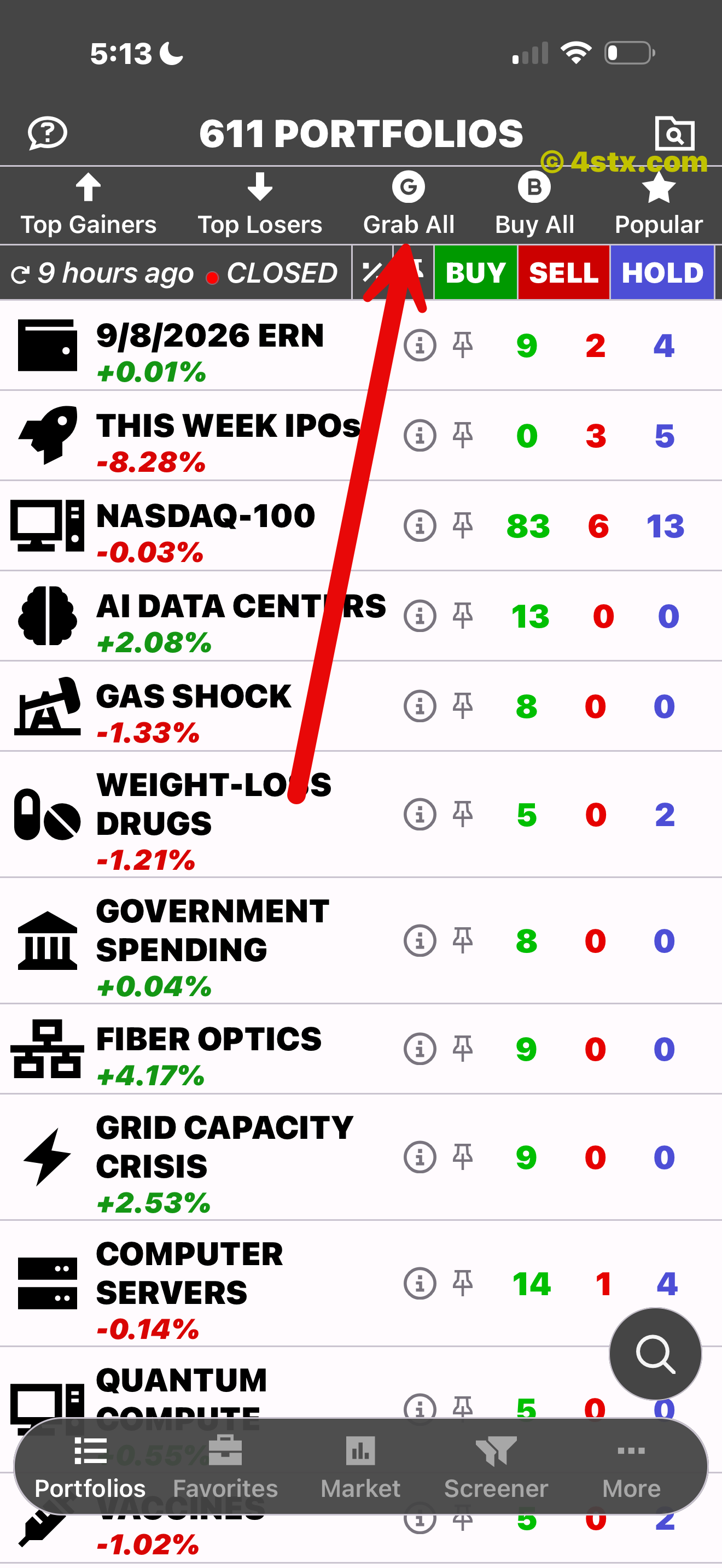
See every stock currently carrying a GRAB rating.
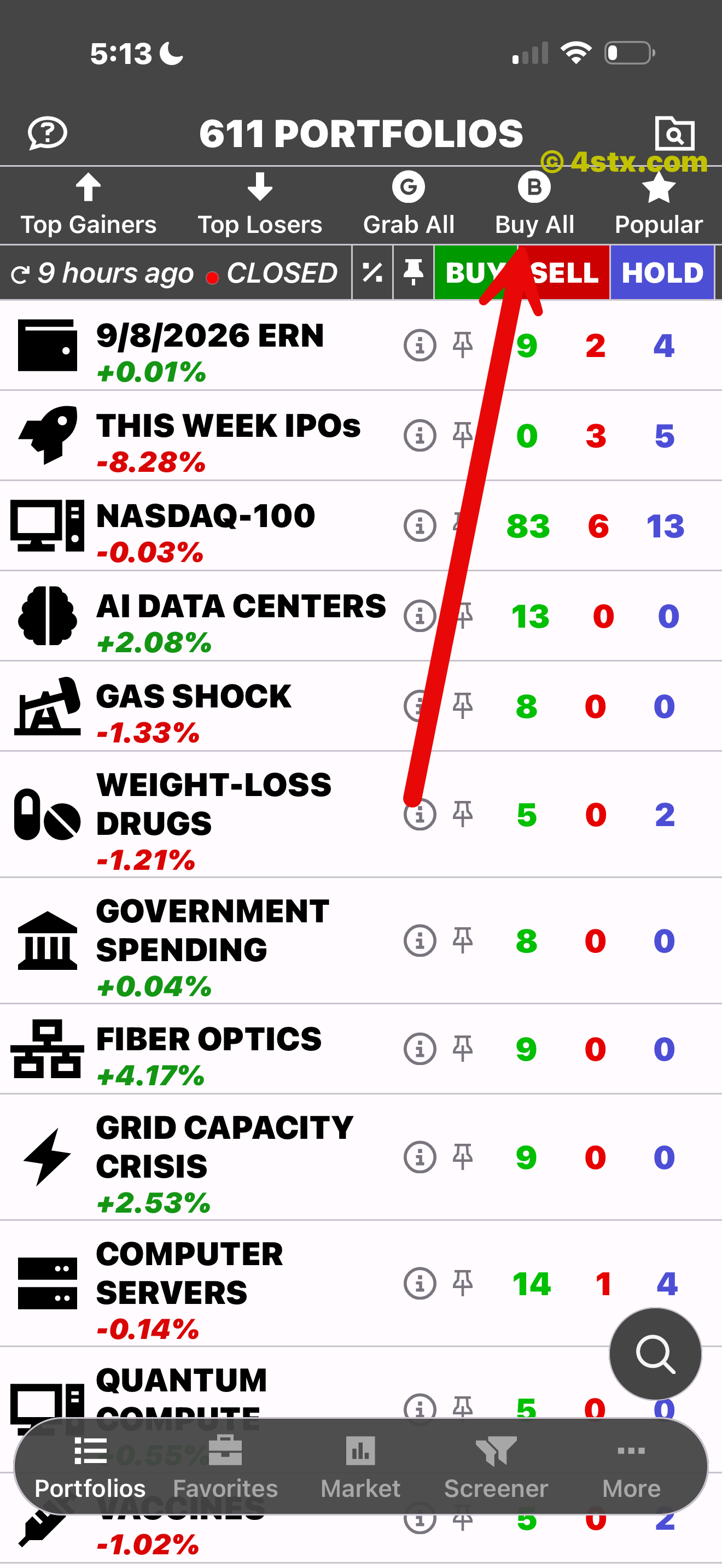
See every stock currently carrying a BUY rating.
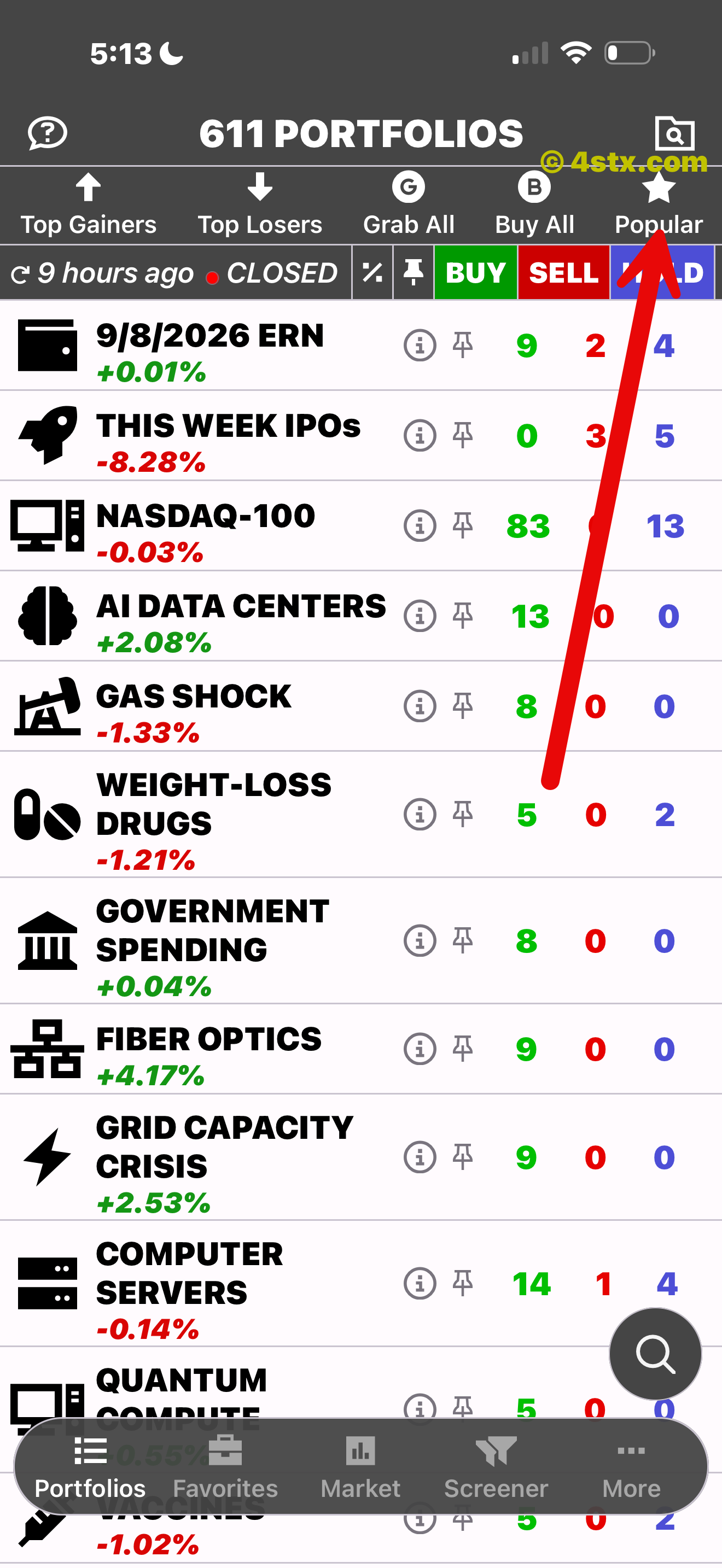
Open stocks that users are saving most often.
Main navigation
The bottom navigation remains available throughout the app, so you can change tools without starting over.
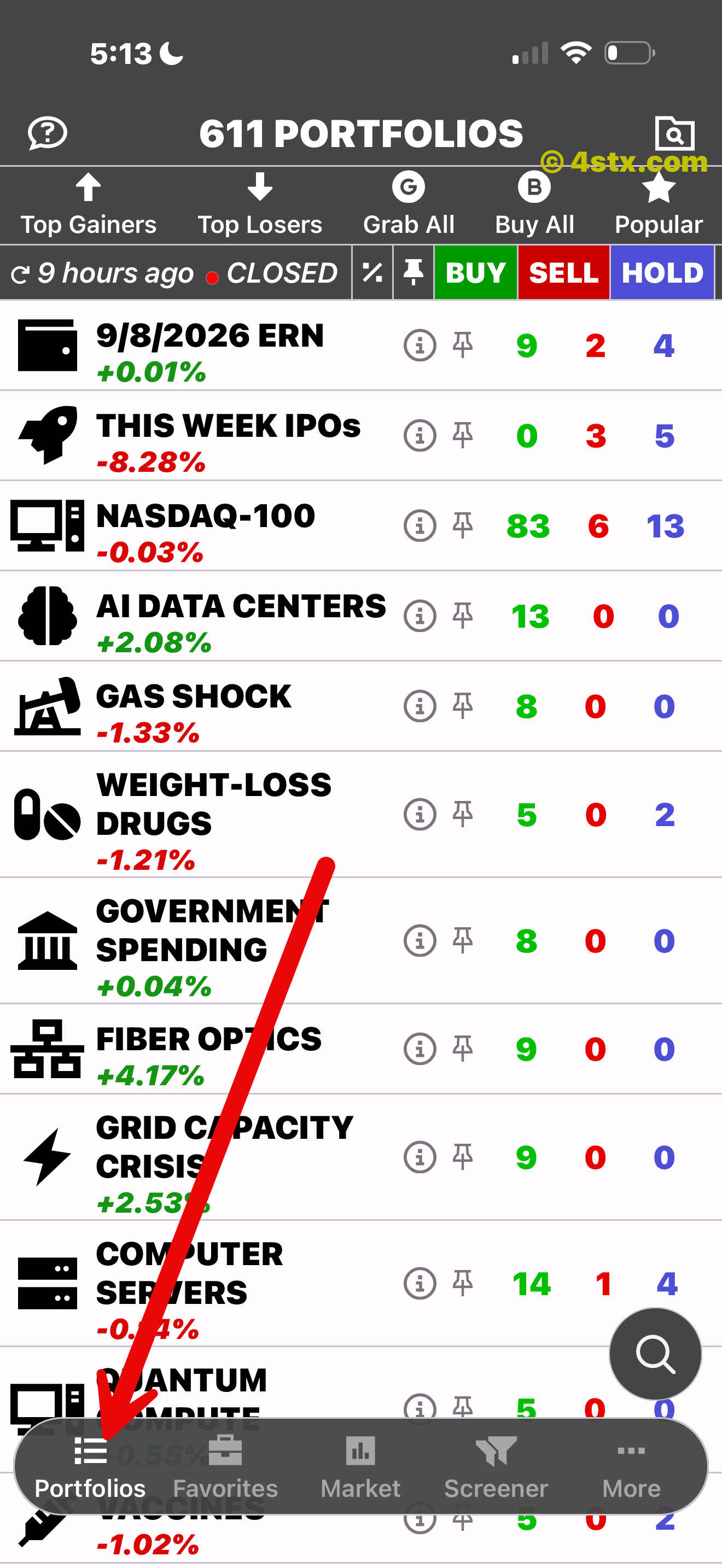
Return to the full library of organized stock lists.
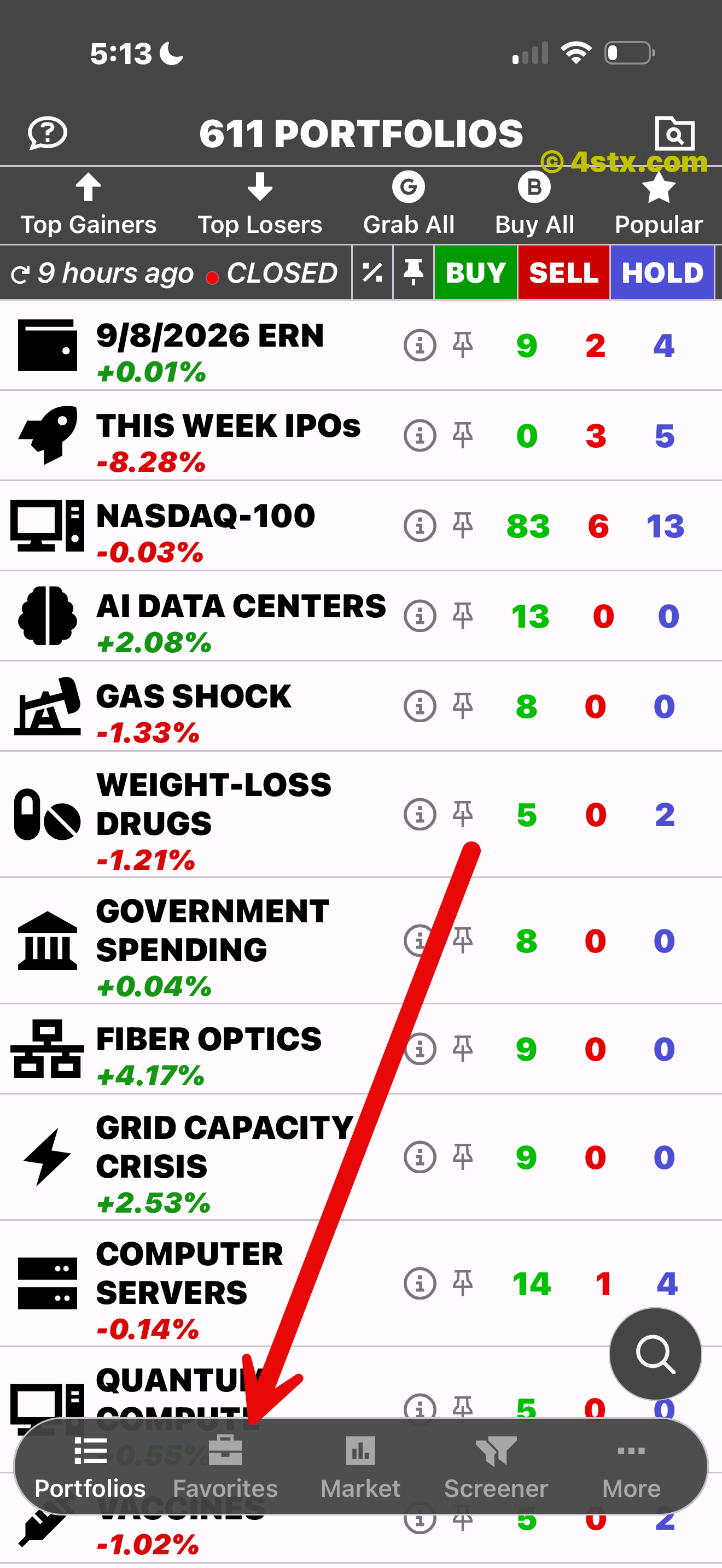
Reopen stocks you saved, liked, or disliked.
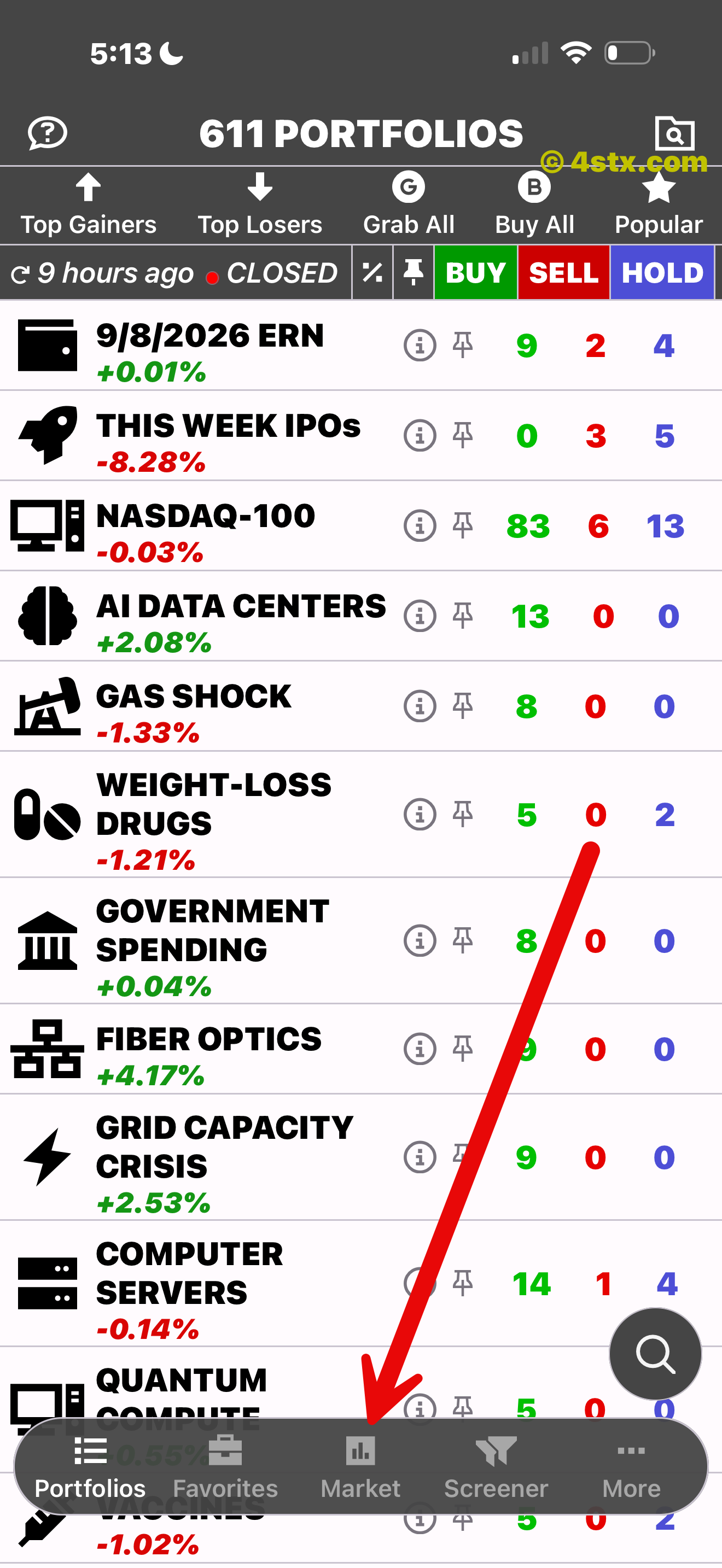
Check movers, benchmarks, and the wider market pulse.
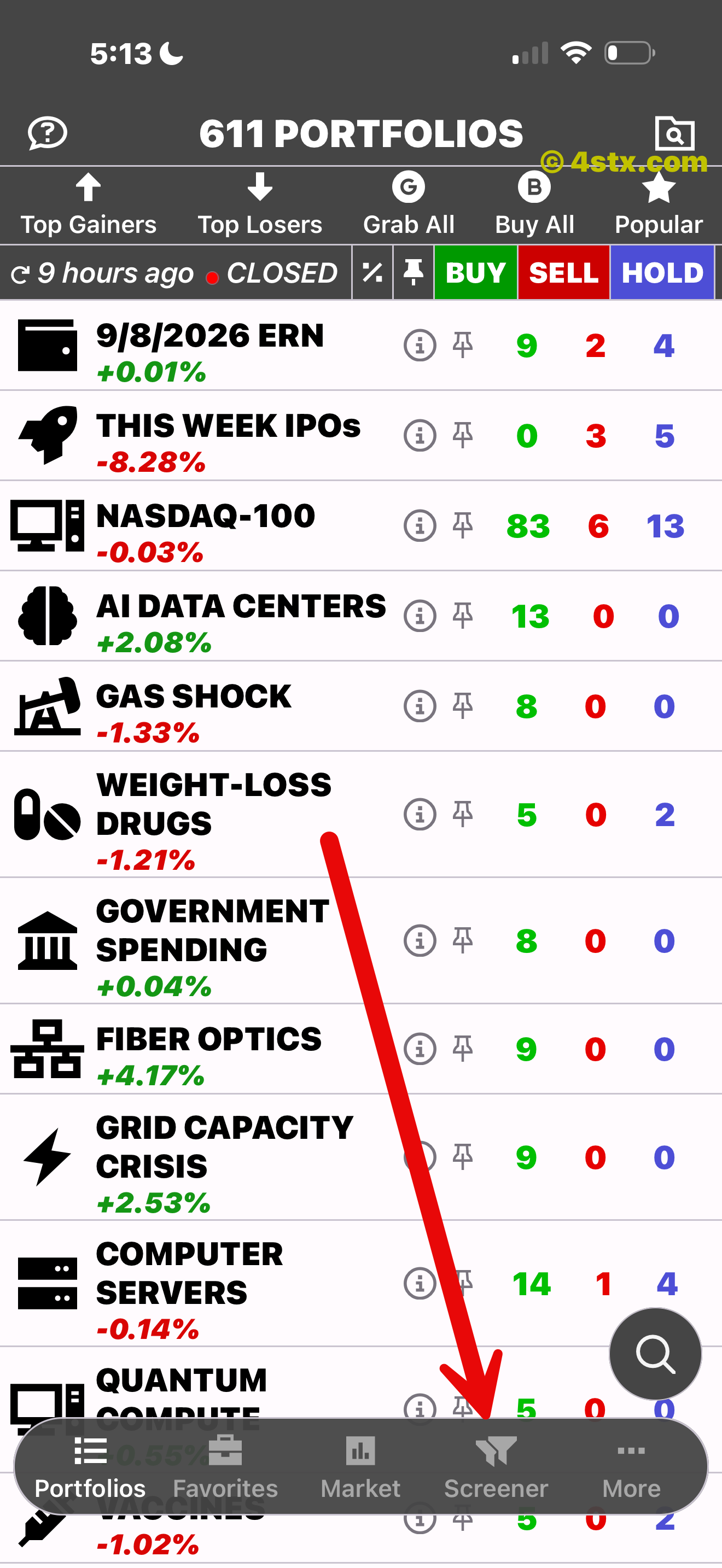
Build and reopen filters using your own criteria.
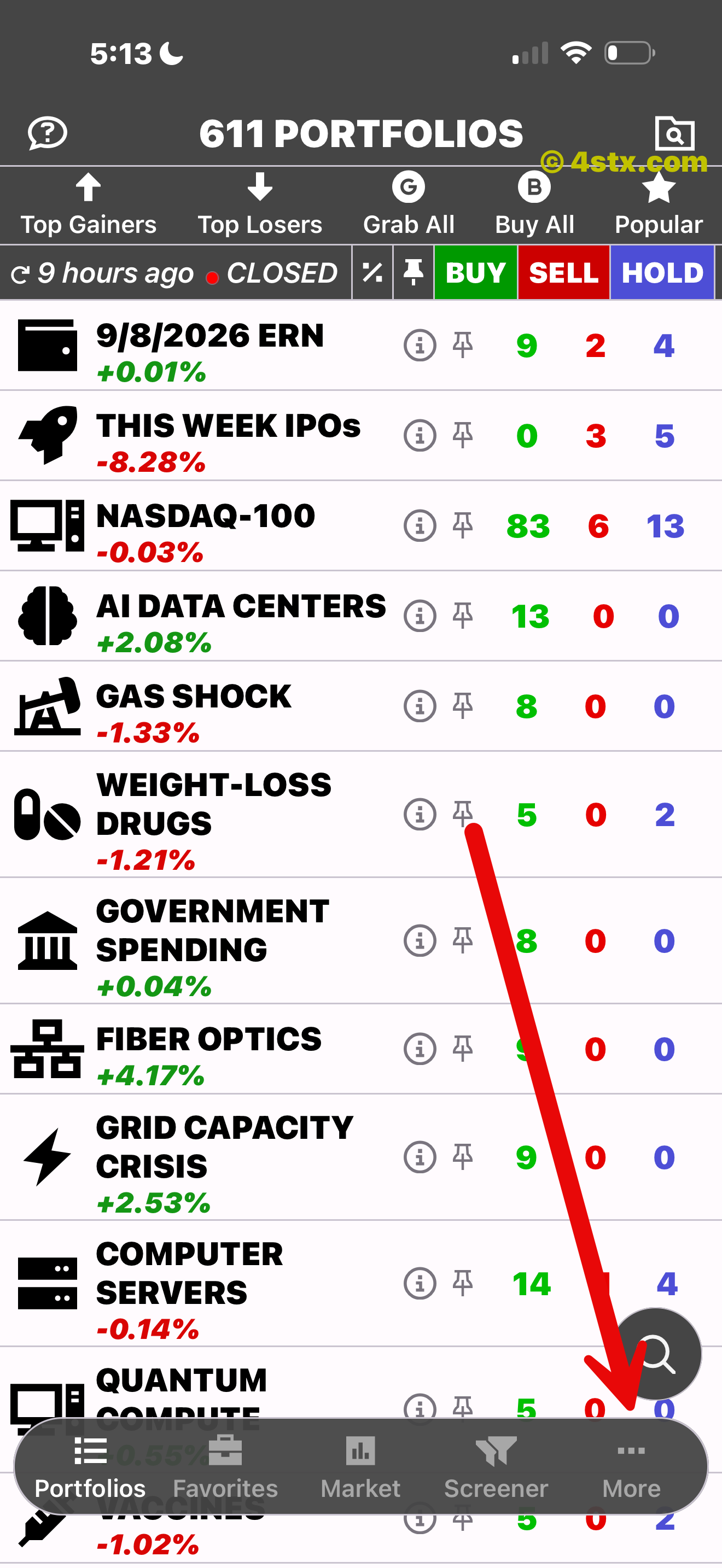
Find alerts, news, support, and account controls.
Two direct routes
StockRank keeps stock search and portfolio search separate. Look up a company or ticker from the floating magnifier, or use the upper-right folder control to narrow 611 portfolios by name.
Enter ticker characters or part of a company name. Results retain rating, price, daily move, range, volume, and market-cap context.
Enter part of a portfolio name, choose a matching theme, and open its stocks in the familiar comparison list.
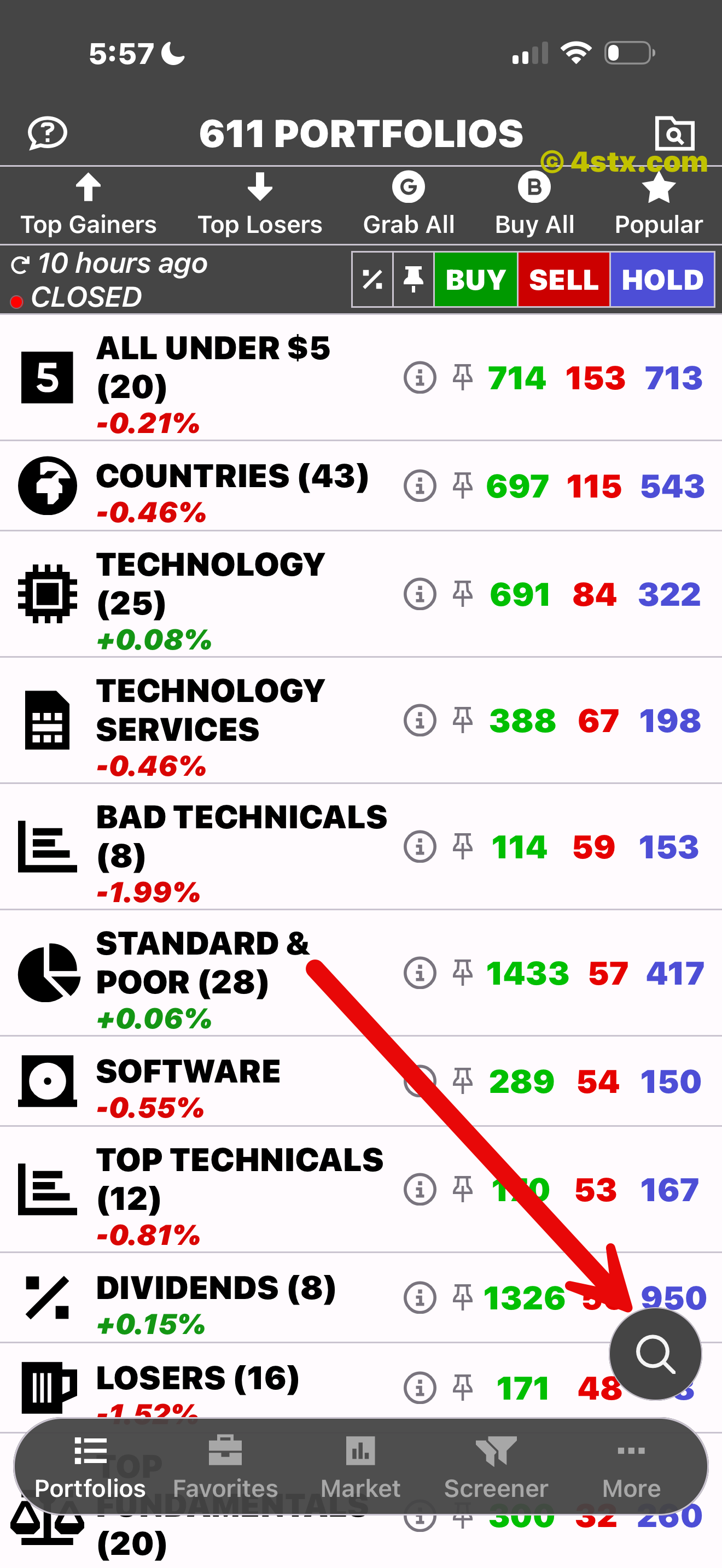
Tap the floating magnifier to look up a ticker or company.
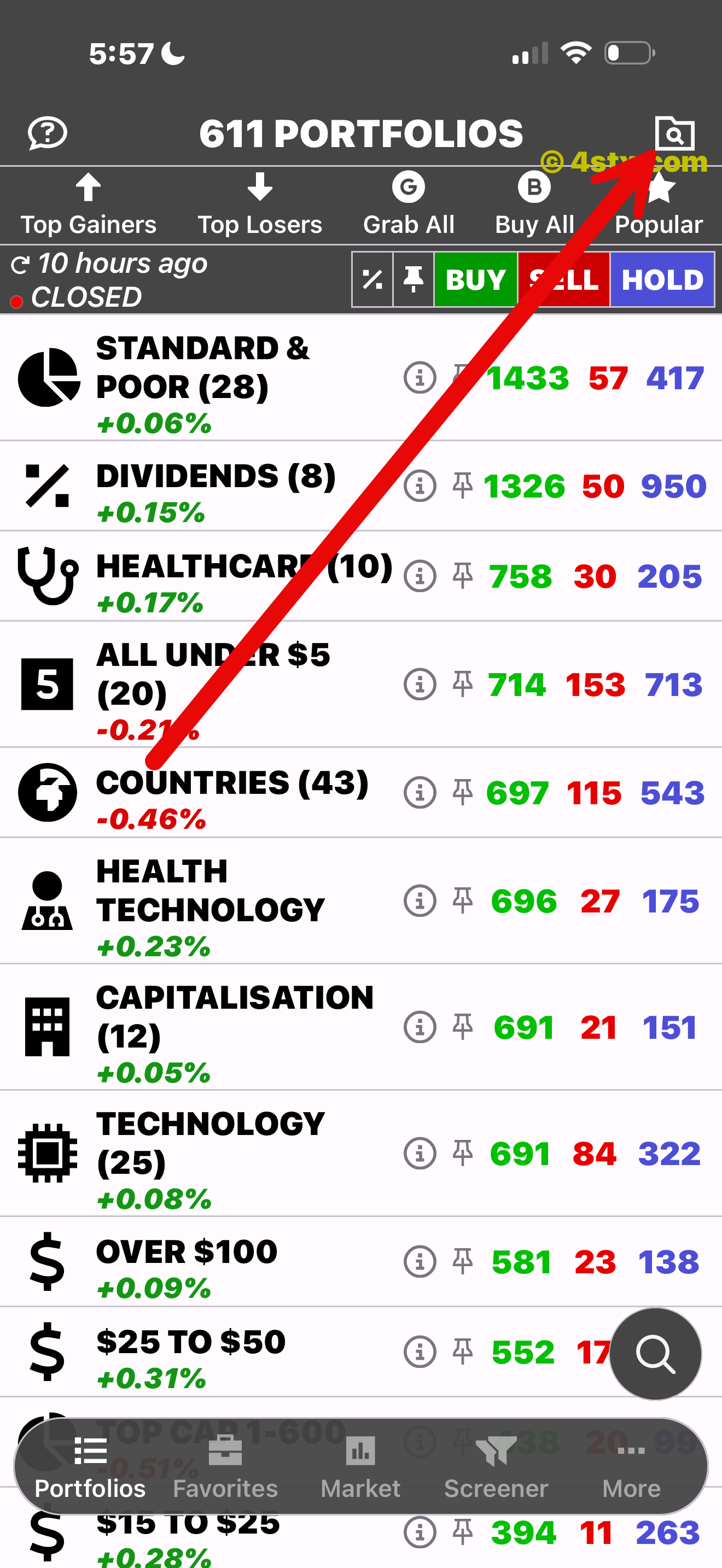
Tap the folder search to narrow the portfolio library by name.
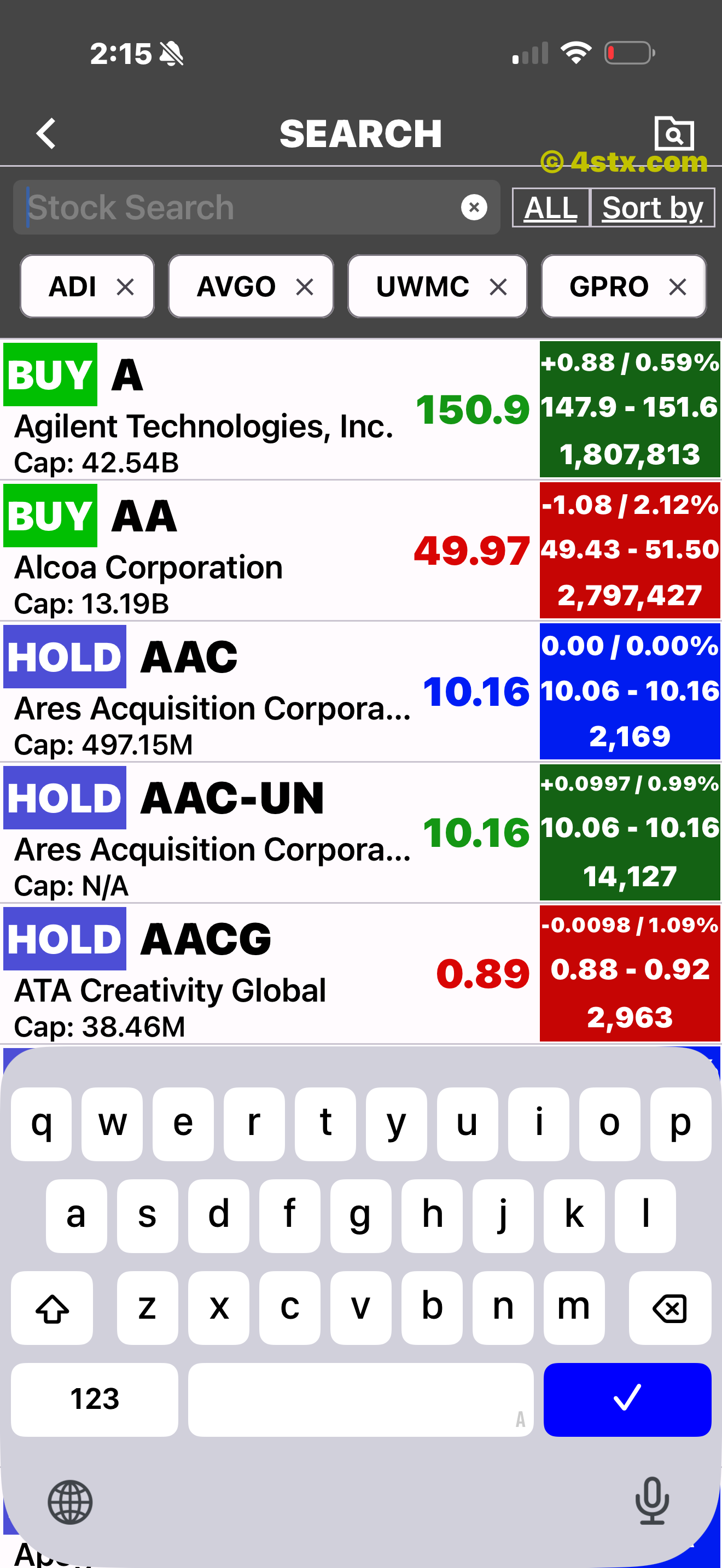
The dedicated list is ready for a ticker or company-name query.
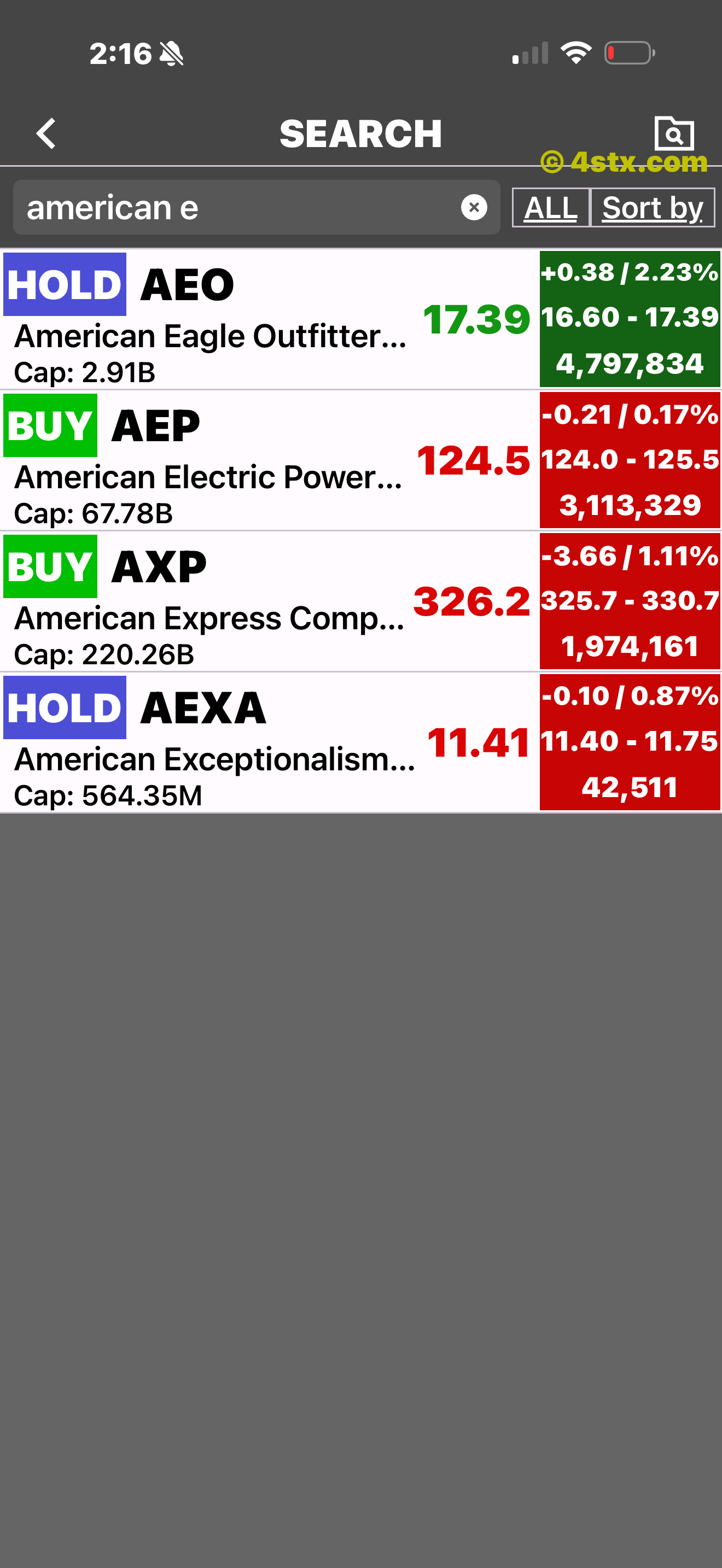
A partial name narrows the list while the full row context remains visible.
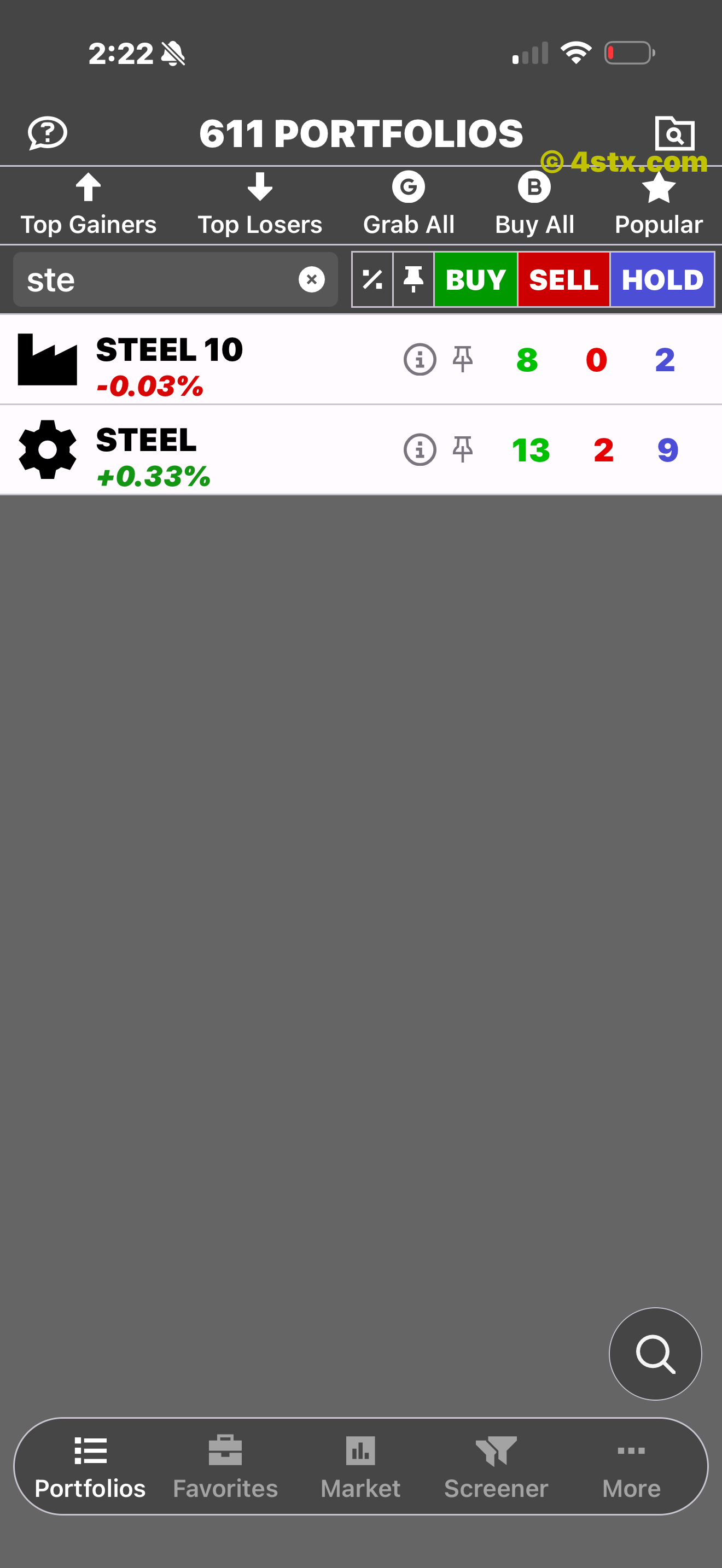
The visible “ste” example returns two steel-related portfolios.
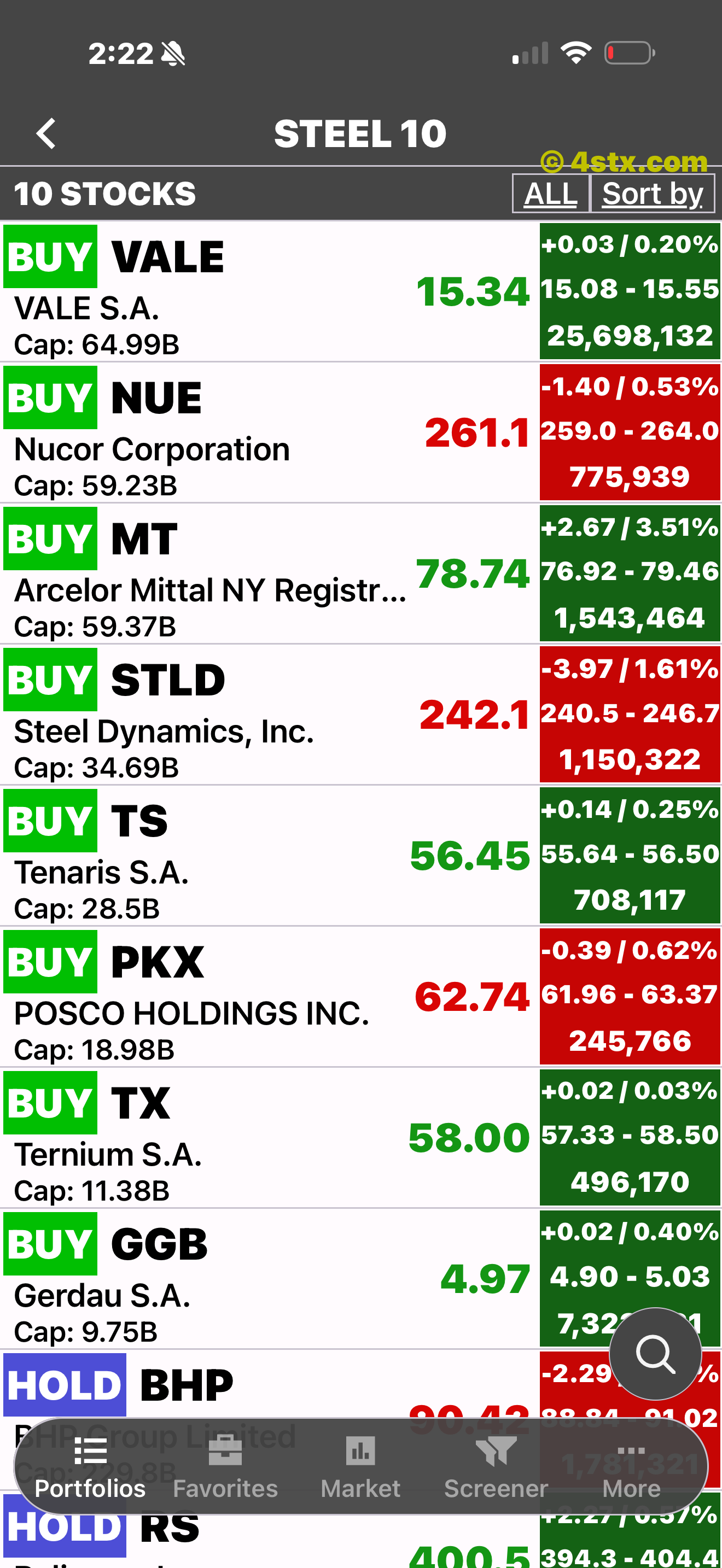
A matching theme leads straight into its stock comparison view.
One continuous path
Move from a broad idea to comparable stocks and into an individual chart without losing your place. Switch the visible history from 1D and 1W through 5Y and MAX.
Ratings, price, market cap, daily move, range, and volume stay together.
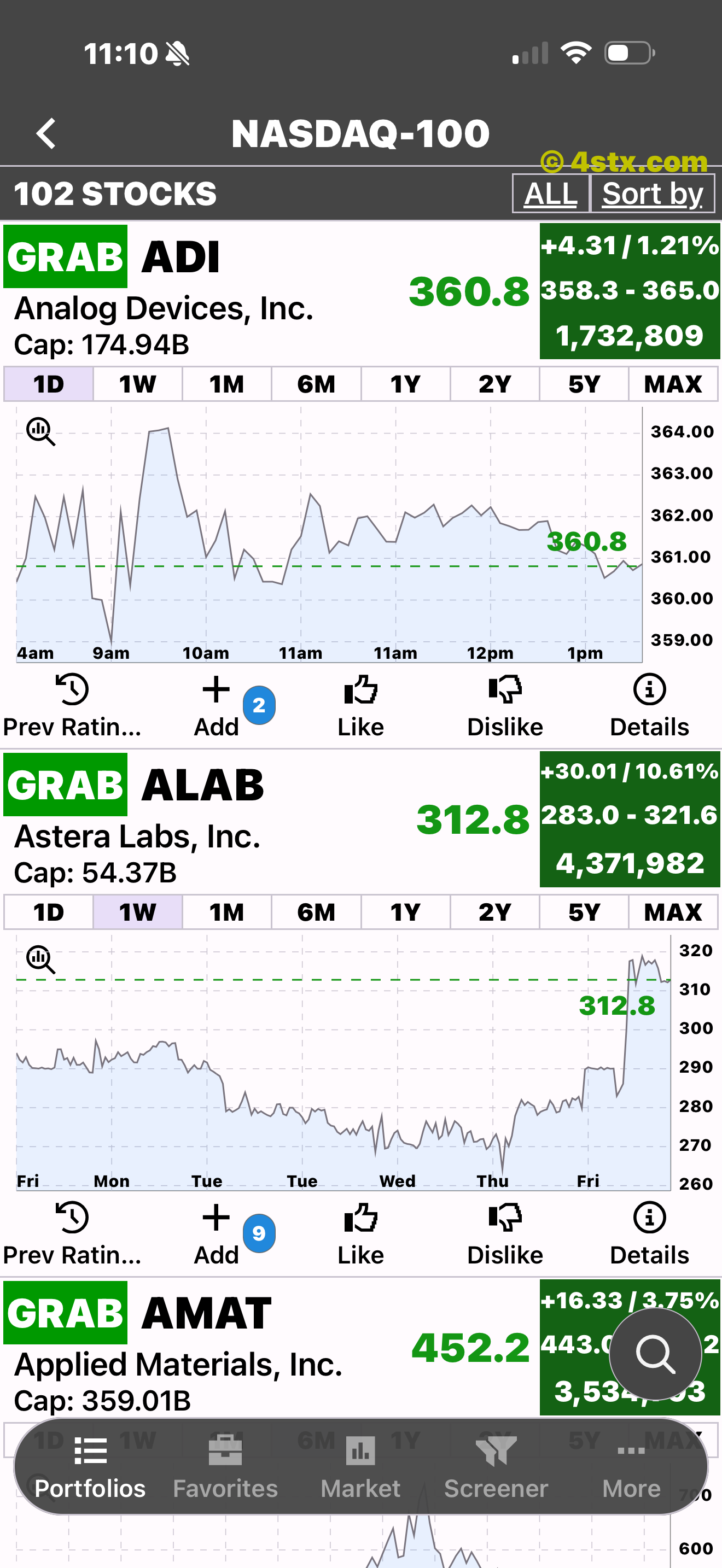
Move through the short ranges when the latest action matters.
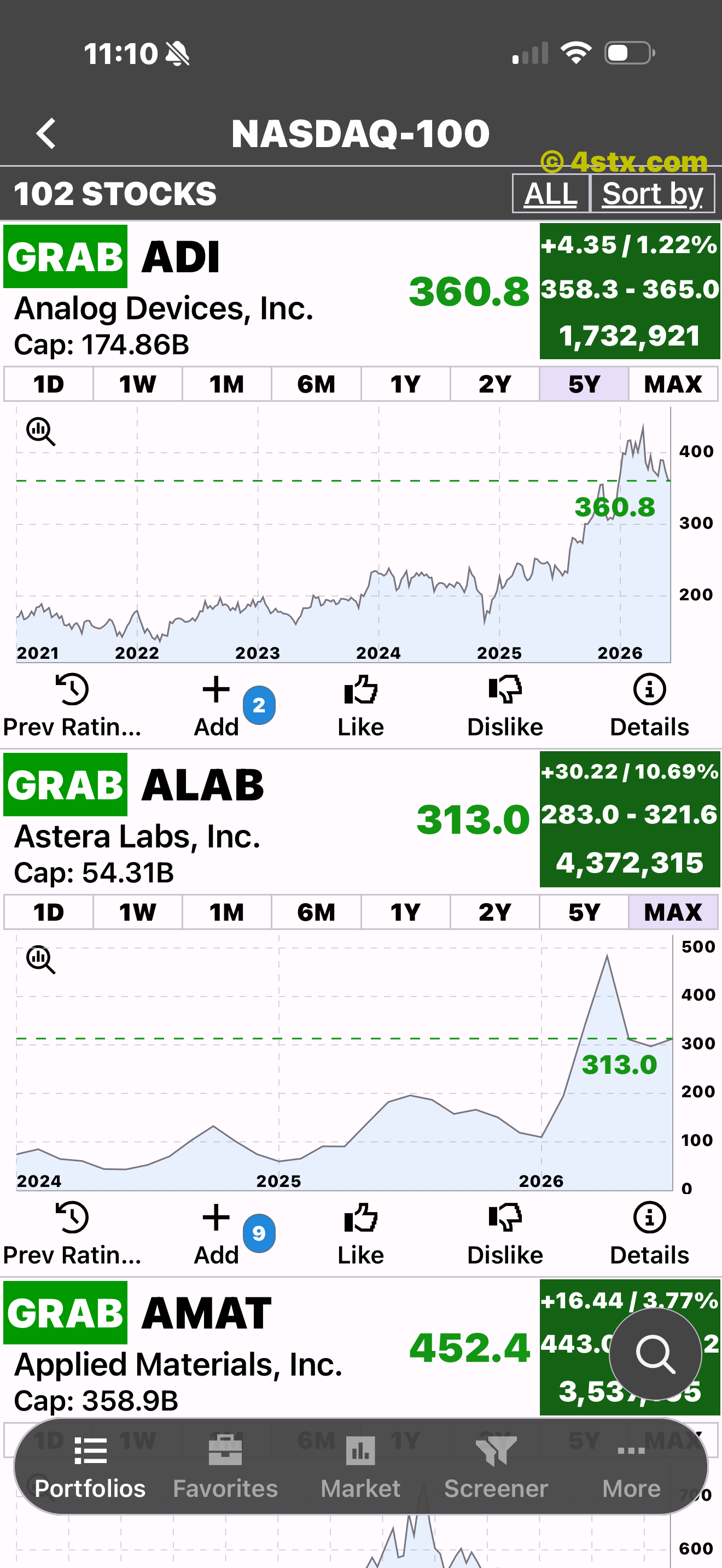
Place the same stock and rating controls against years of history.
Controls beneath every chart
The red arrows identify the five controls beneath an expanded stock chart. Review the rating record, save the stock, register your opinion, or open deeper company information.
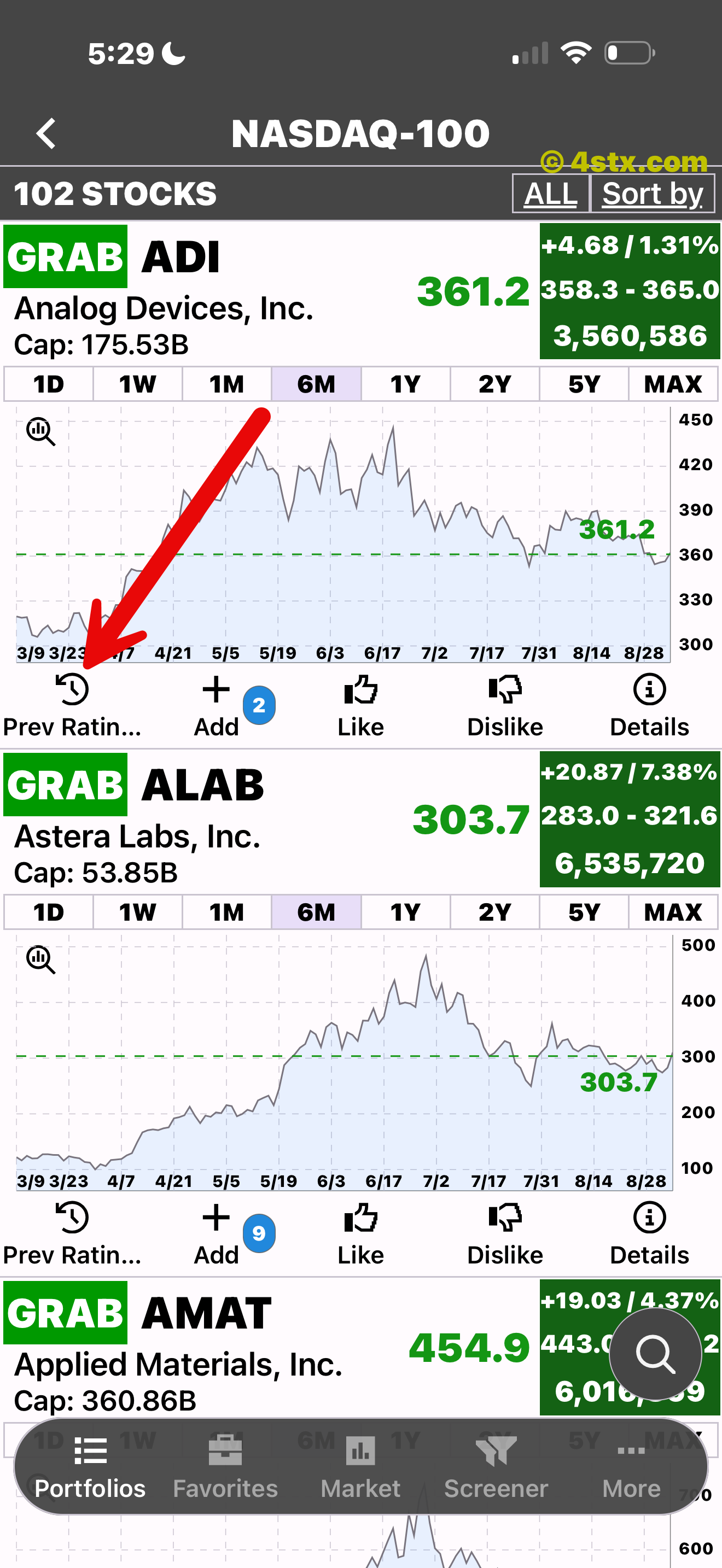
Open the dated history behind the current rating.
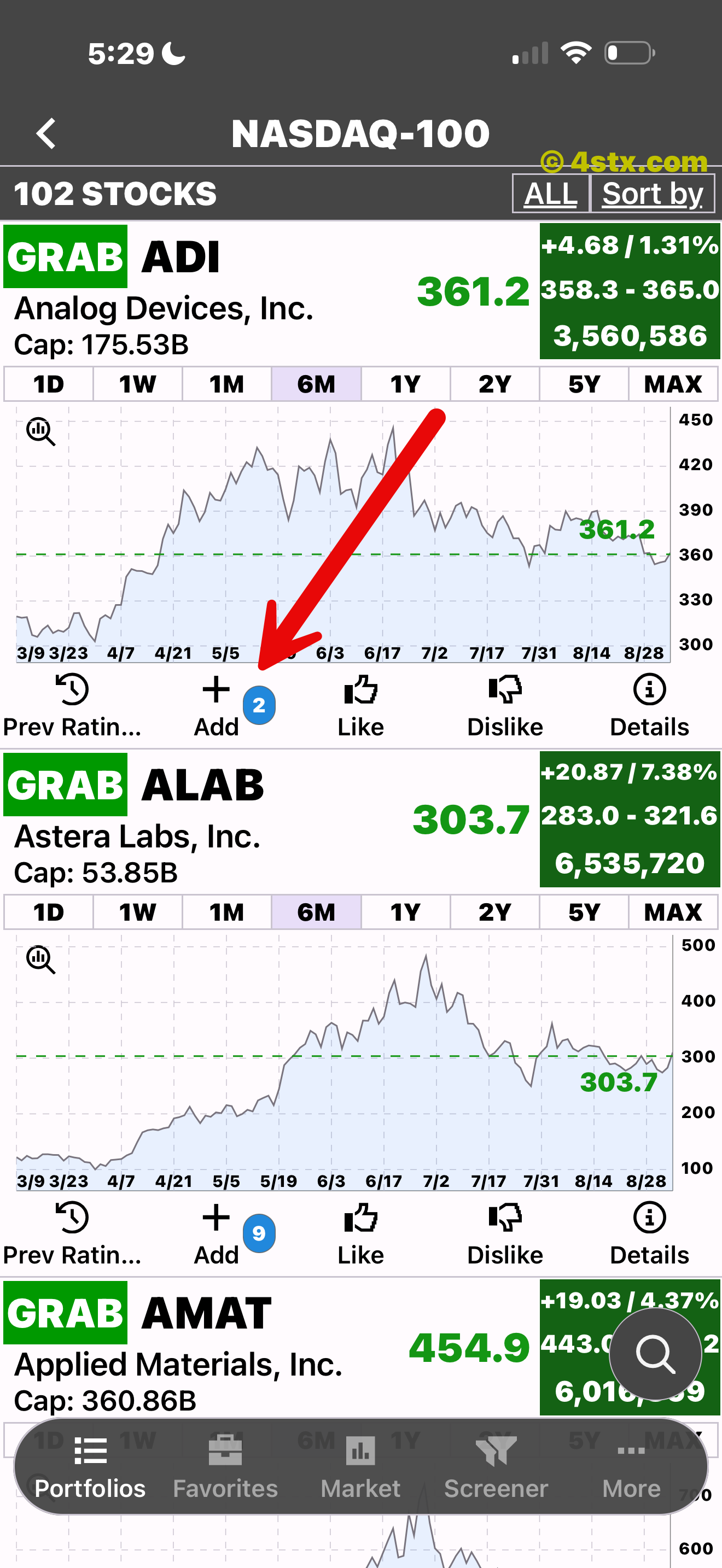
Save the stock to your personal Favorites list.
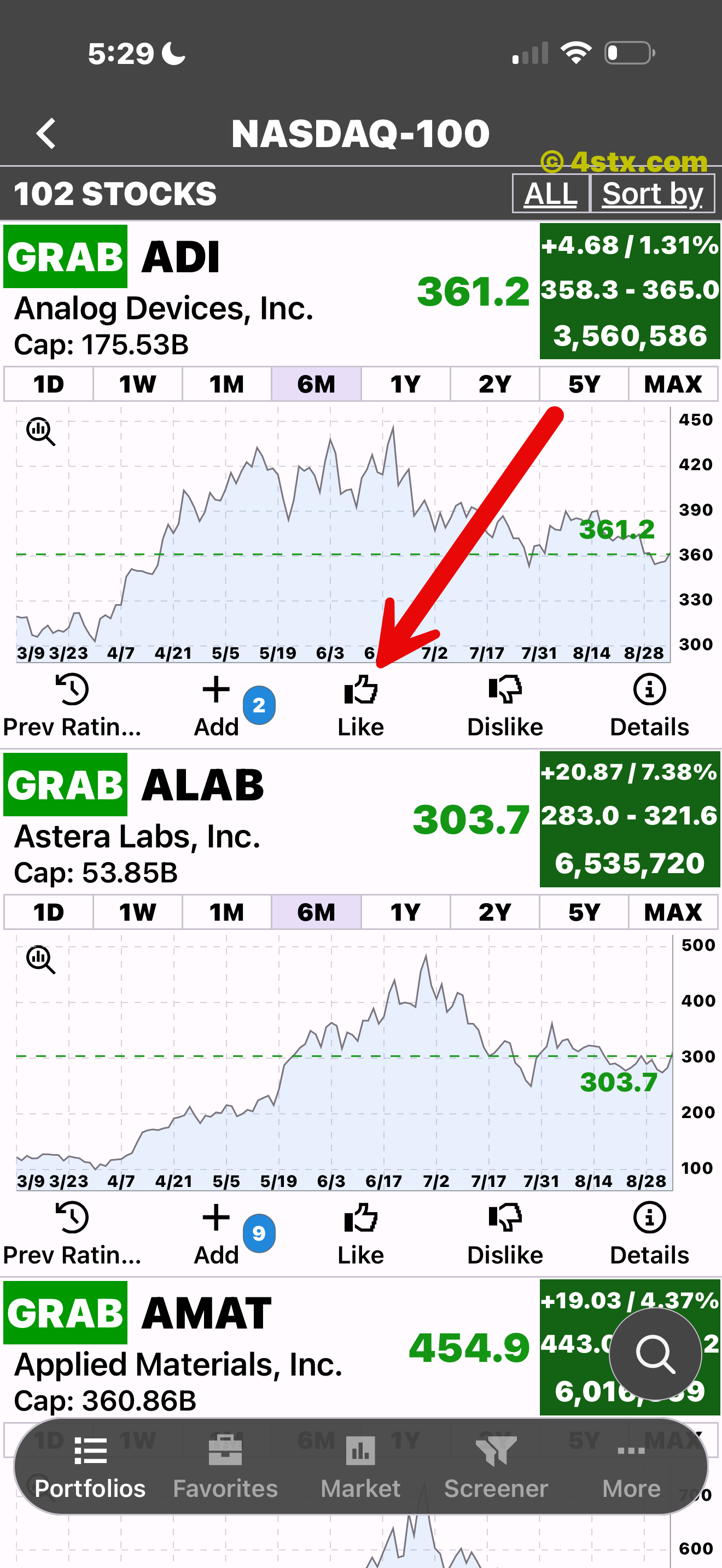
Record a positive personal reaction to the stock.
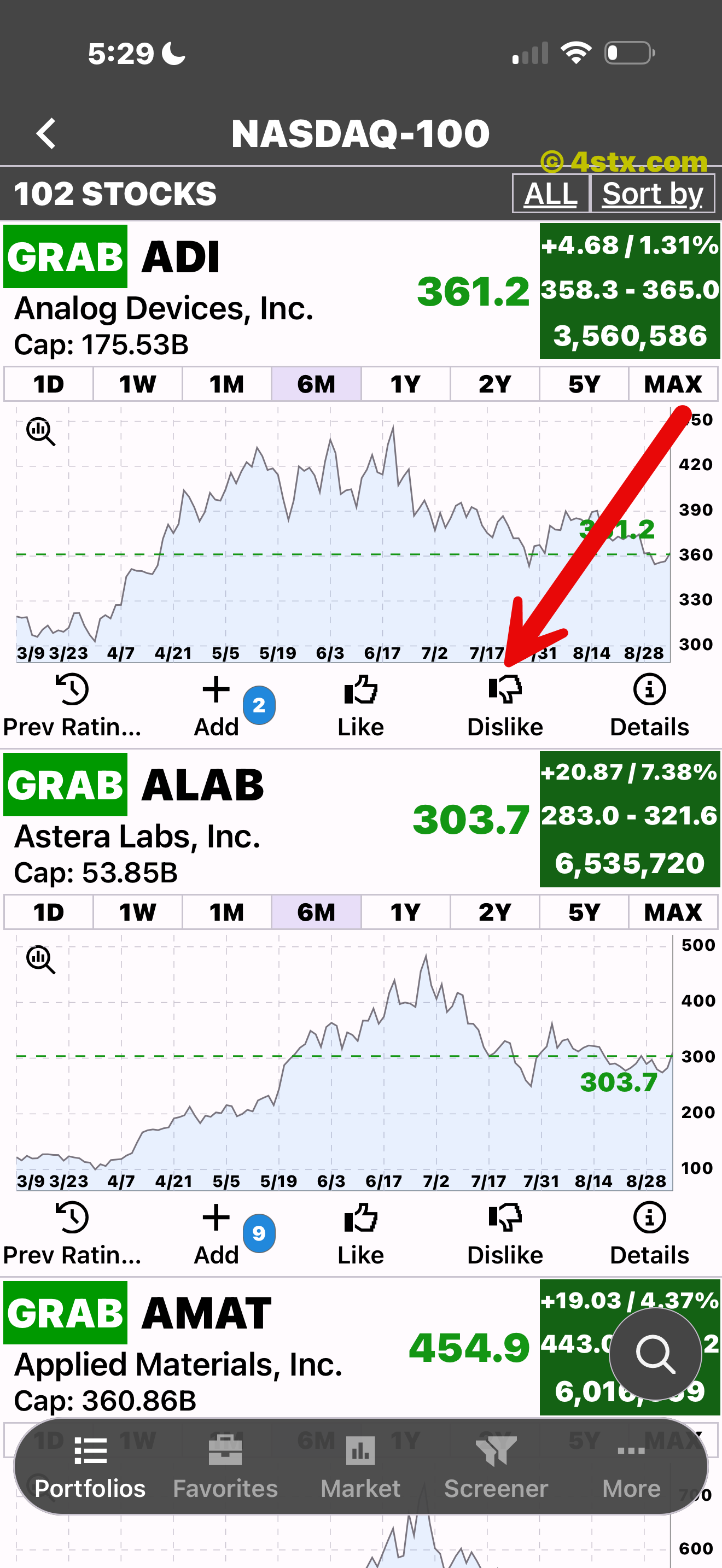
Keep a separate list of stocks you do not favor.
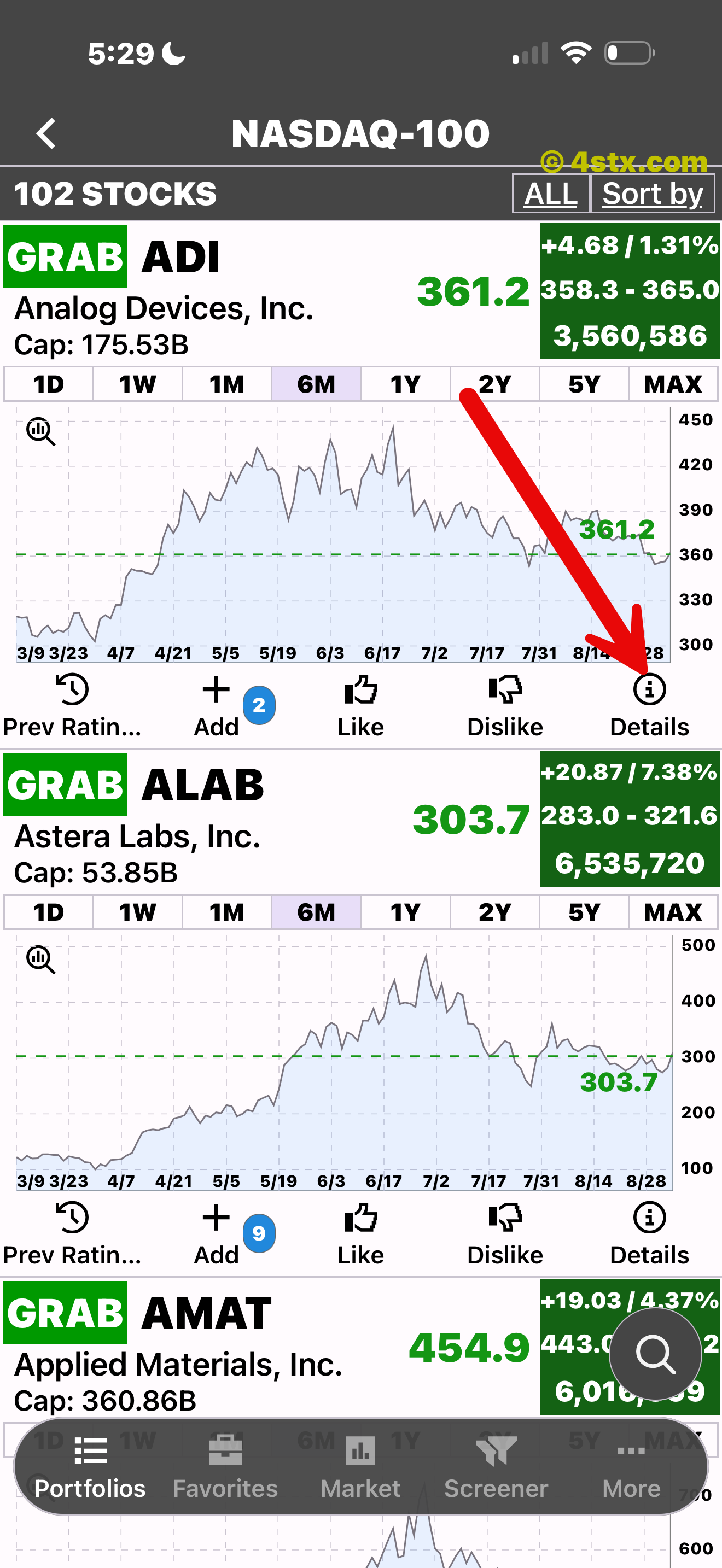
Open Key Data, News, and the company Profile.
Ratings, defined
StockRank defines each rating in its Support guide. Previous Ratings keeps dated calls, the price at the time, later movement, and the chart together—positive and negative results included.
A rating-first list
Grab All and Buy All gather stocks by their visible StockRank rating, while each row still opens into the familiar chart, time ranges, rating history, list controls, and Details.
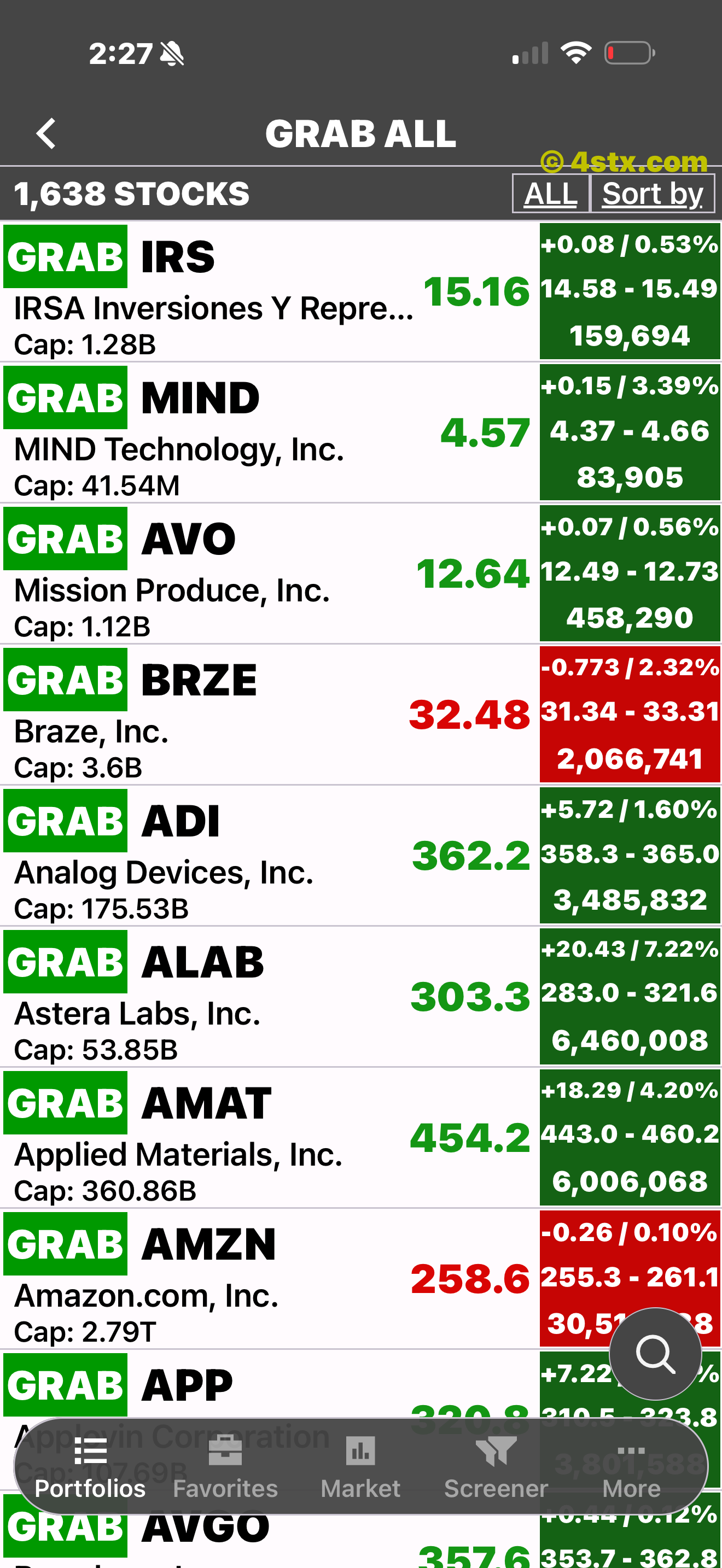
The dedicated list keeps ticker, company, price, move, range, volume, and market cap together.
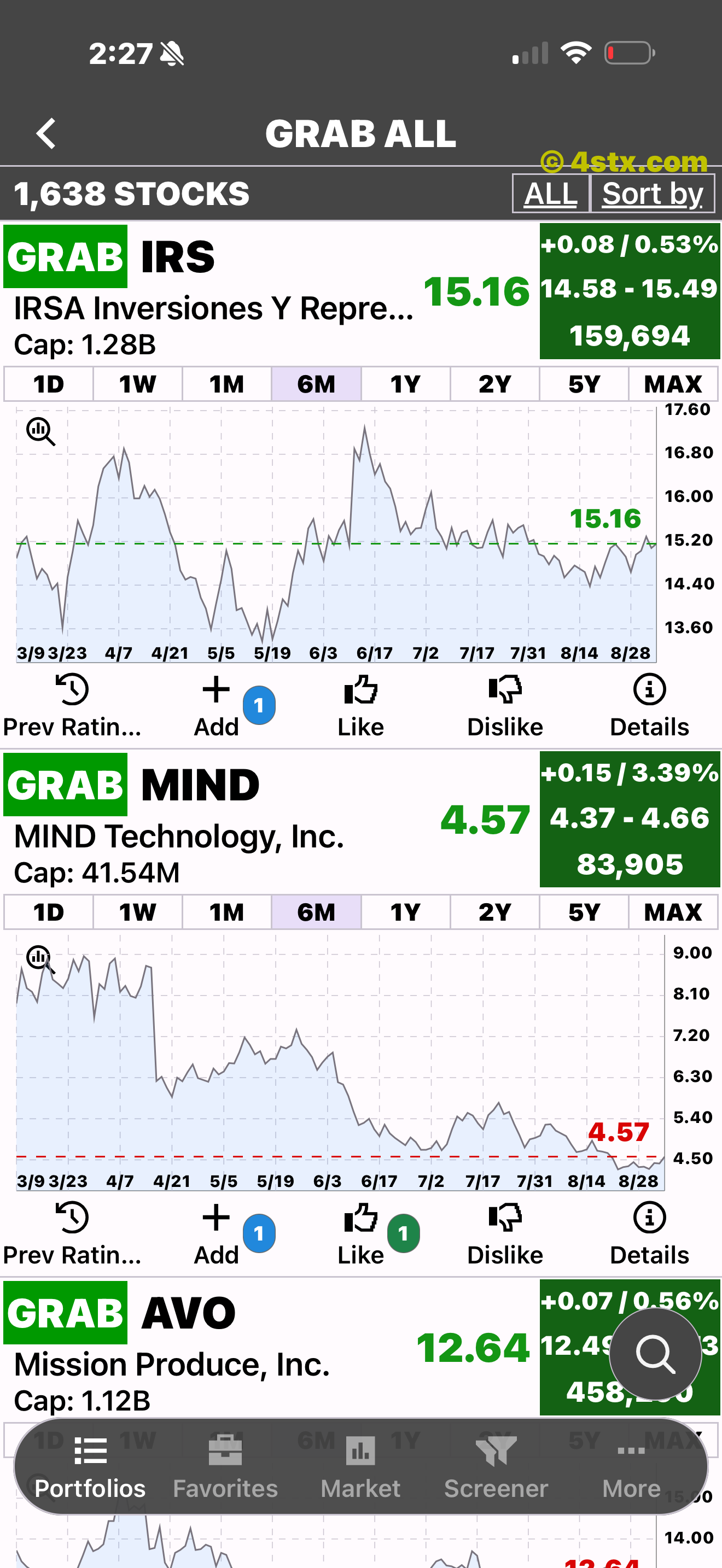
Open a row to see its chart, time ranges, history, list actions, and Details.
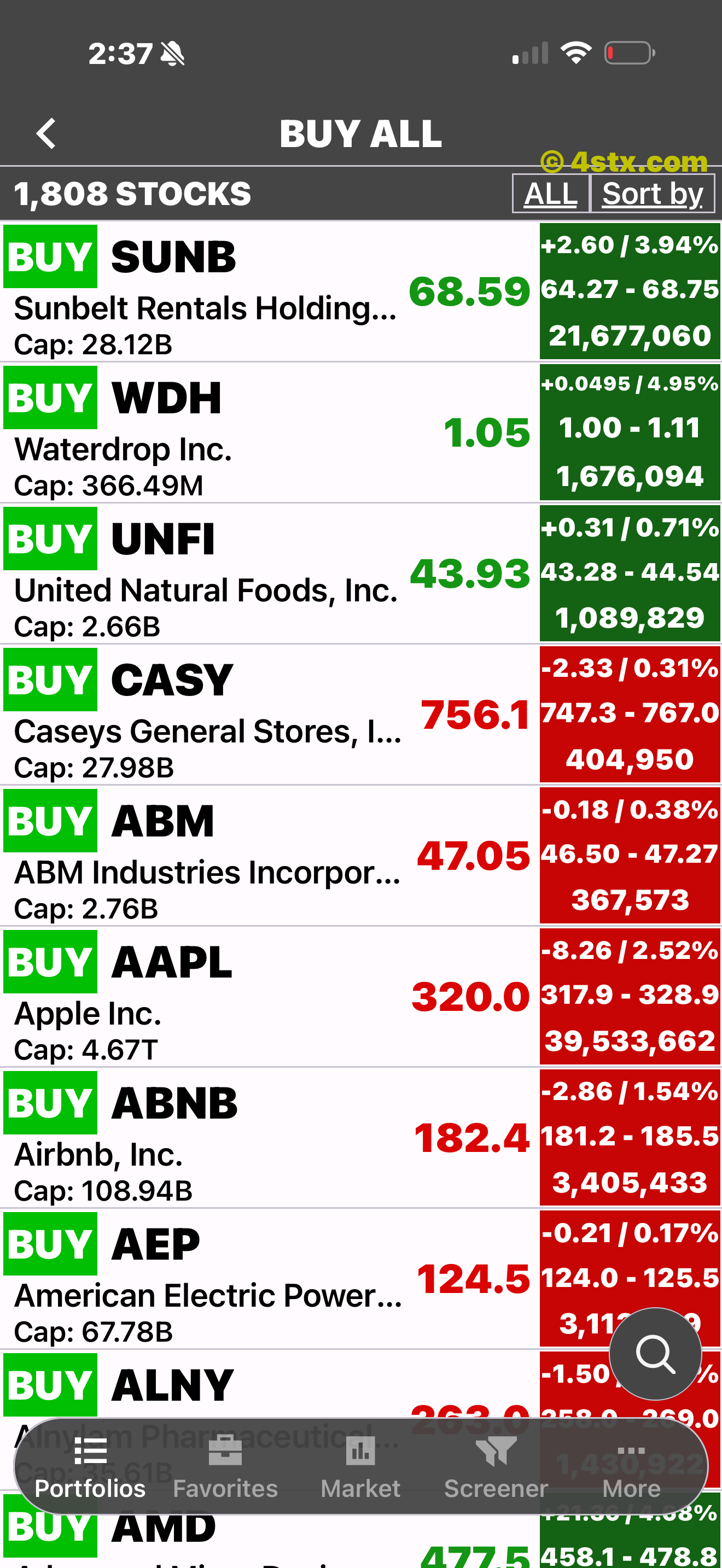
Buy All provides the same rating-first route for the visible BUY category.
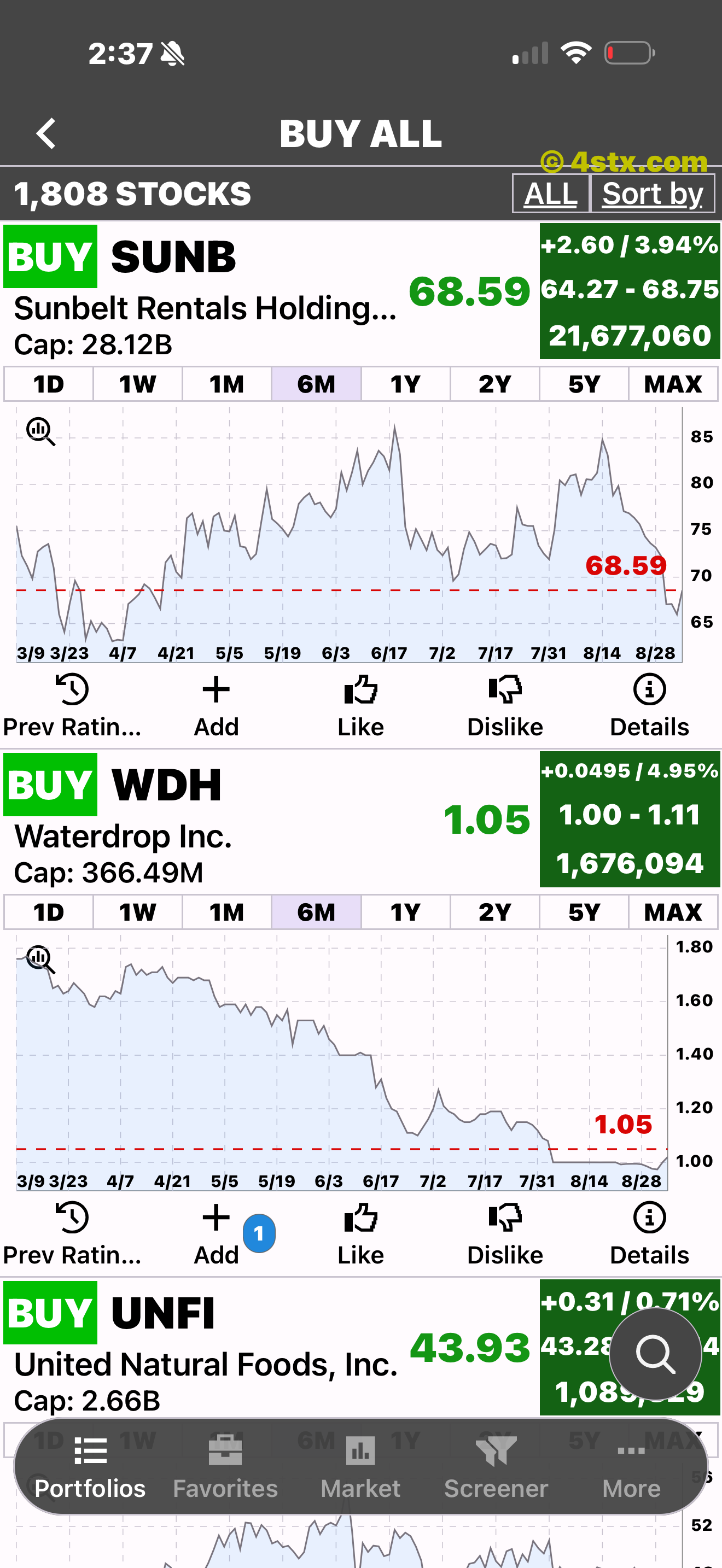
The standard chart, ranges, history, list actions, and Details stay available.
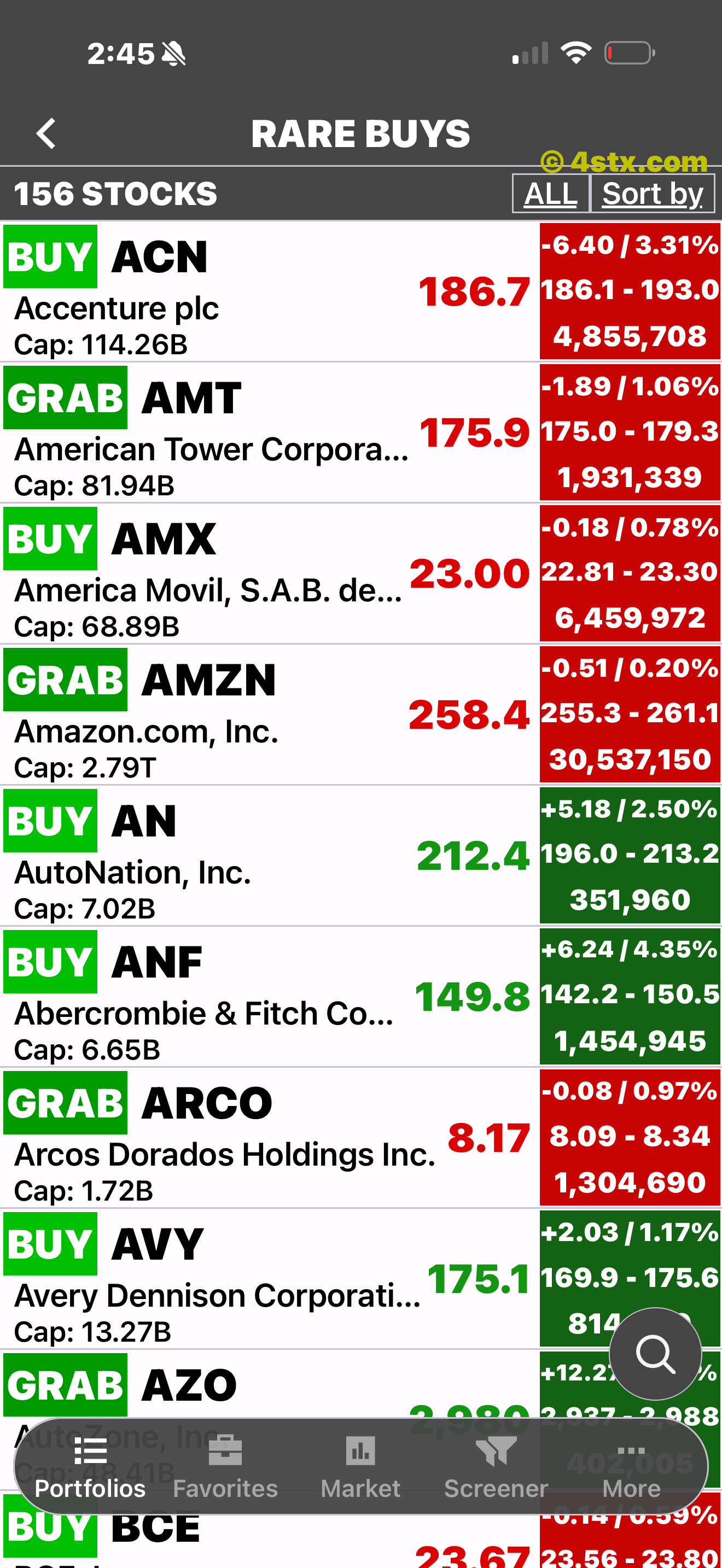
The named category offers another route into stocks with a visible positive-rating history.
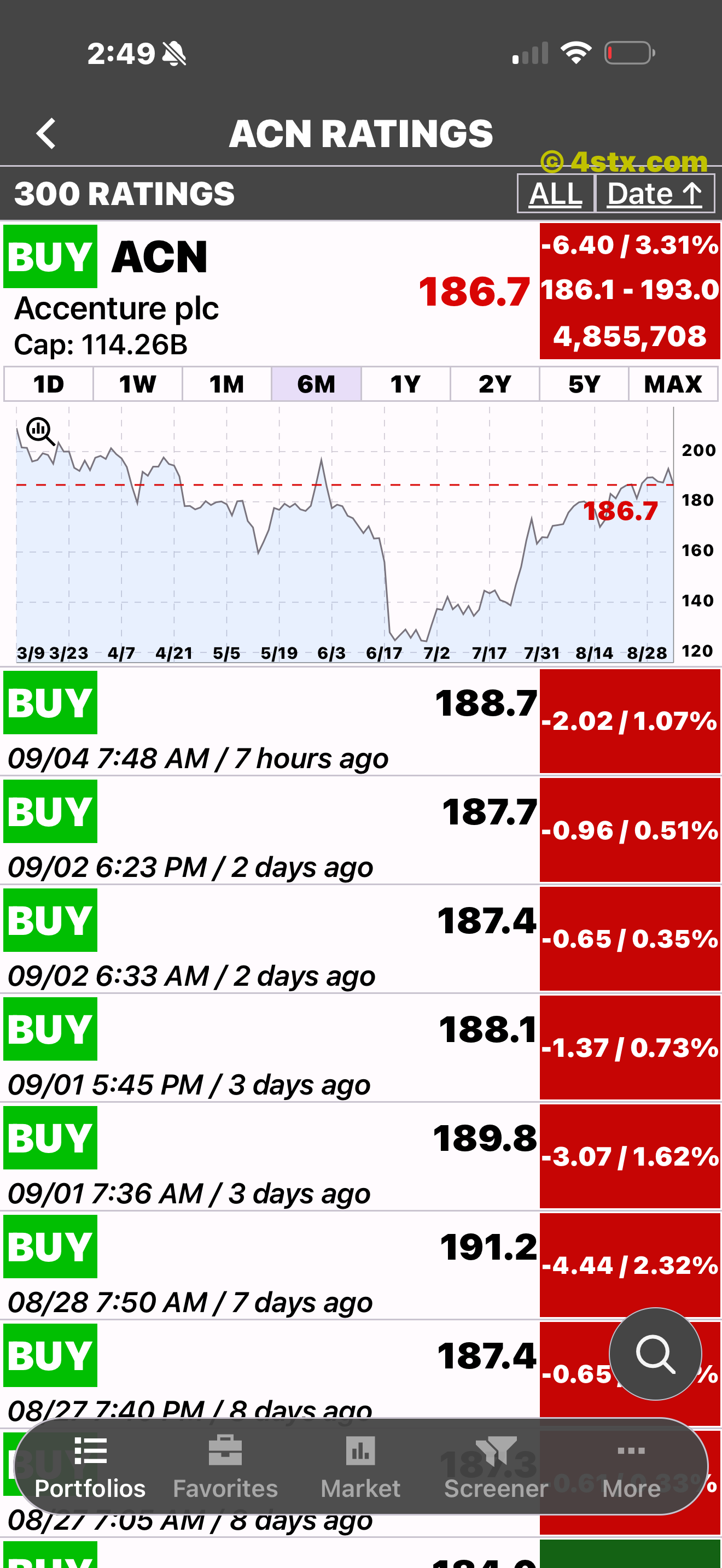
Dated calls and mixed subsequent results keep the longer rating run in context.
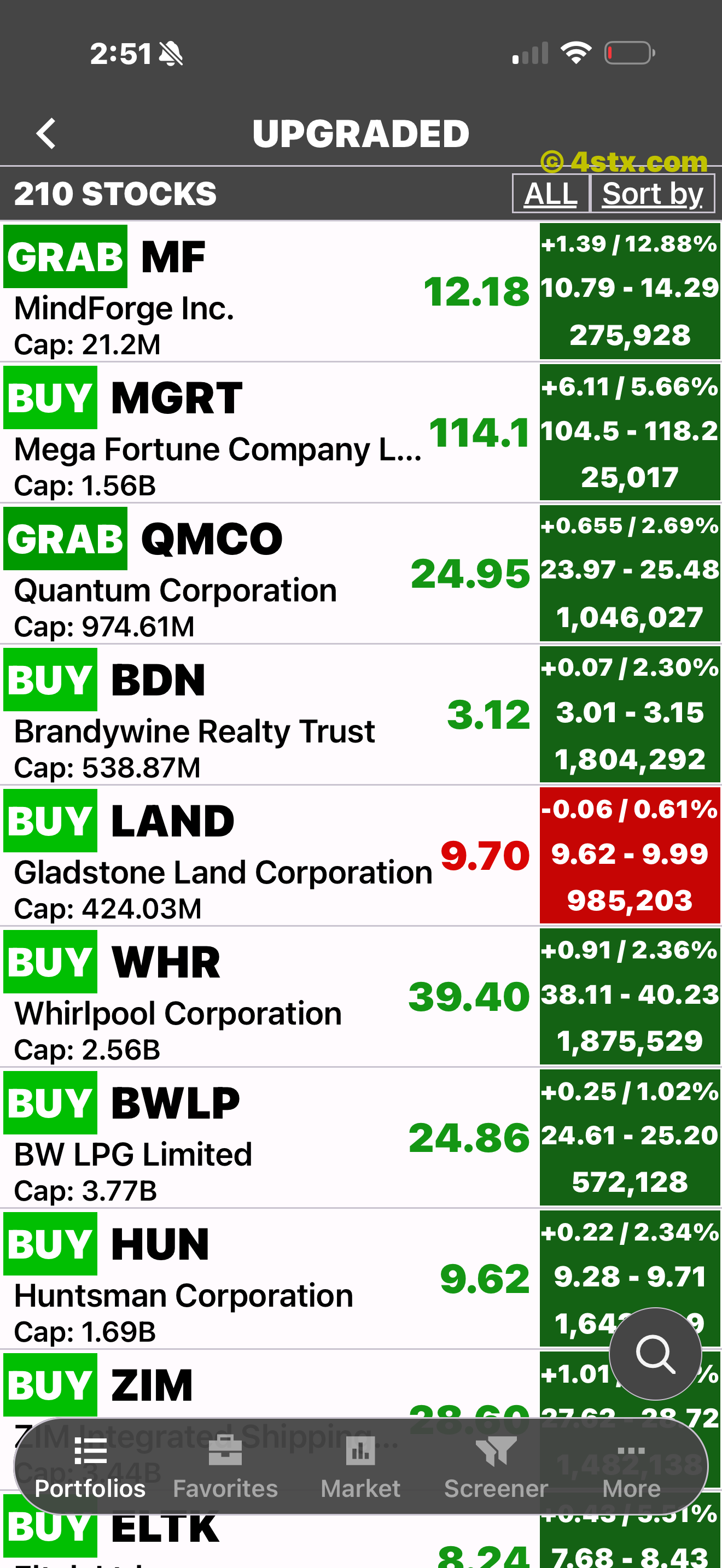
Upgraded highlights stocks whose visible history moved from SELL or HOLD to BUY or GRAB.
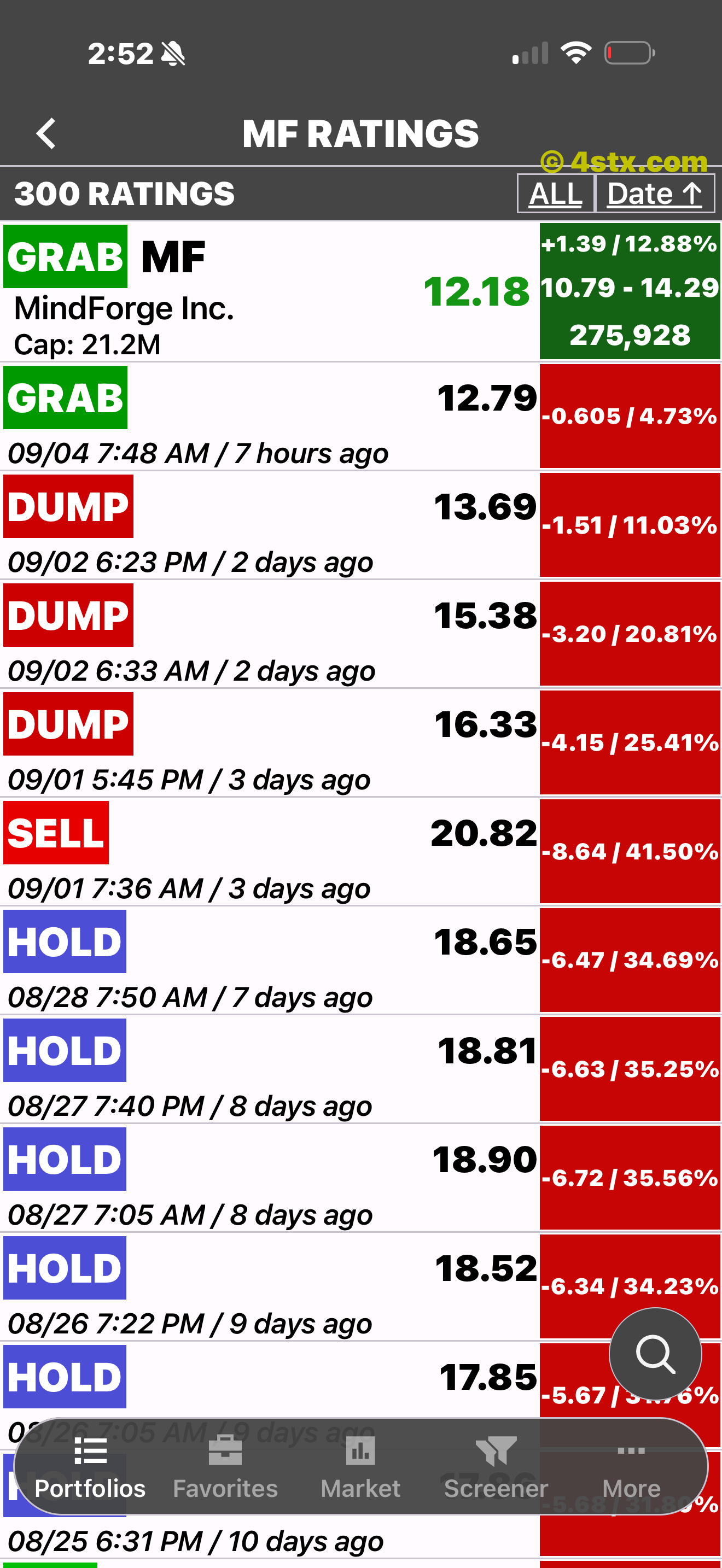
Open the dated record to see earlier ratings, prices, and mixed subsequent results.
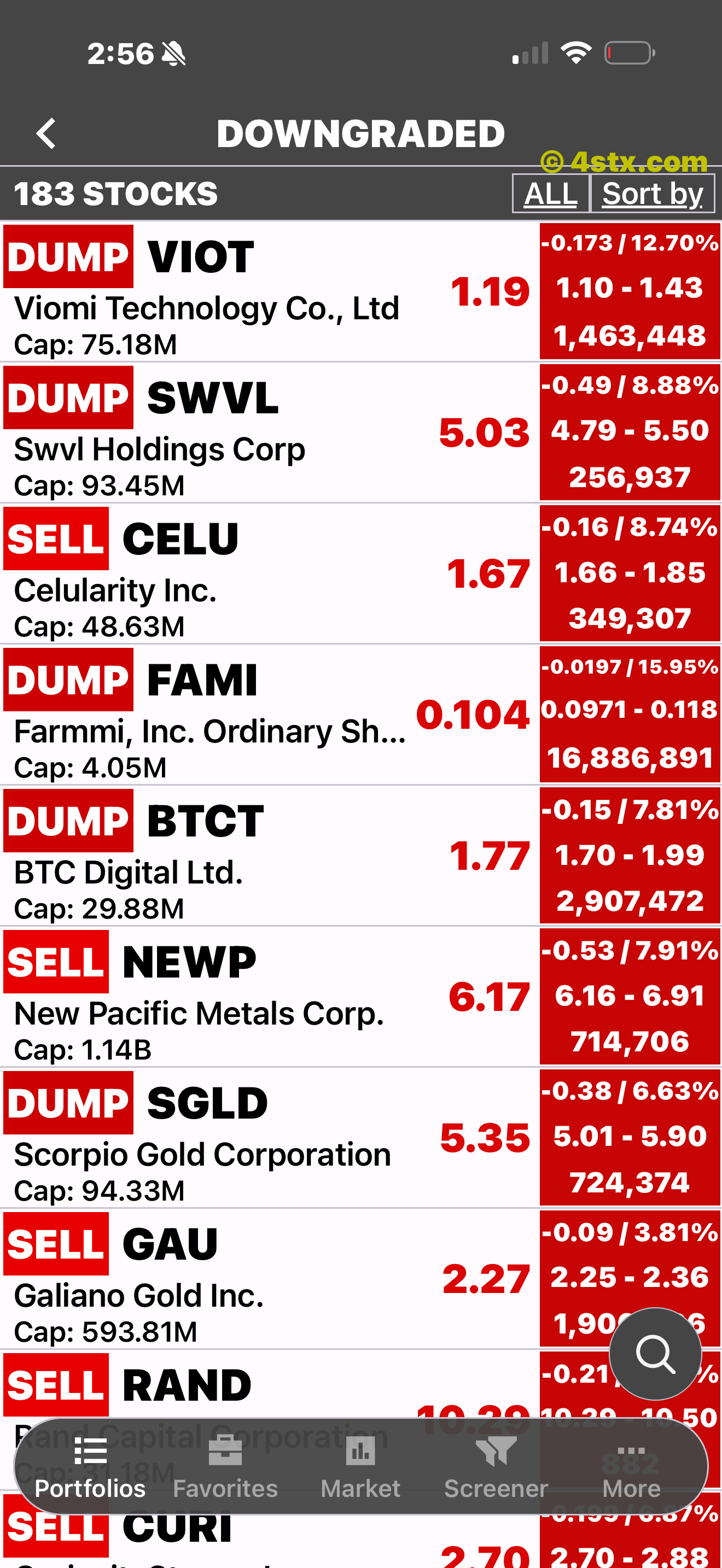
Downgraded highlights stocks whose visible history moved from BUY or GRAB to SELL or DUMP.
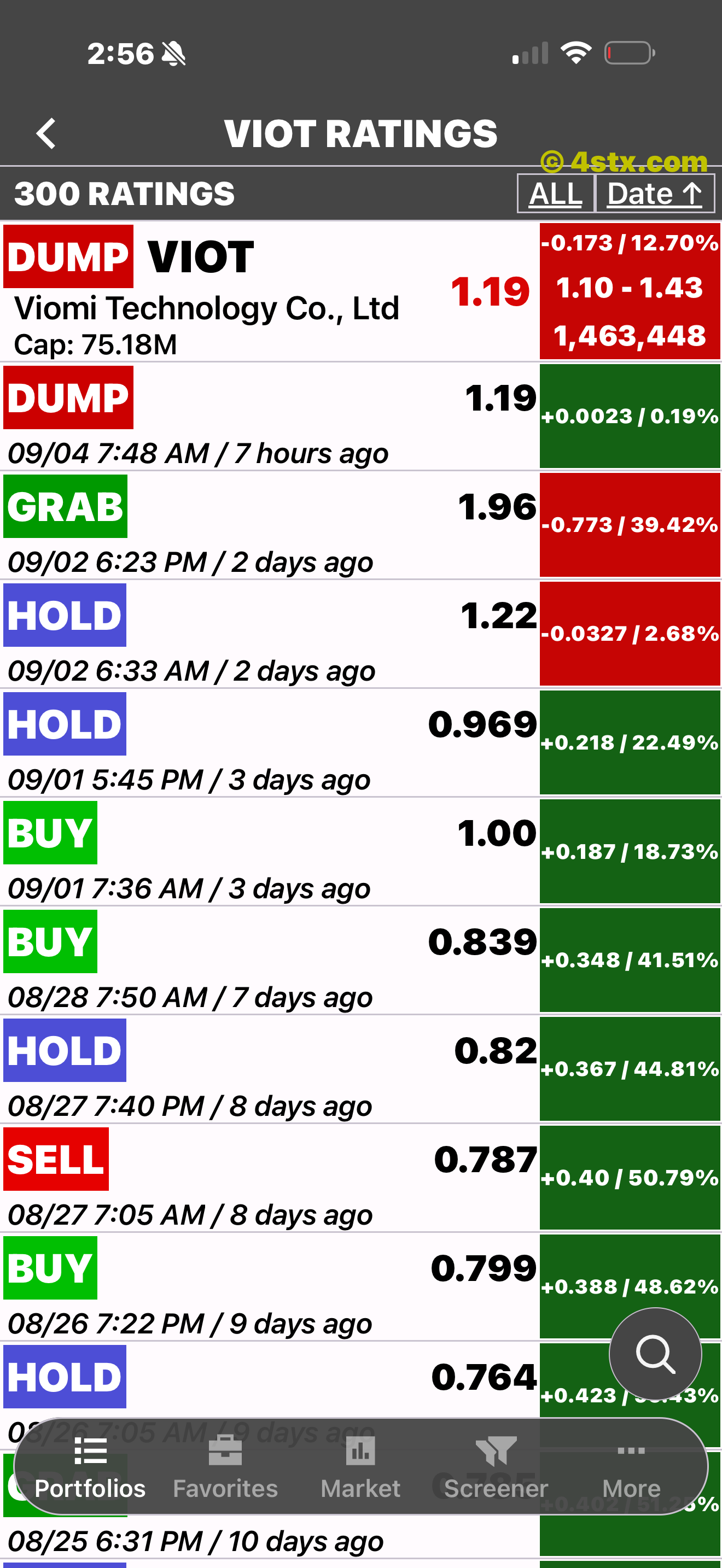
The dated record keeps the stronger prior ratings, prices, and mixed subsequent results visible.
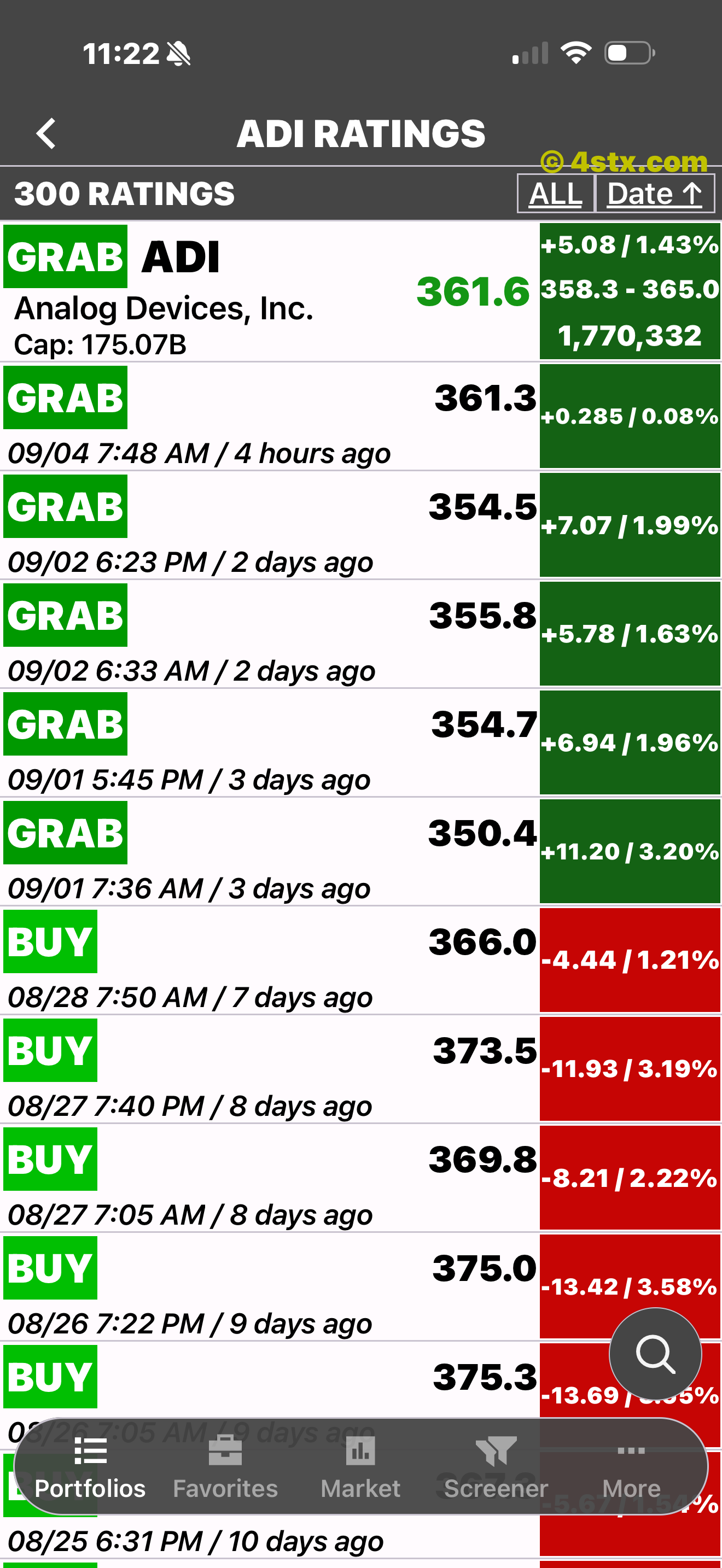

History stays visible. The record includes mixed outcomes; StockRank does not hide the red ones.
Go beyond the chart
Review fundamentals and valuation context, read ticker-specific headlines, or understand the company behind the symbol.
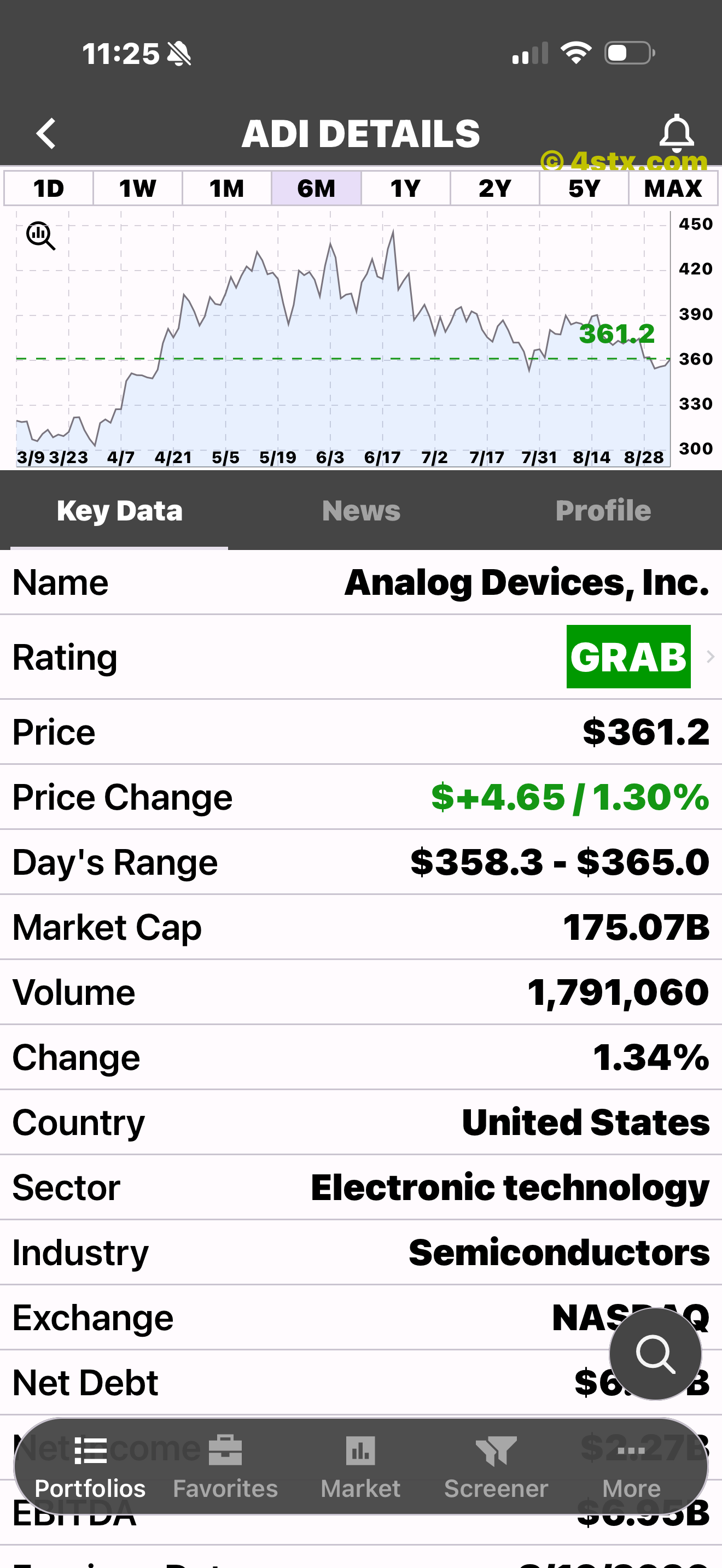
The chart opens directly into a structured three-tab details area.
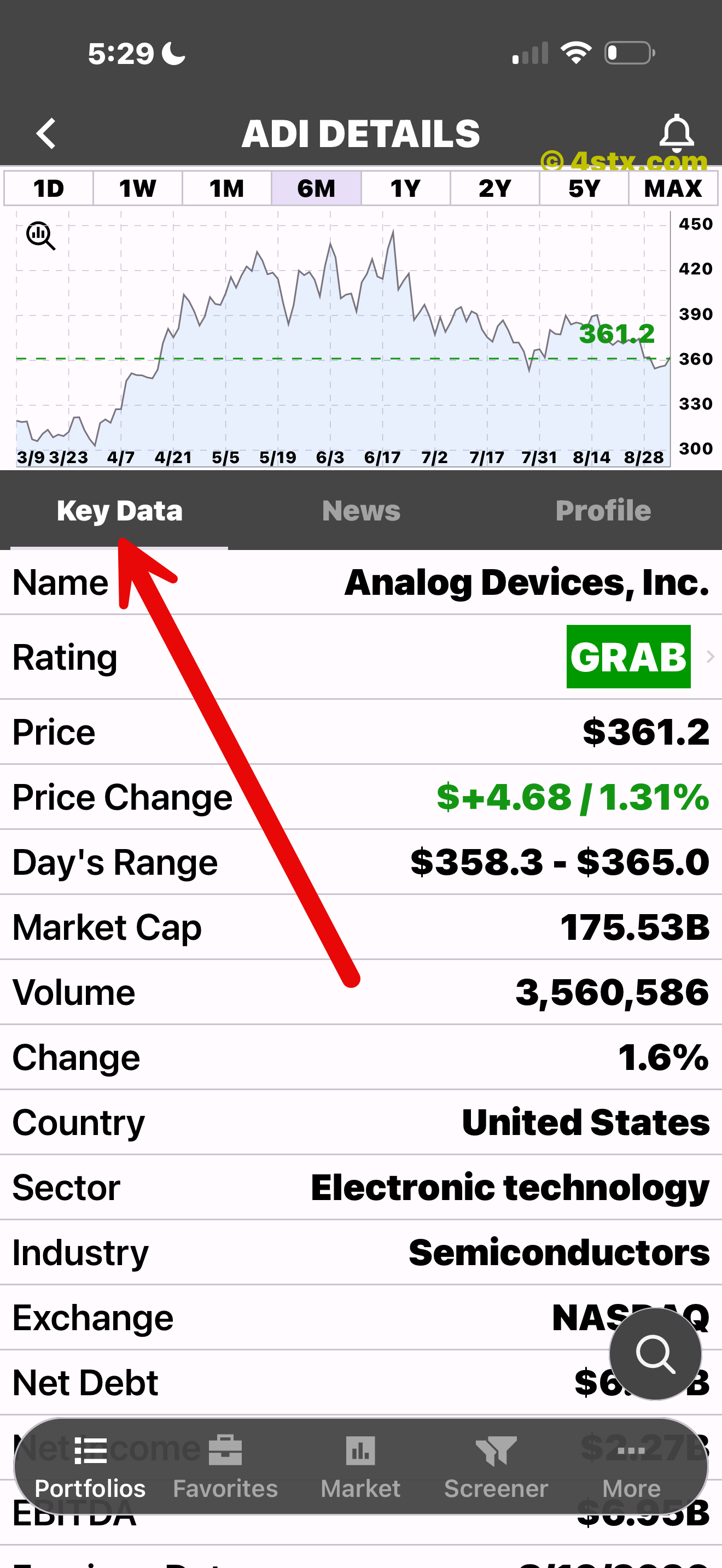
Company, valuation, performance, range, and technical fields in one place.
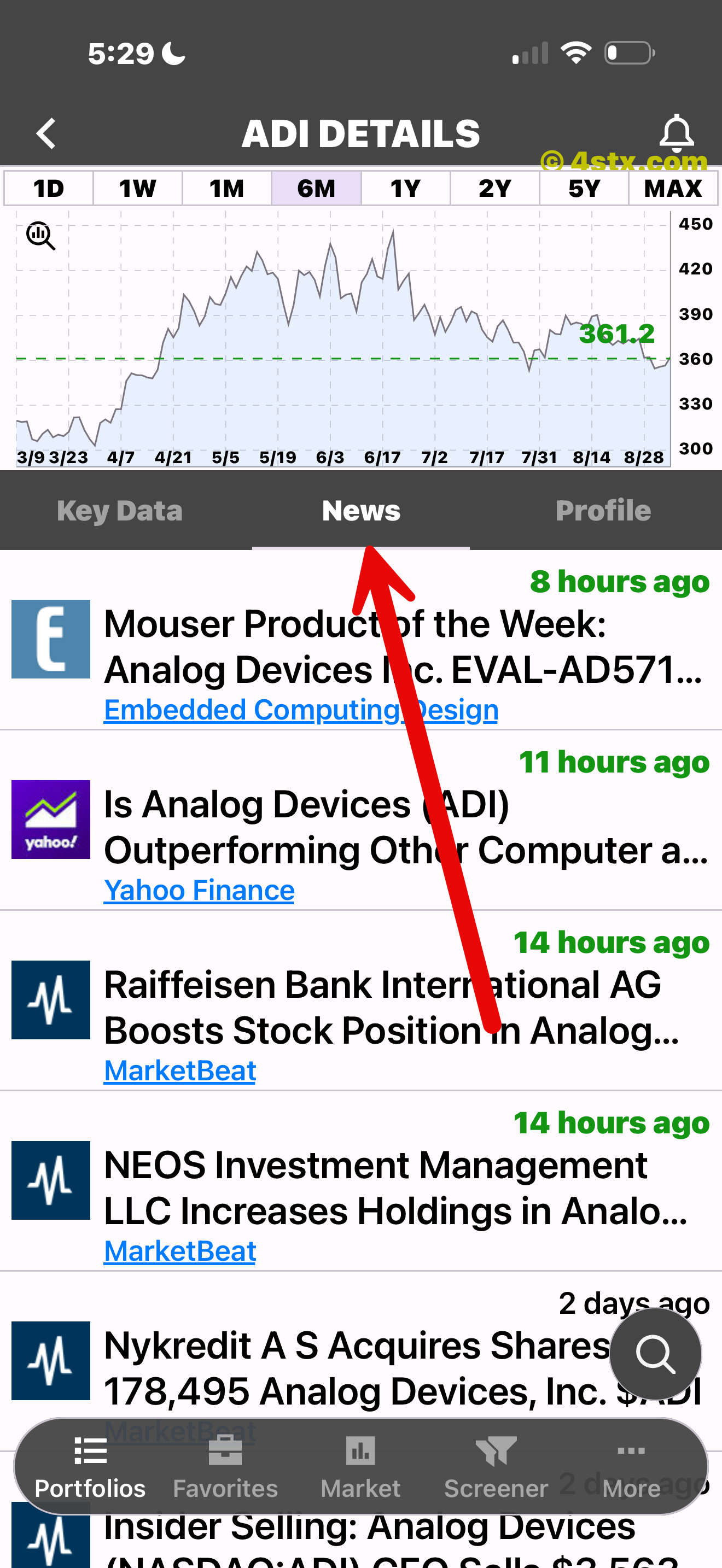
Recent headlines stay attached to the stock you are reviewing.
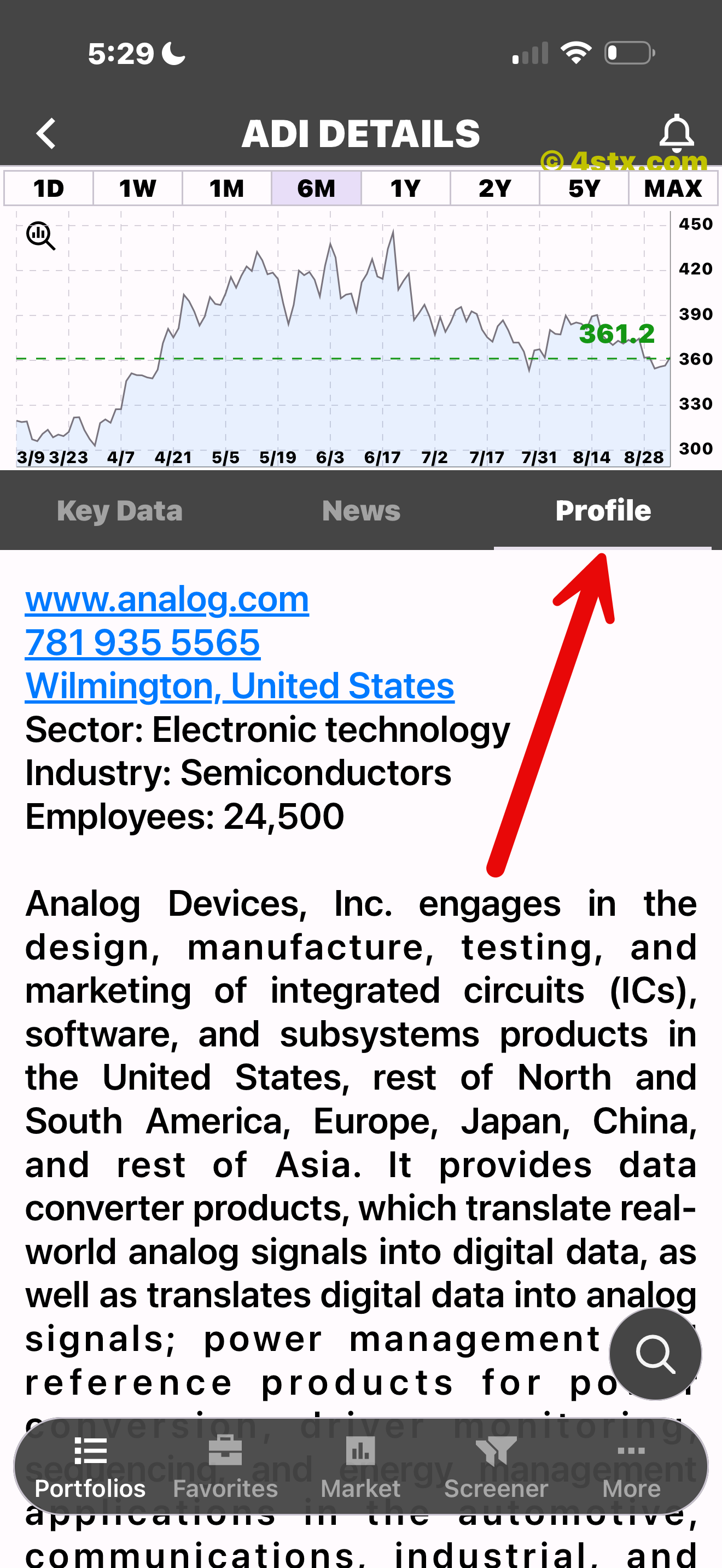
See company details, classification, workforce, and business context.
Your rules, saved
Combine multiple criteria, watch the estimated match count change, name the filter, and reopen its results in the same familiar stock-list workflow.
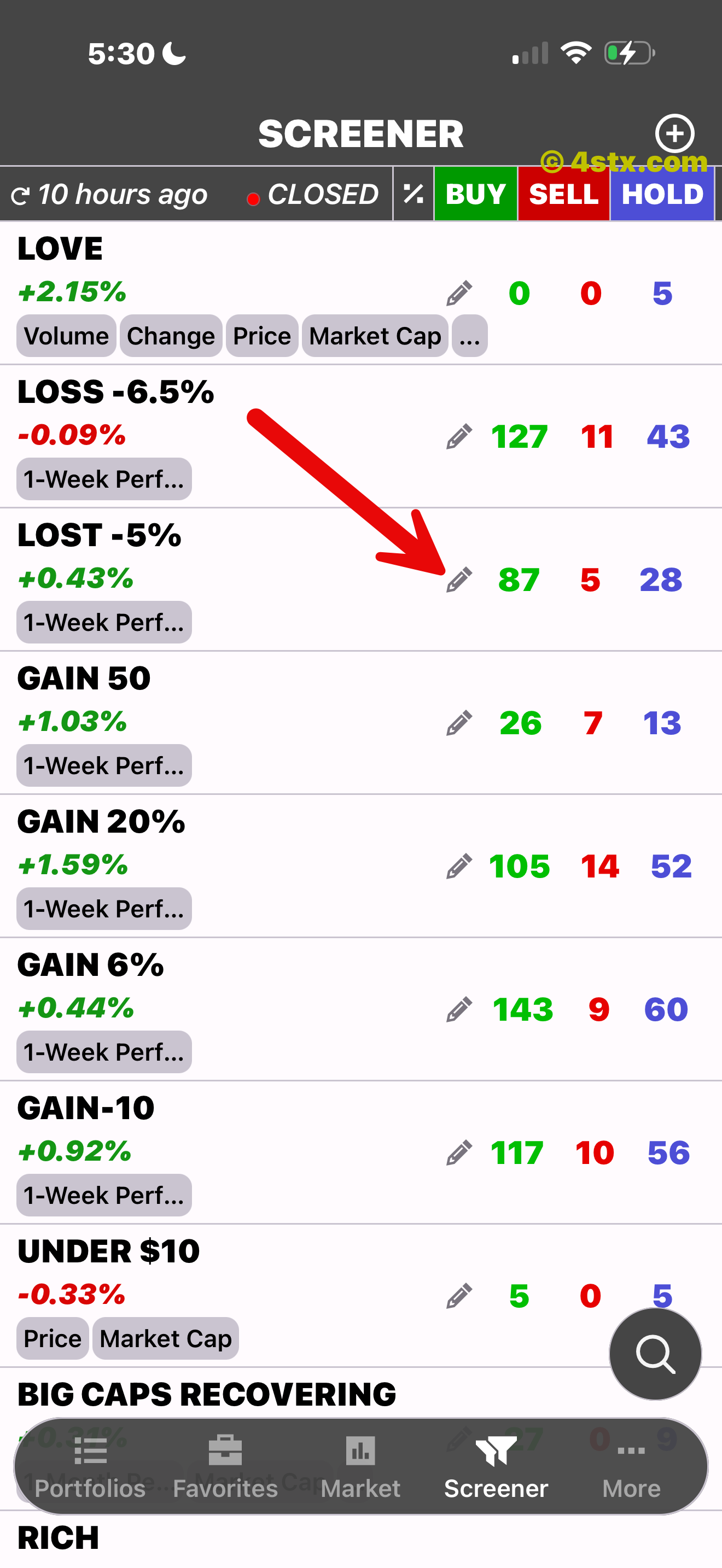
Use the pencil to reopen and adjust a saved screen.
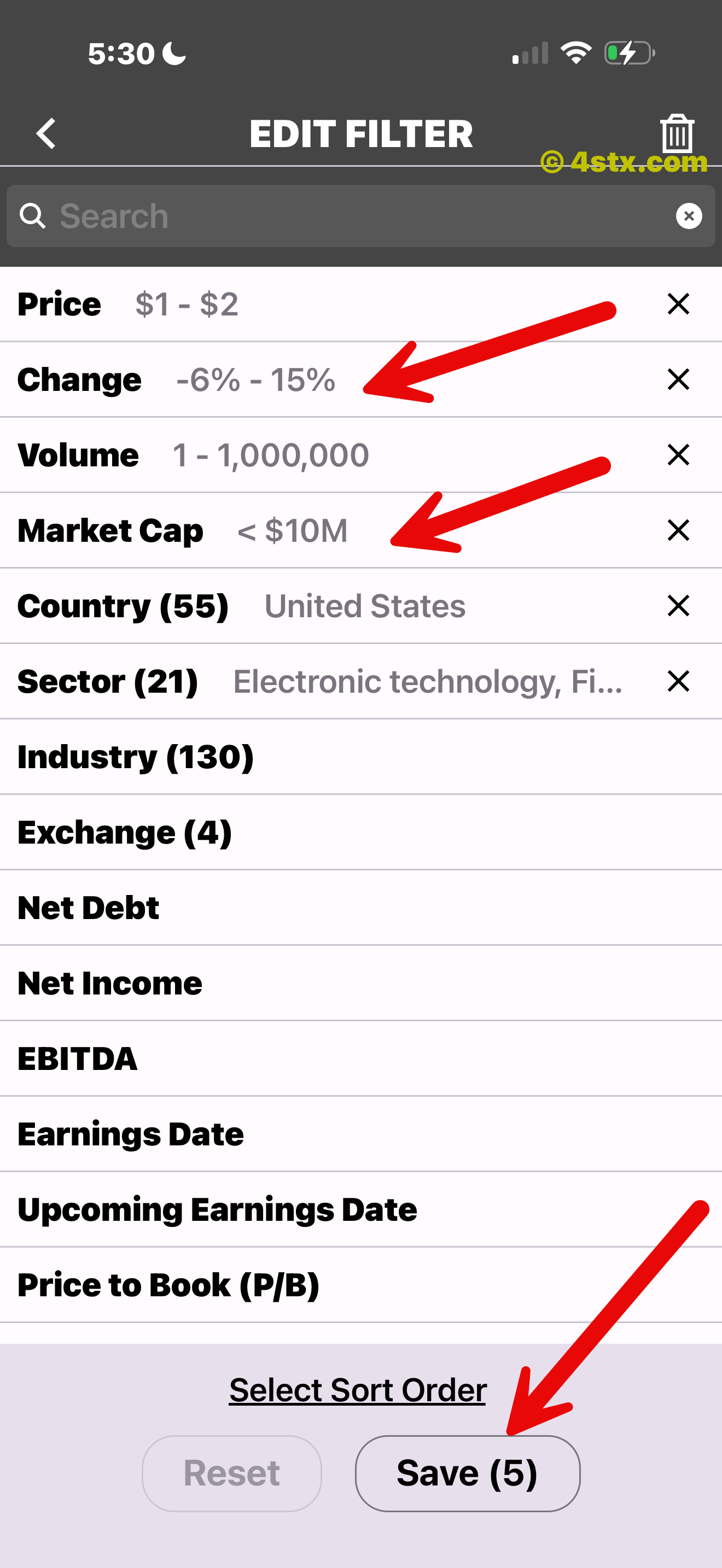
Review the active filters, select a sort order, and save the finished screen.
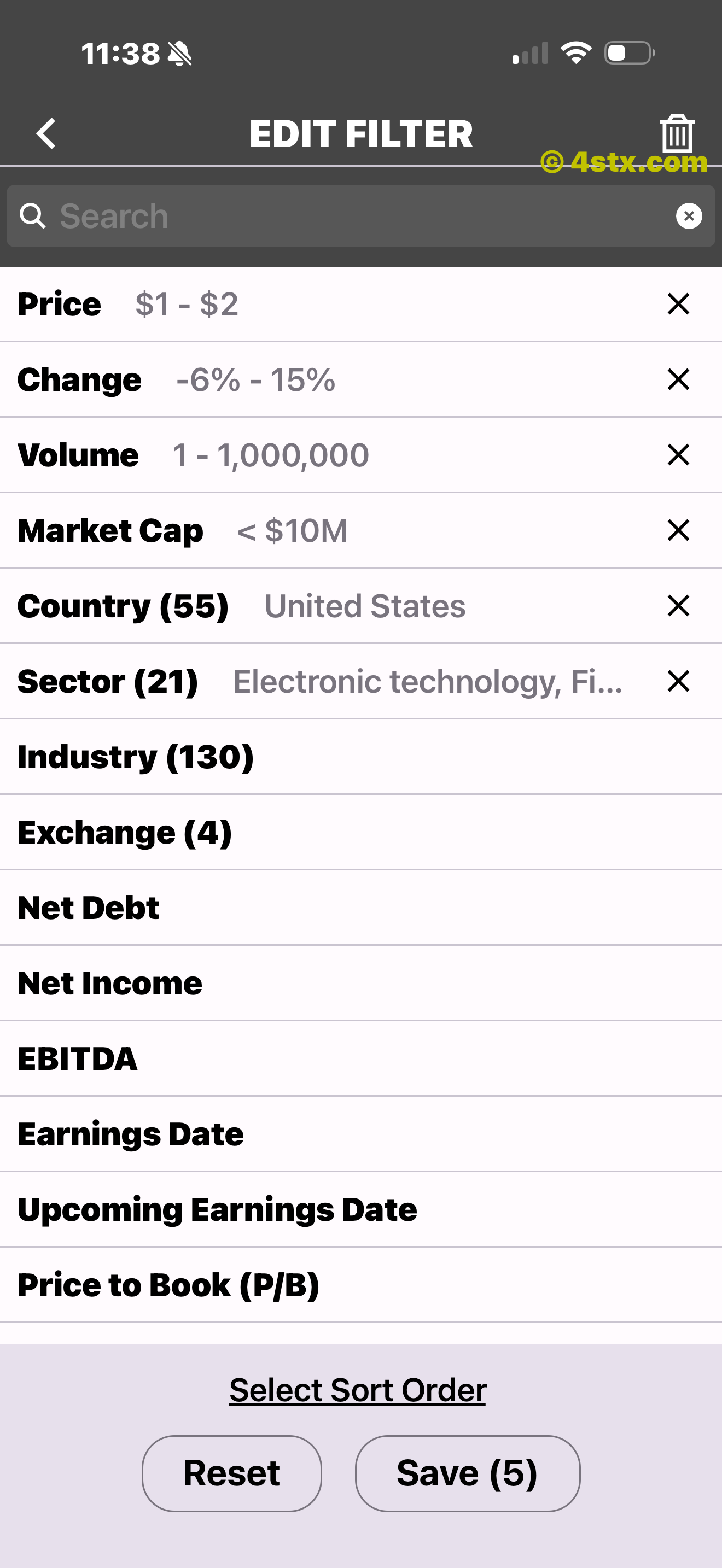
The estimated result count updates before you save.
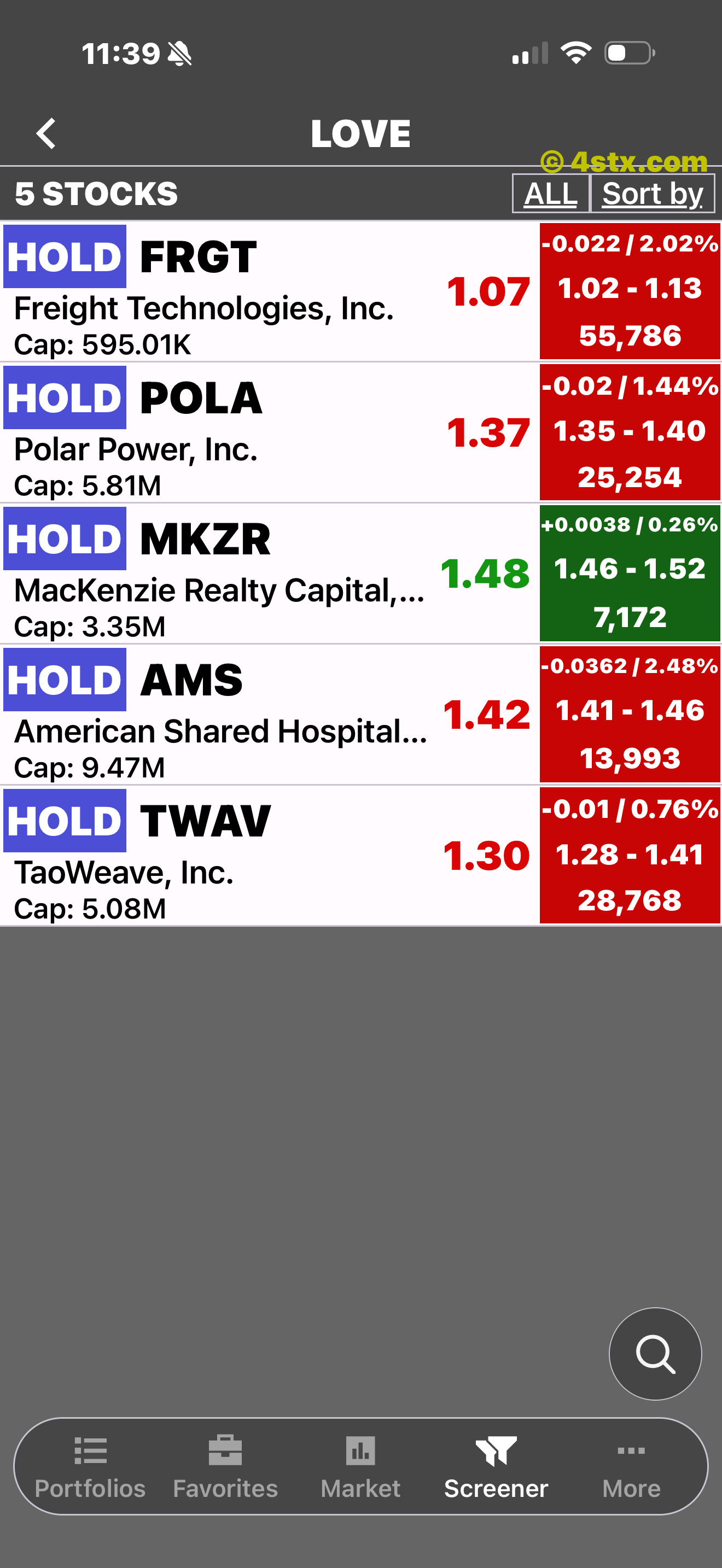
Results behave like a focused portfolio of matching stocks.
Your view is yours
Tap Add beneath an expanded chart to save a stock. Its row turns yellow, Add becomes Remove, and the Favorites tab keeps saved stocks together without changing their StockRank rating.
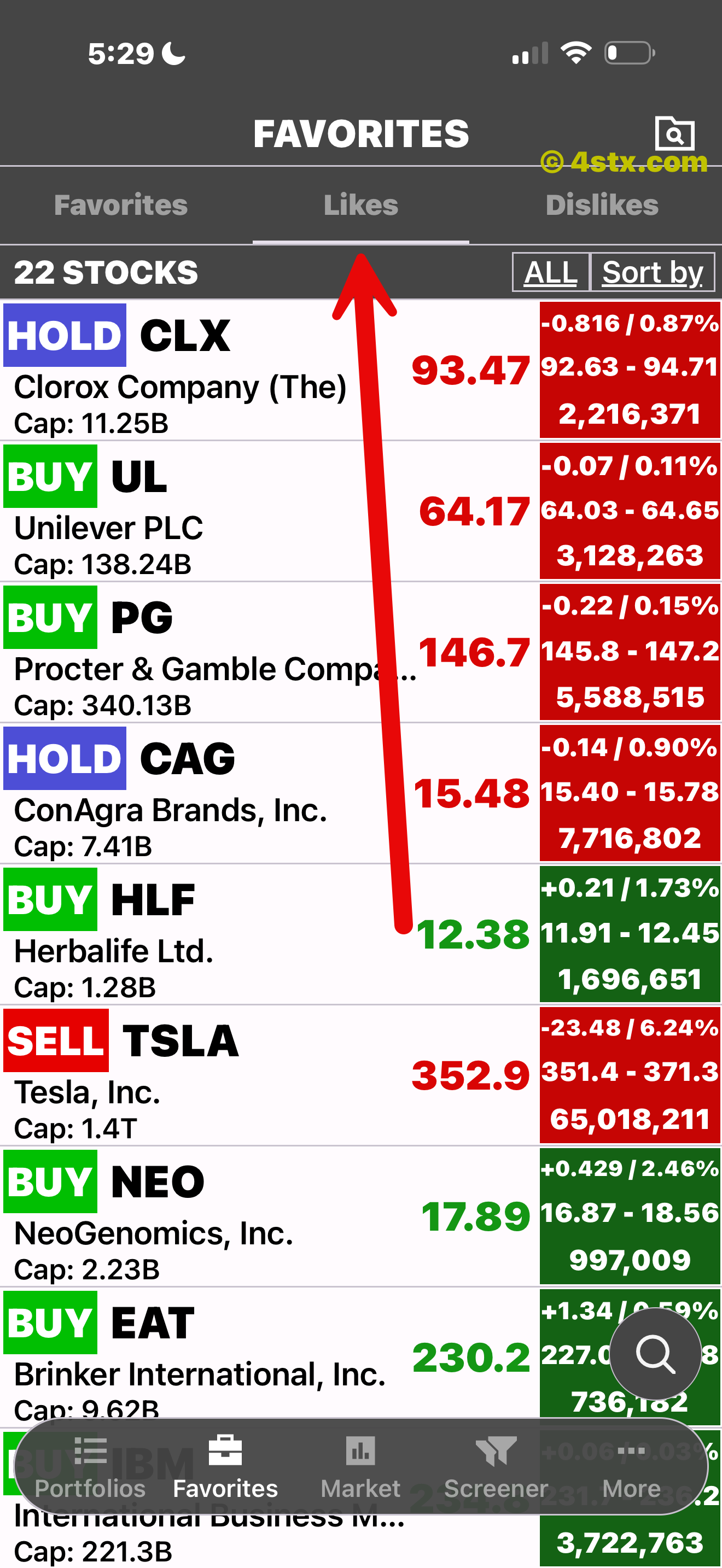

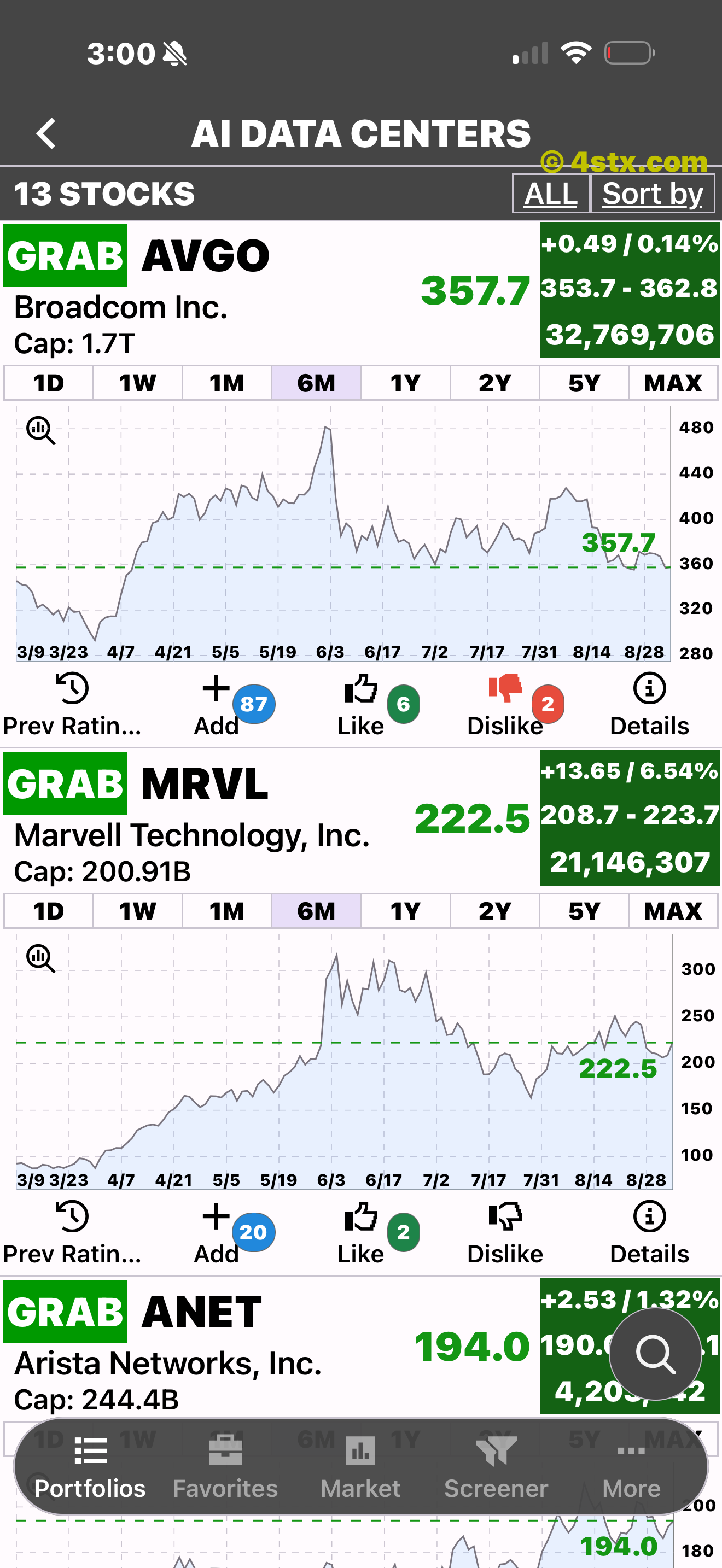
Save a stock directly from the chart-and-actions row.
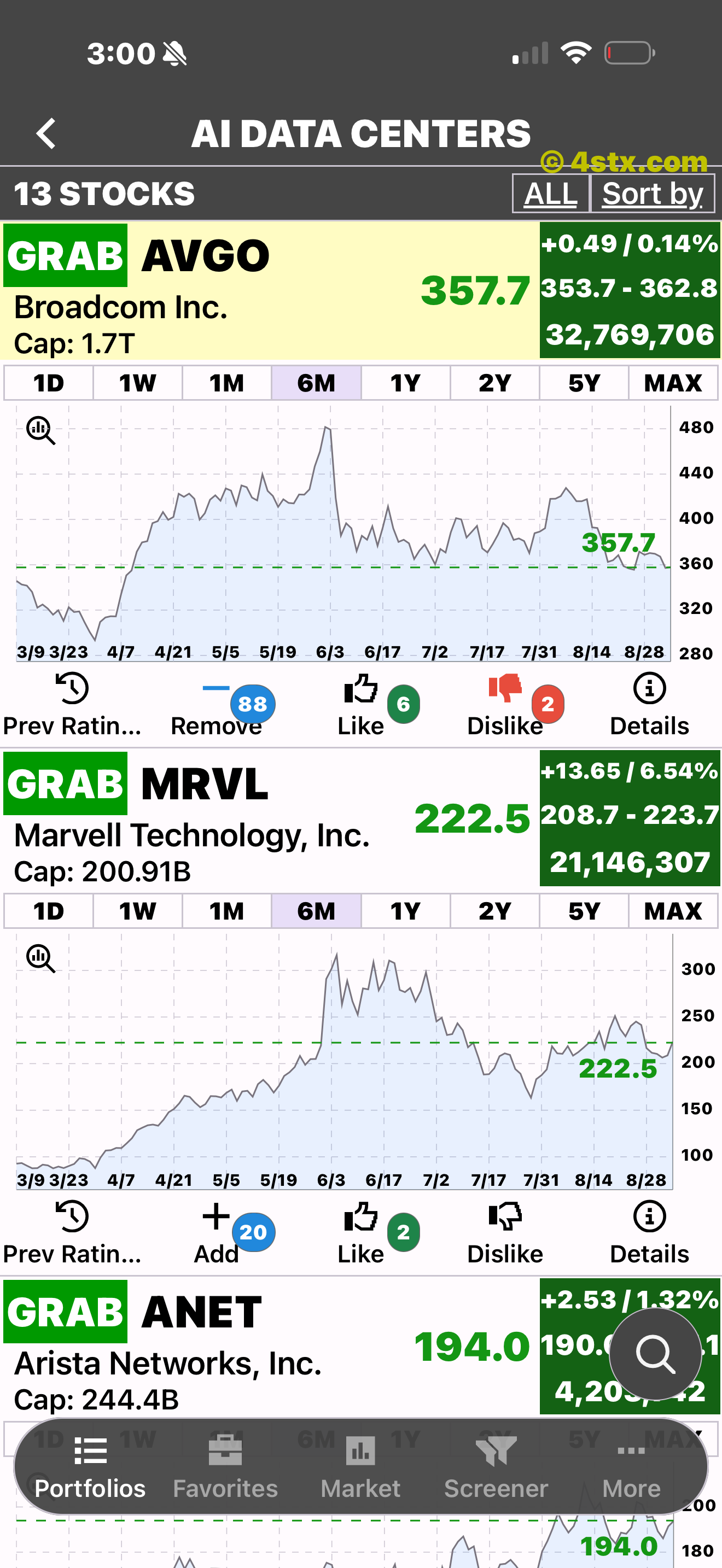
The row turns yellow, the count updates, and Add becomes Remove.
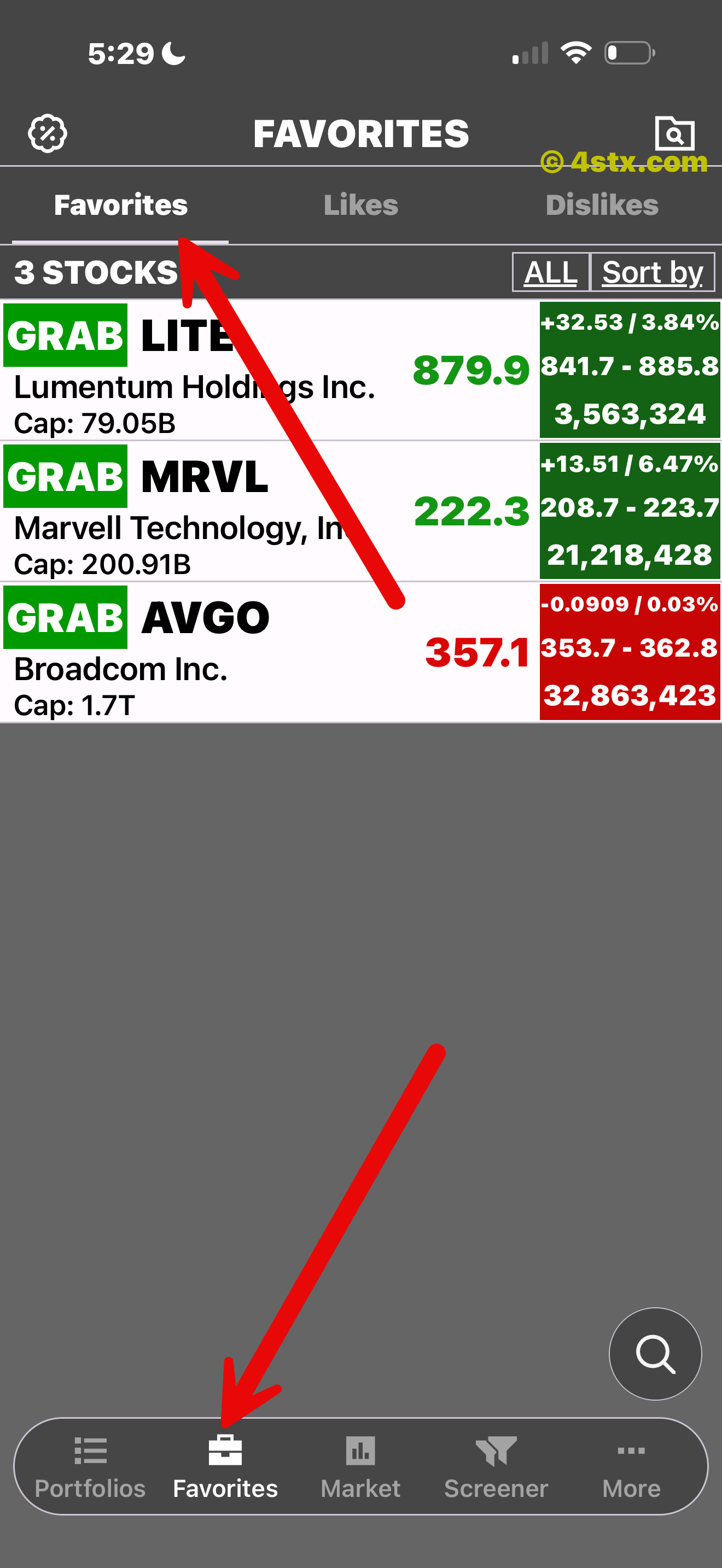
The bottom navigation leads to a dedicated list of saved stocks.
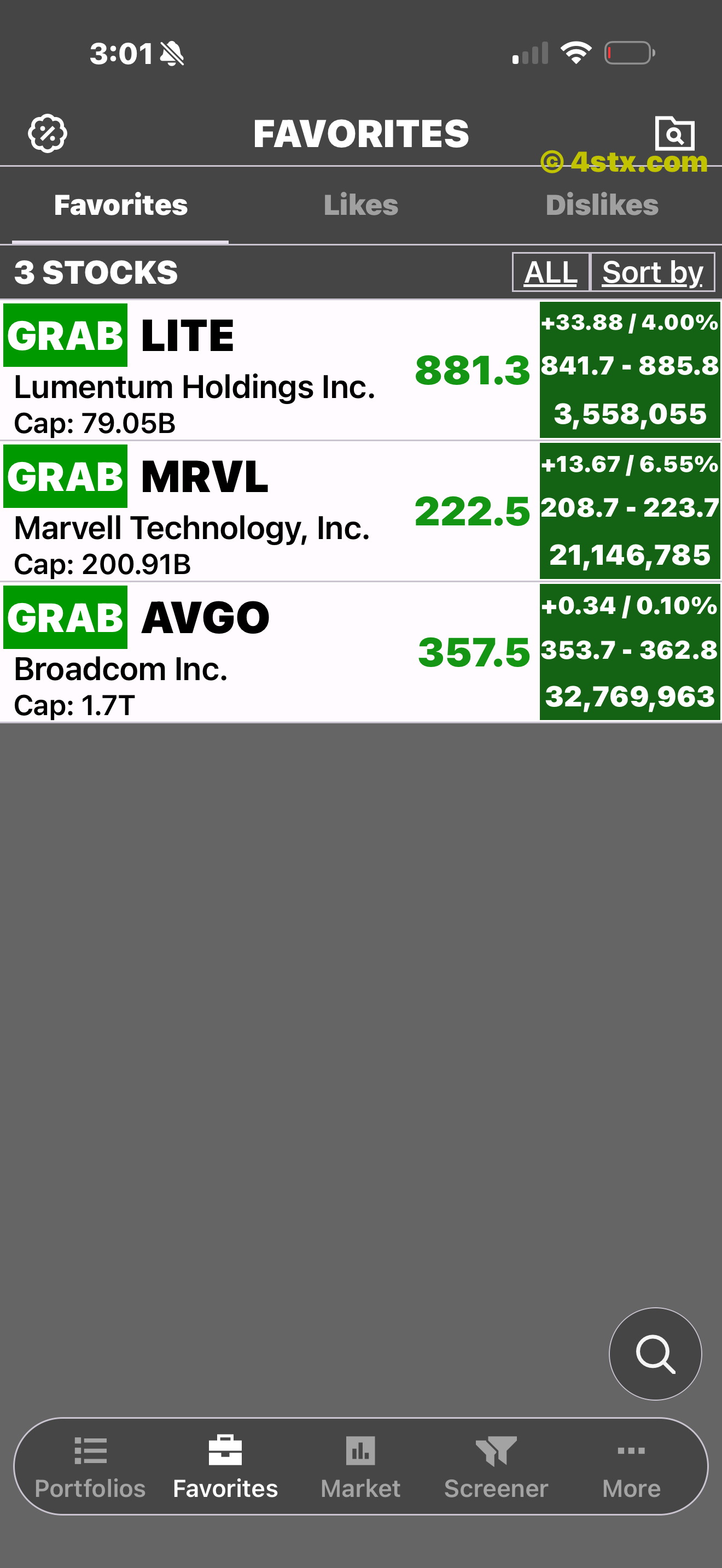
Charts, time ranges, history, Like, Dislike, Details, and Remove remain available.
What people open and save
The Popular list surfaces widely saved stocks while expanded rows show aggregate Add, Like, and Dislike counts alongside the standard chart and Details controls.
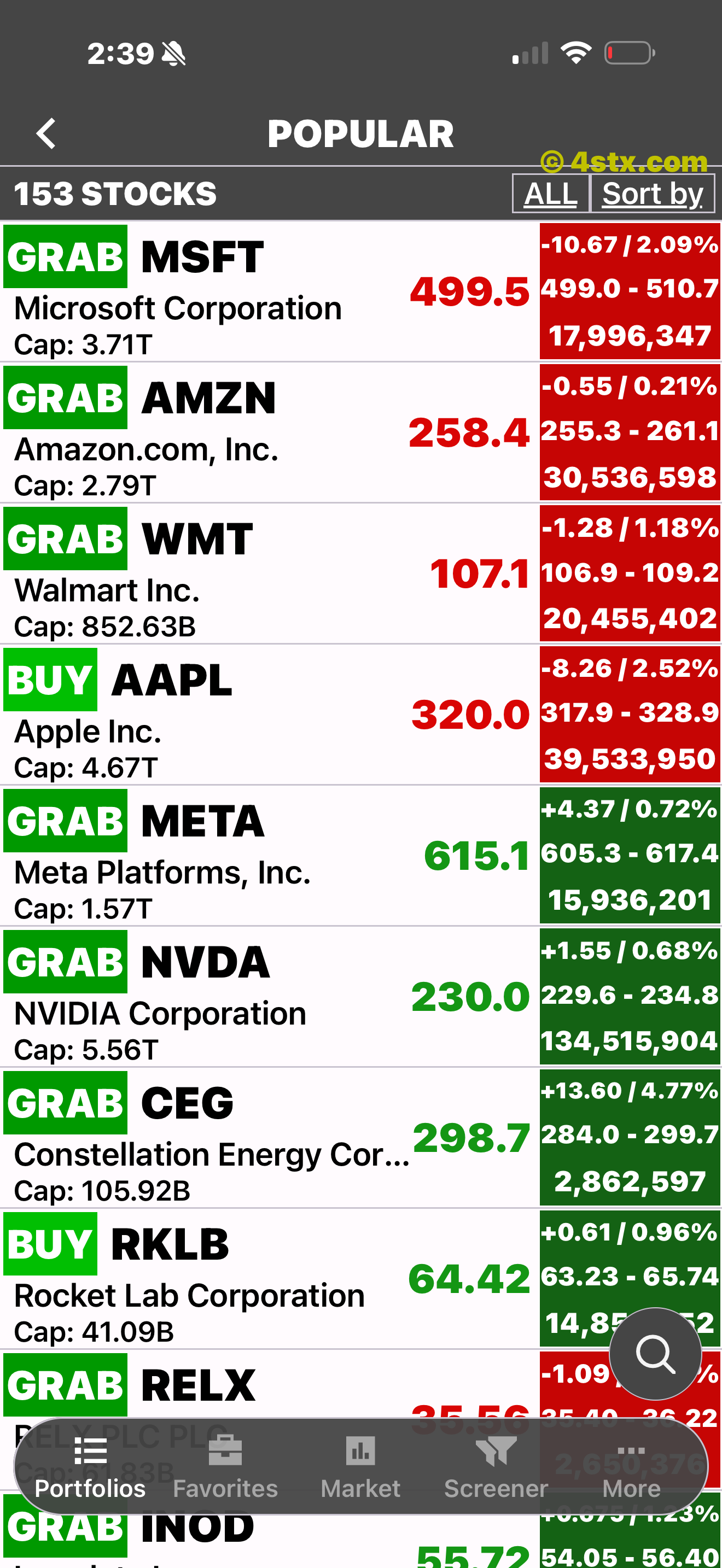
A dedicated list keeps user popularity separate from StockRank’s rating labels.
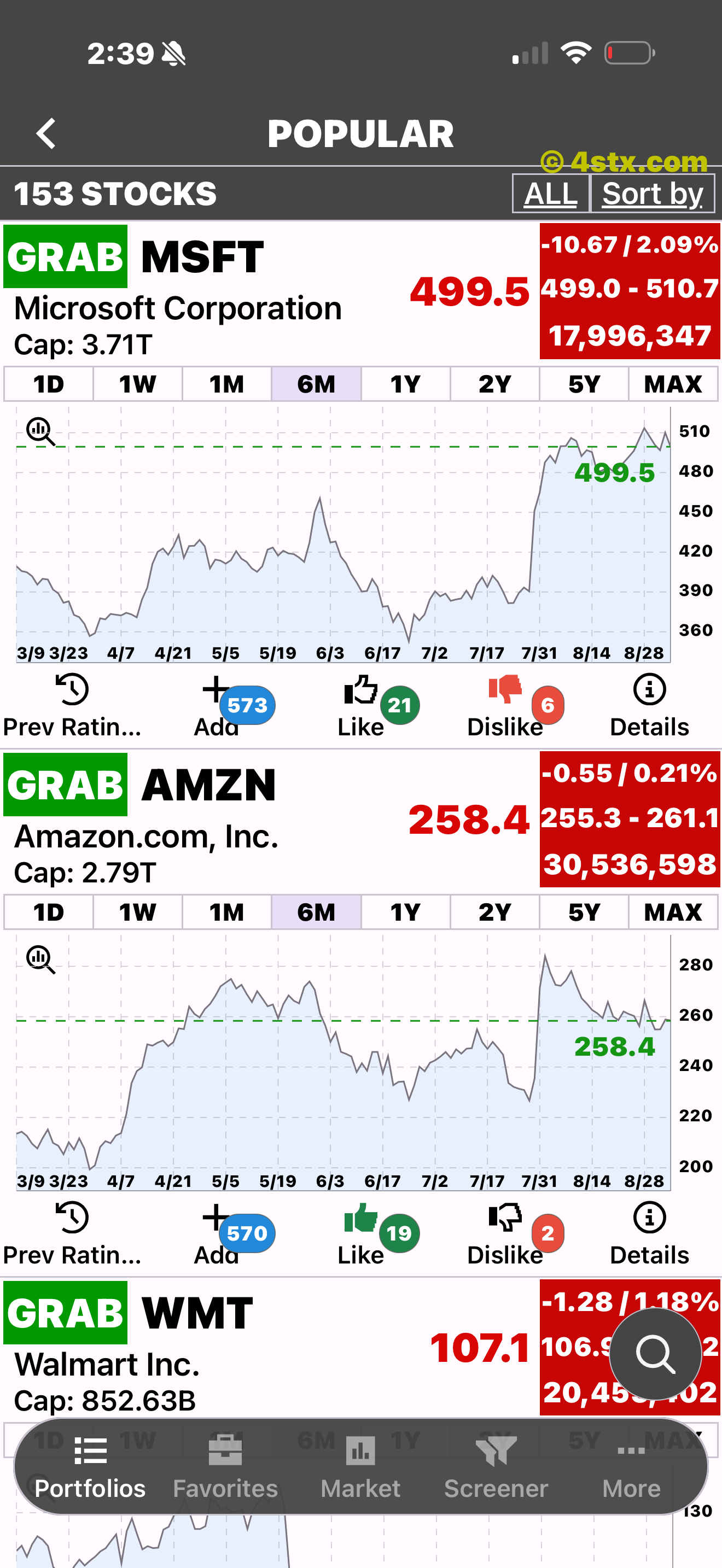
Expanded rows show aggregate app actions without replacing chart or company context.
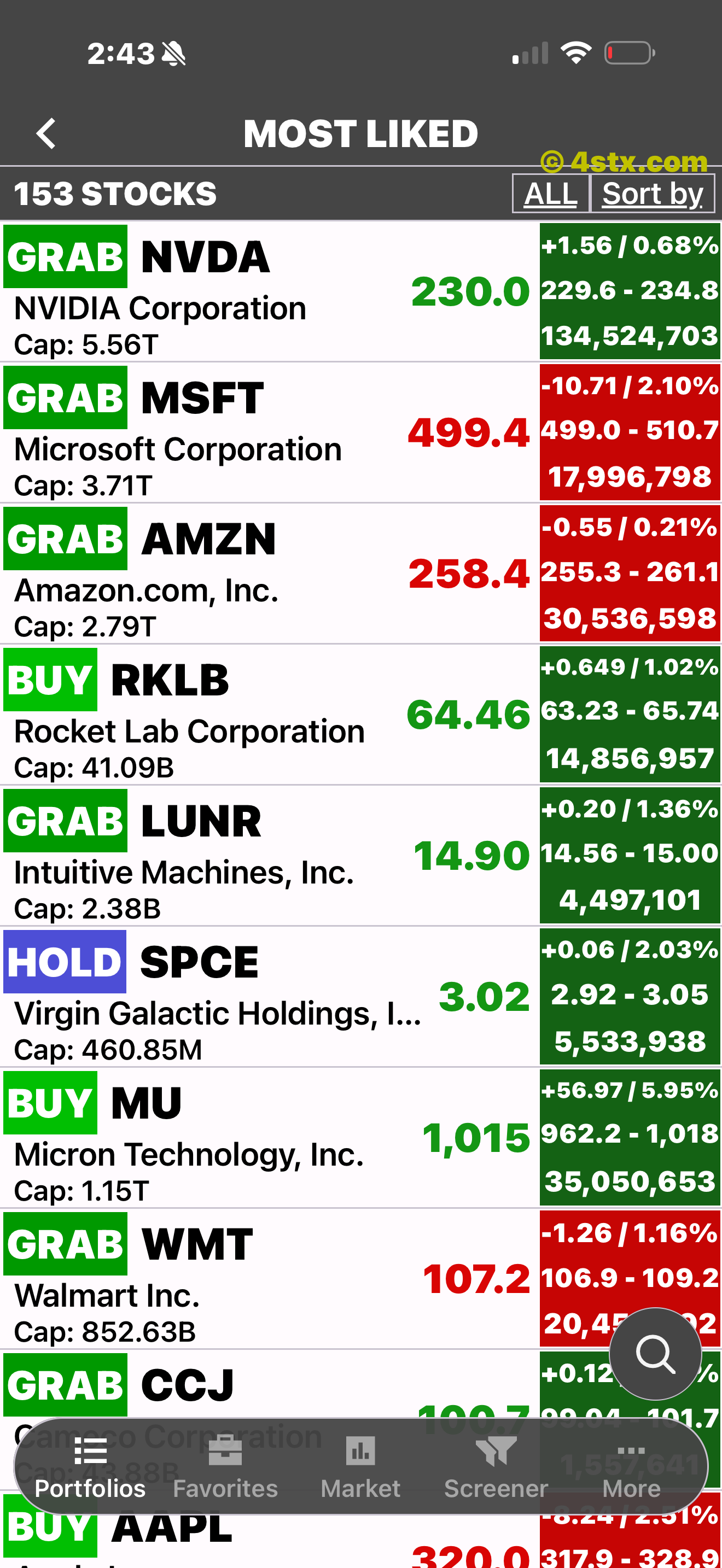
A separate list focuses on aggregate Likes rather than the stocks one person saved.
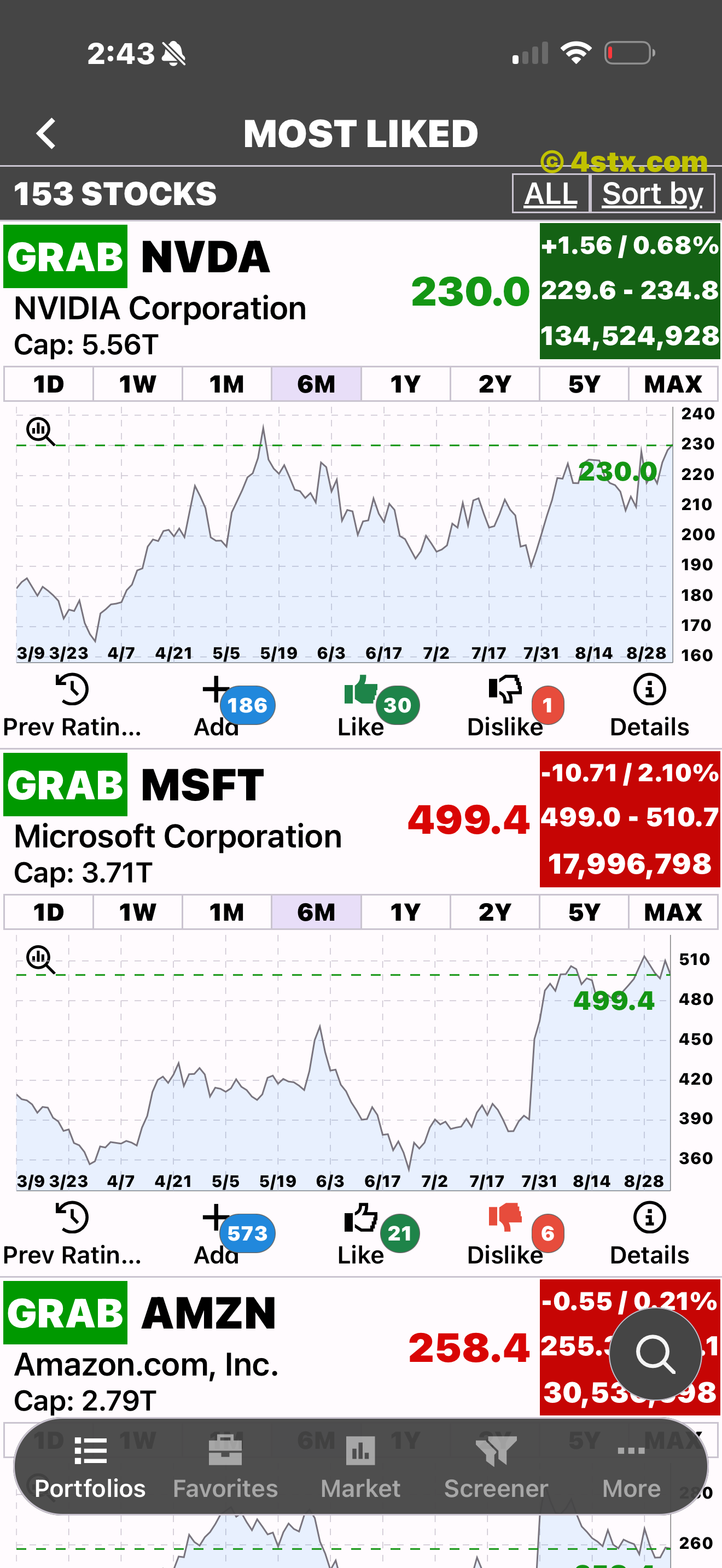
Visible activity counts stay separate from StockRank’s rating and market data.
The market pulse
Scan Top Gainers and Top Losers, compare benchmark ranges, and open a mover directly into the same chart and Details workflow.
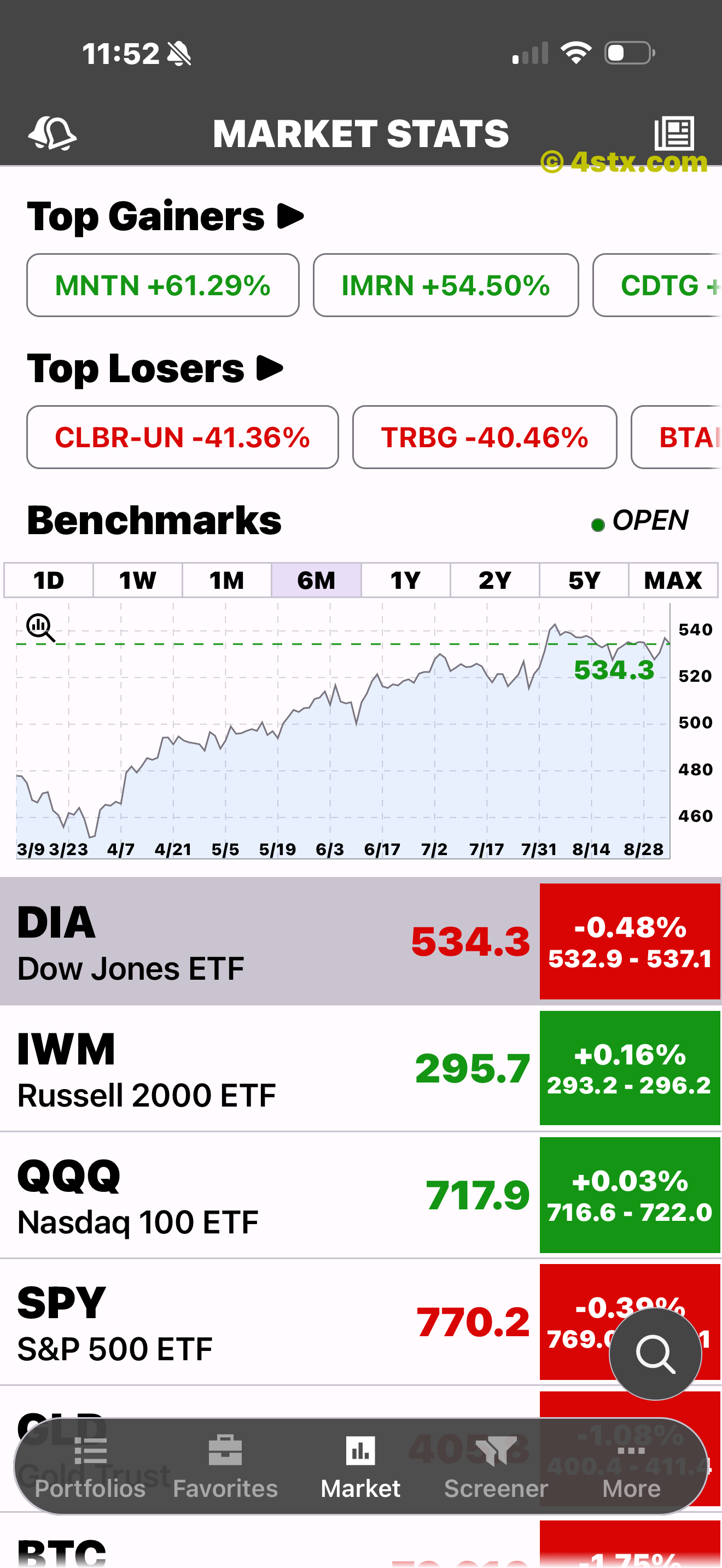
Movers, a benchmark chart, and broad market instruments share one screen.
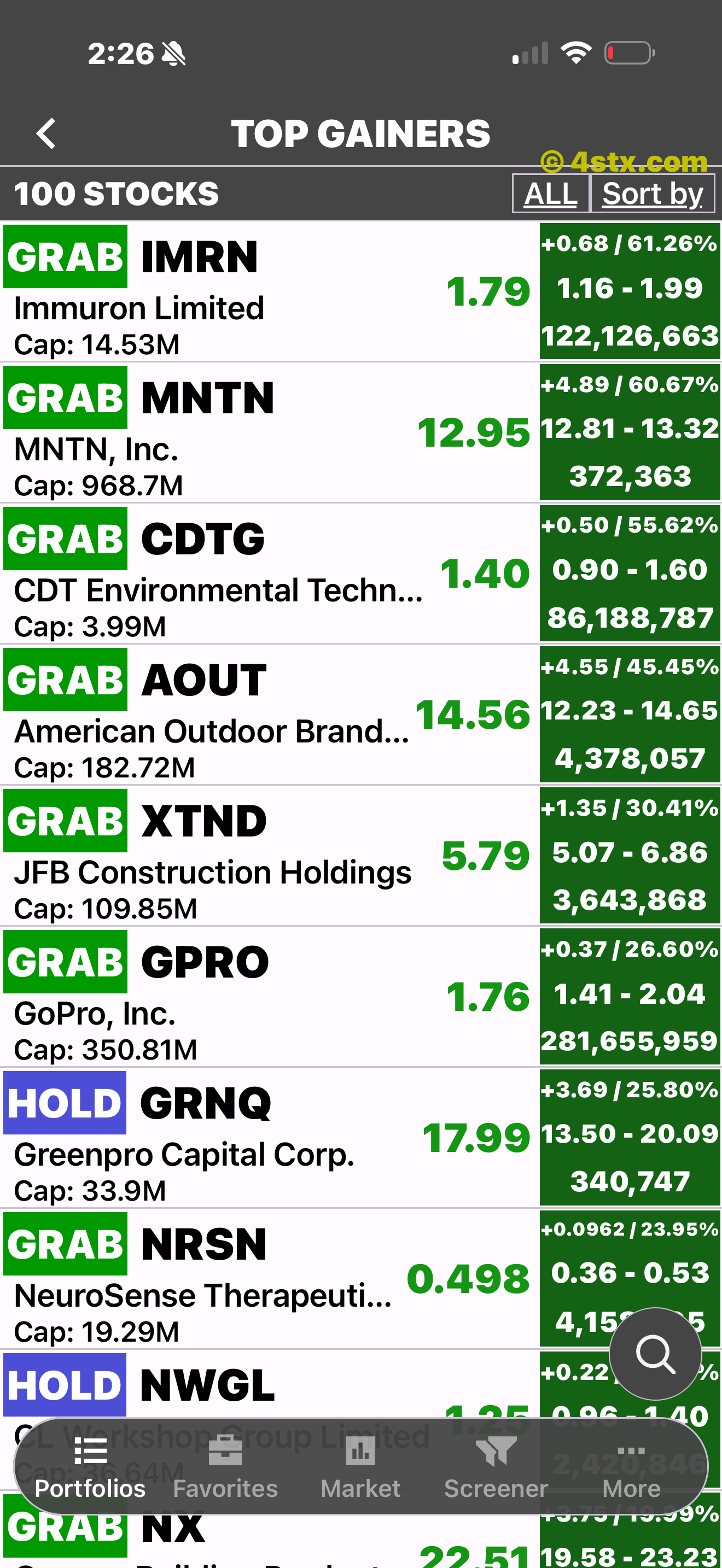
The upper-left shortcut opens a focused movers list with the familiar row context.

Each row can open into the same chart, ranges, history, list, and Details controls.
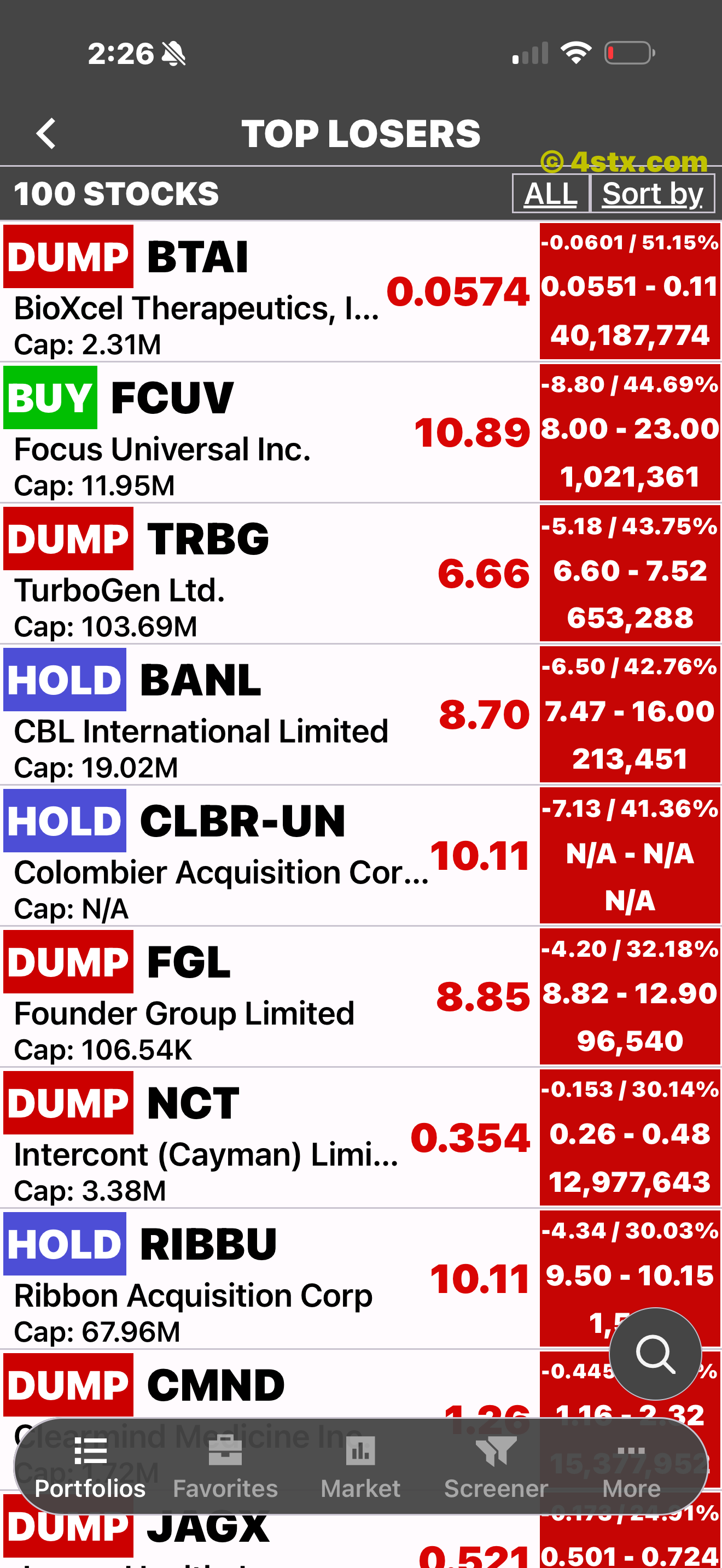
The companion shortcut focuses the list on the largest visible percentage declines.
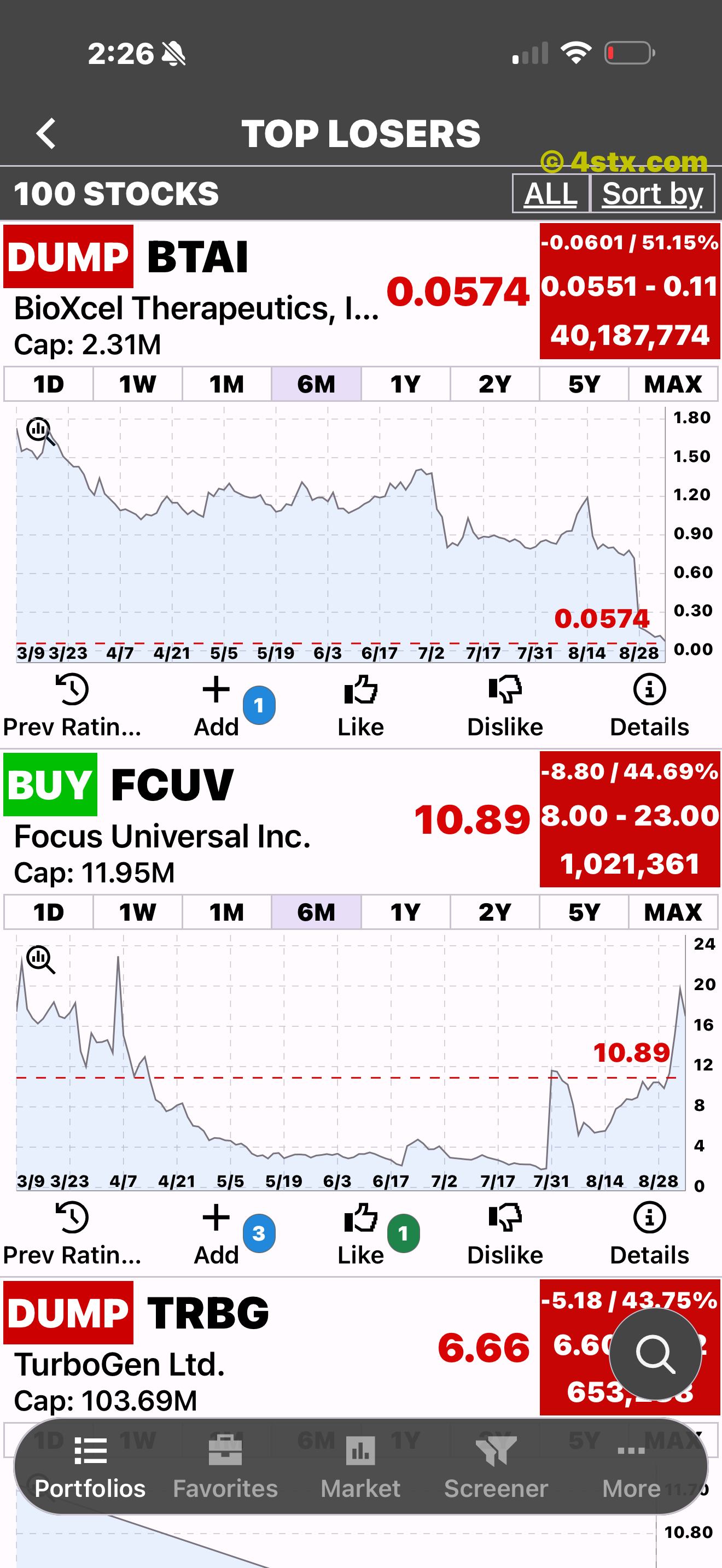
Loser rows expand into the same ranges, history, list actions, and Details.
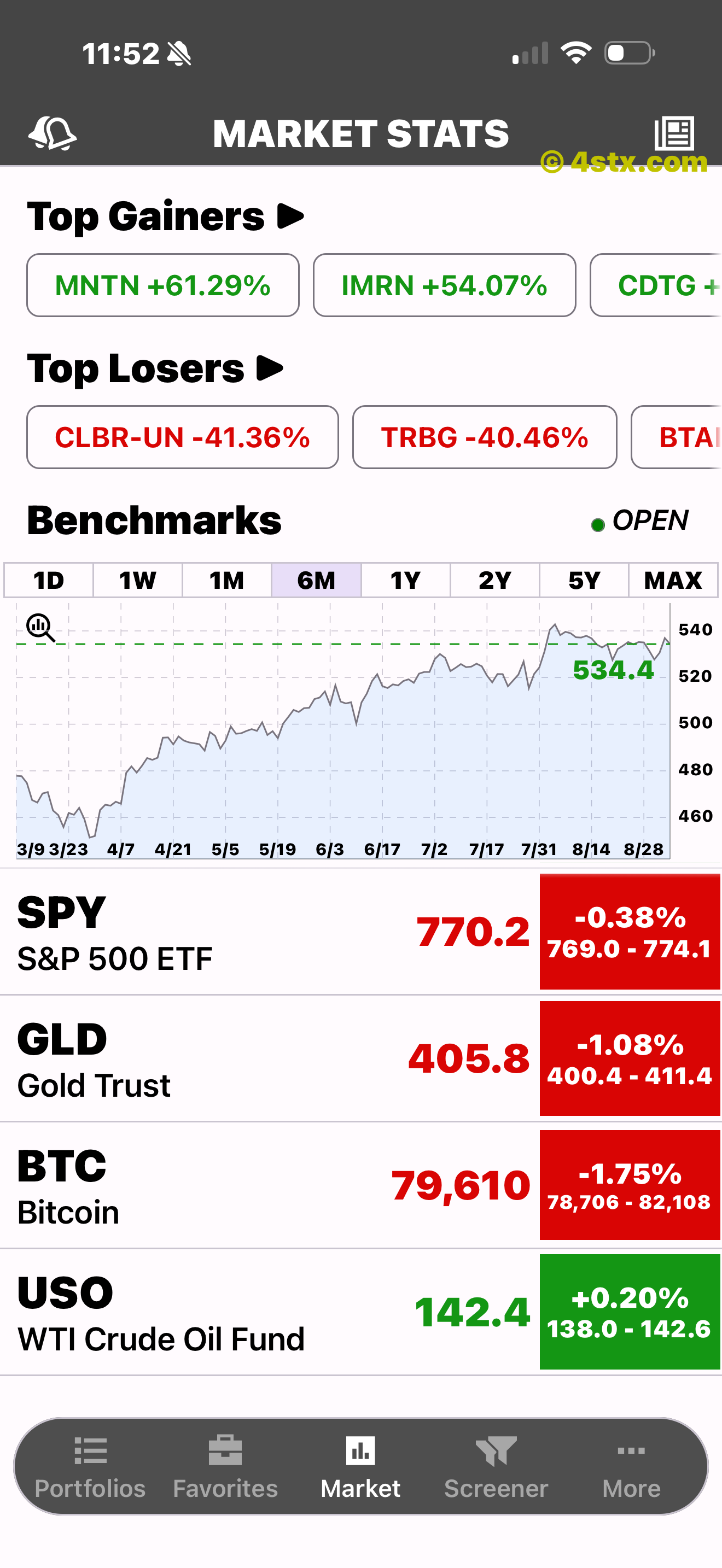
Follow equities, gold, Bitcoin, and oil alongside the major index ETFs.
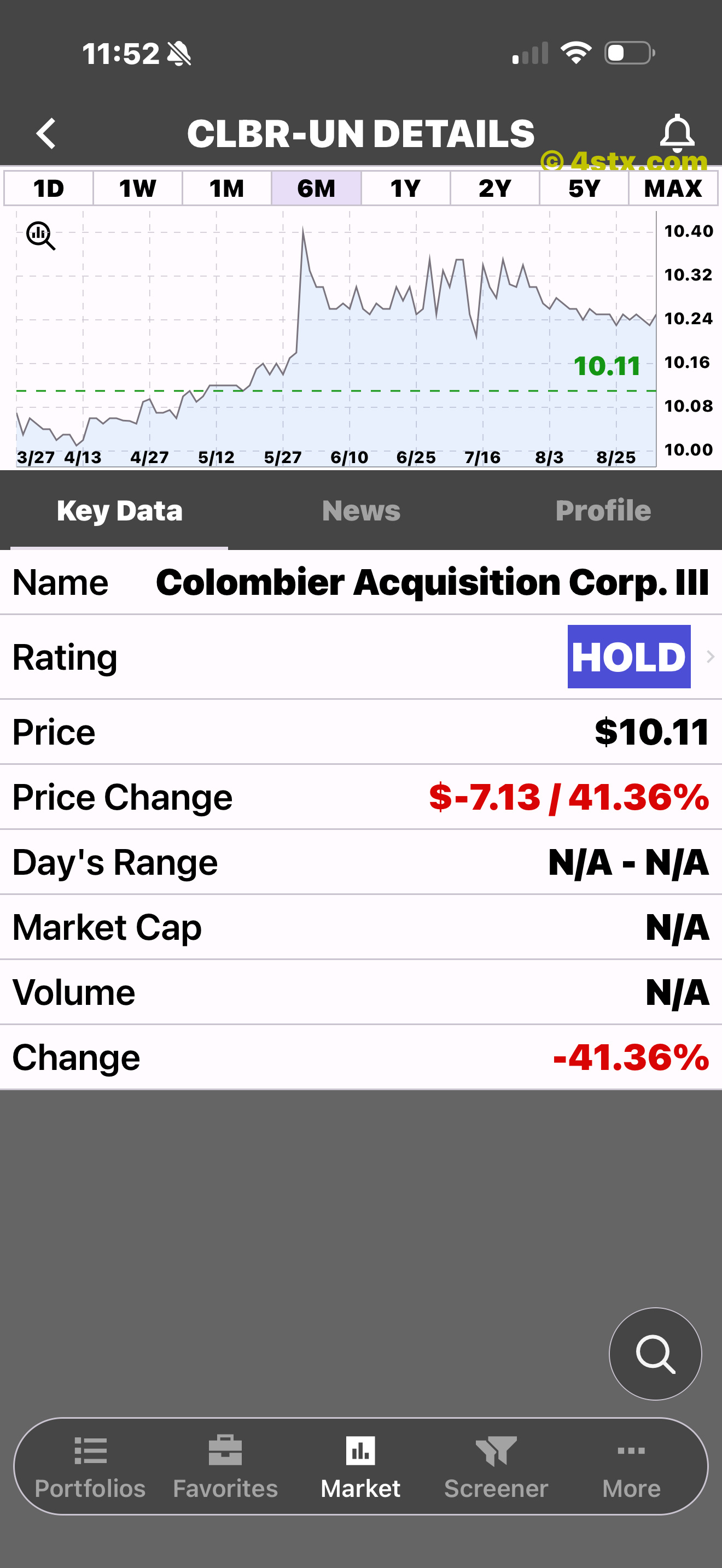
A gainers or losers chip leads into the standard chart and details flow.
Three different ways to stay current
Create your own condition, read the wider market feed, or see StockRank’s system-generated rating updates. Ticker-specific News remains inside each stock’s Details.
Choose a ticker, condition, target, Push or Email delivery, expiration, and activation.
Browse a broad publisher feed, separate from the headlines attached to one ticker.
Review system-generated updates without confusing them with your own alert rules.
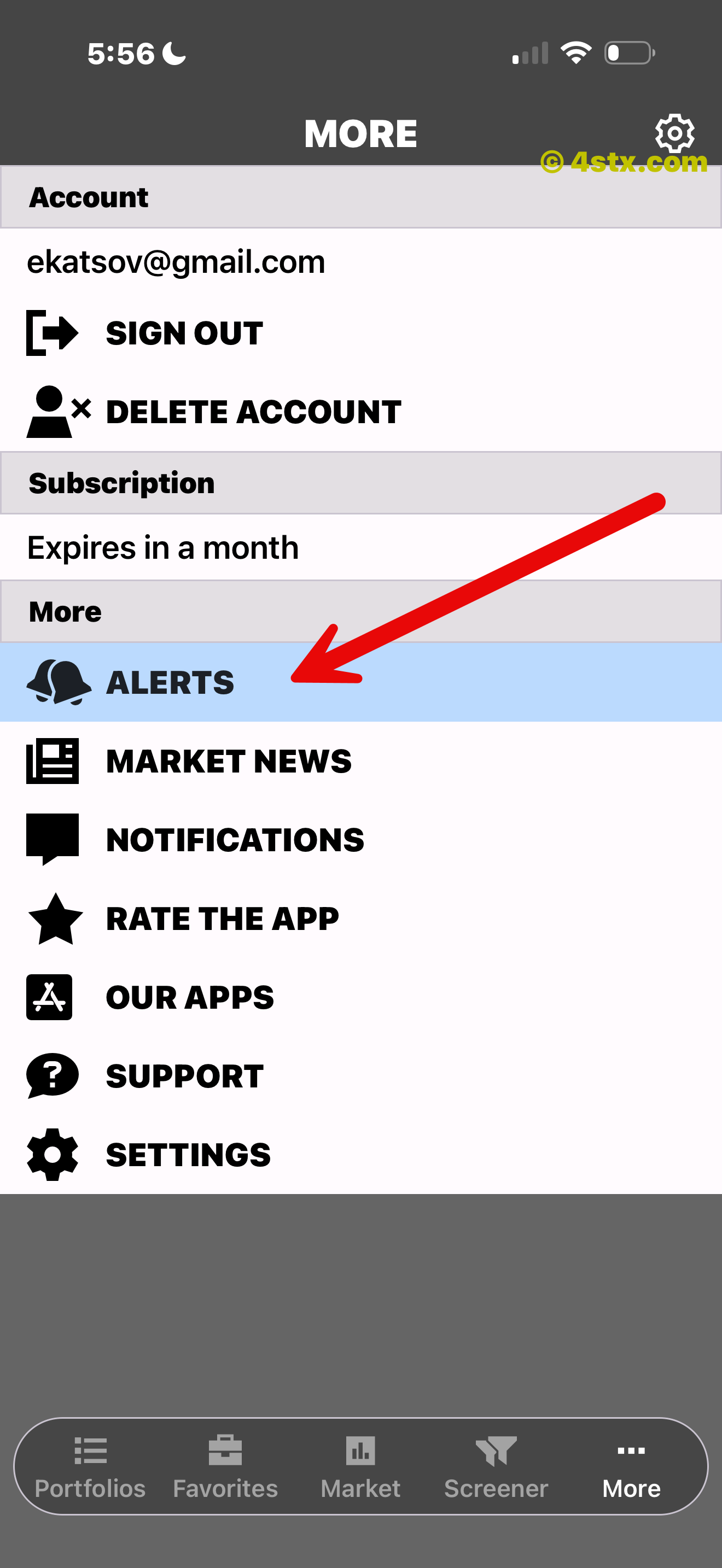
Start in More when you want to create a condition of your own.
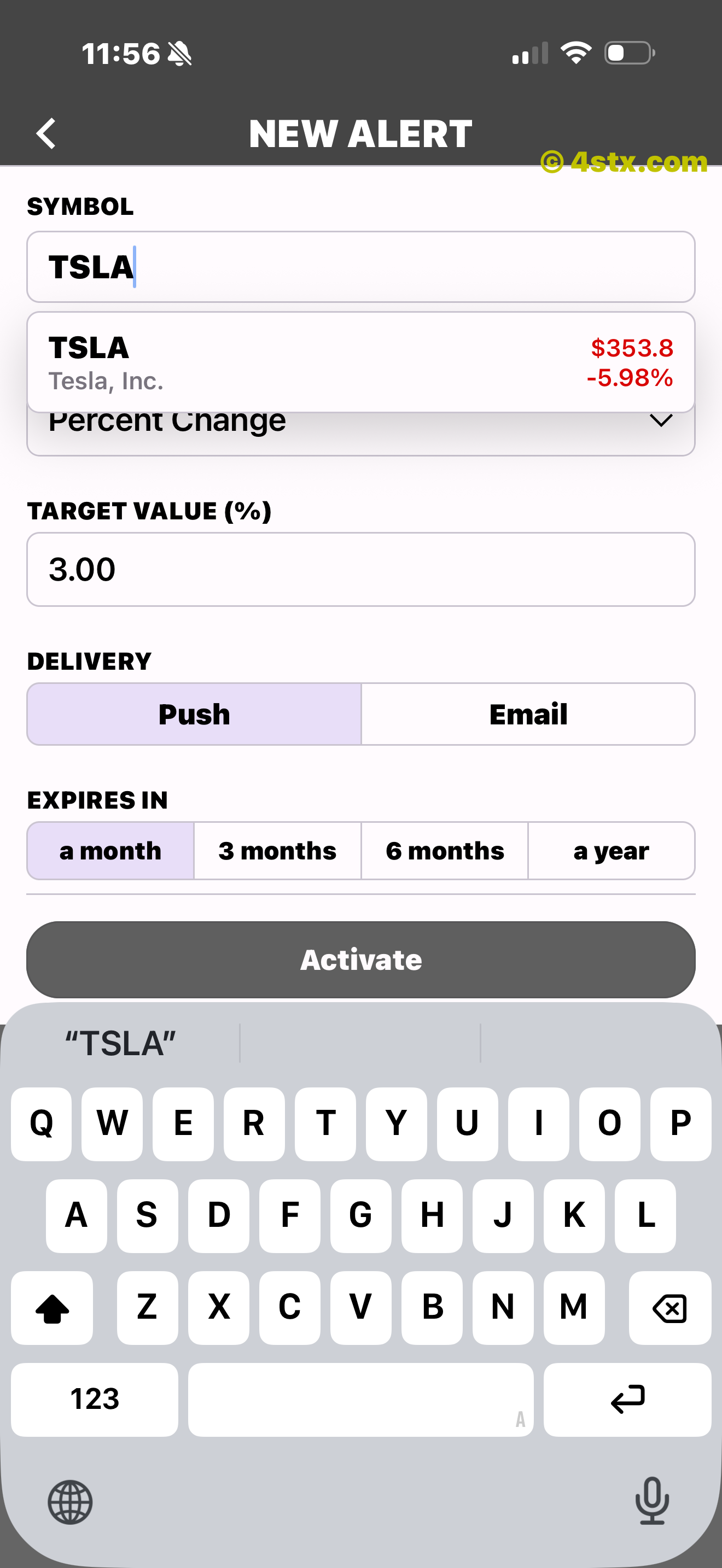
All core alert choices are visible in a single builder.

Use one of the visible percent-change or defined-value conditions.
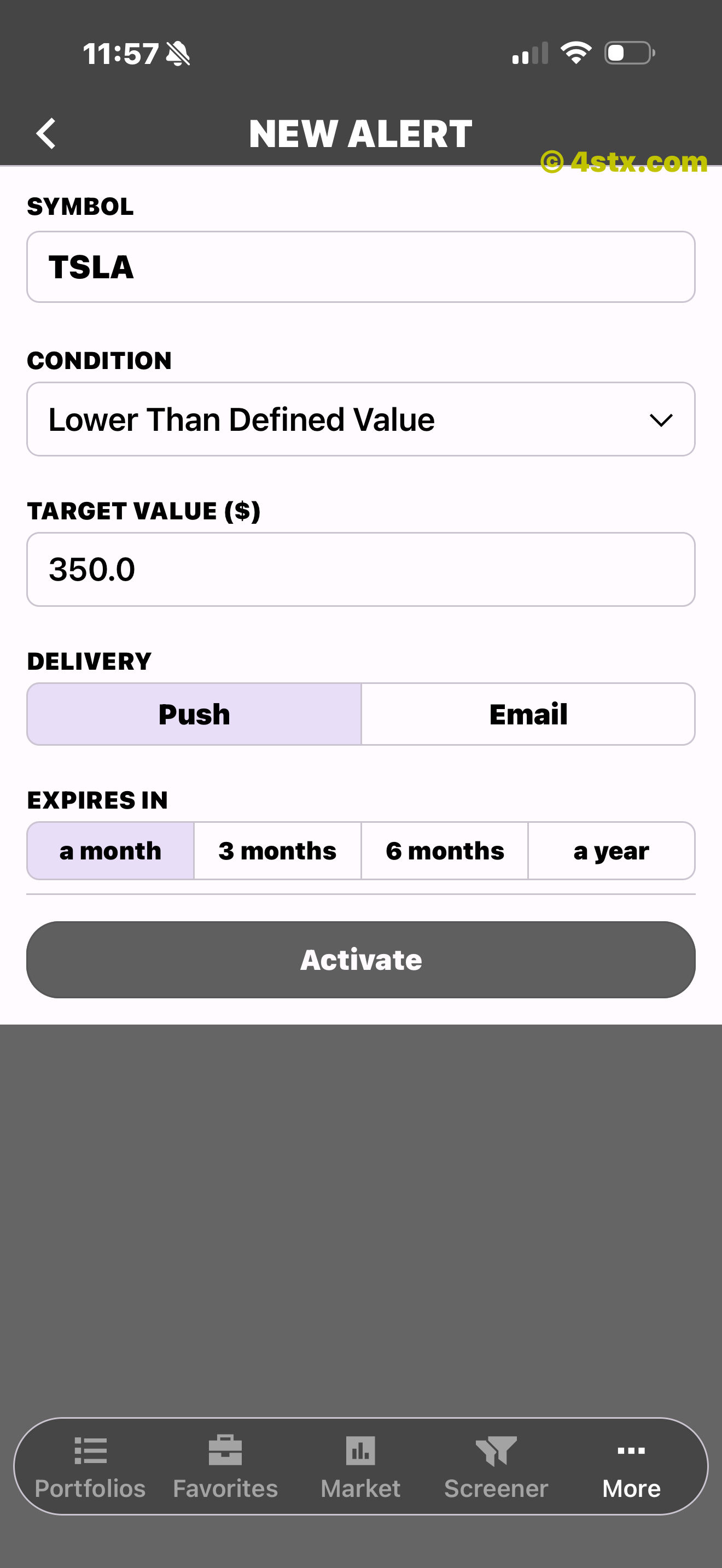
The shown TSLA example illustrates setup only; it is not a recommendation.
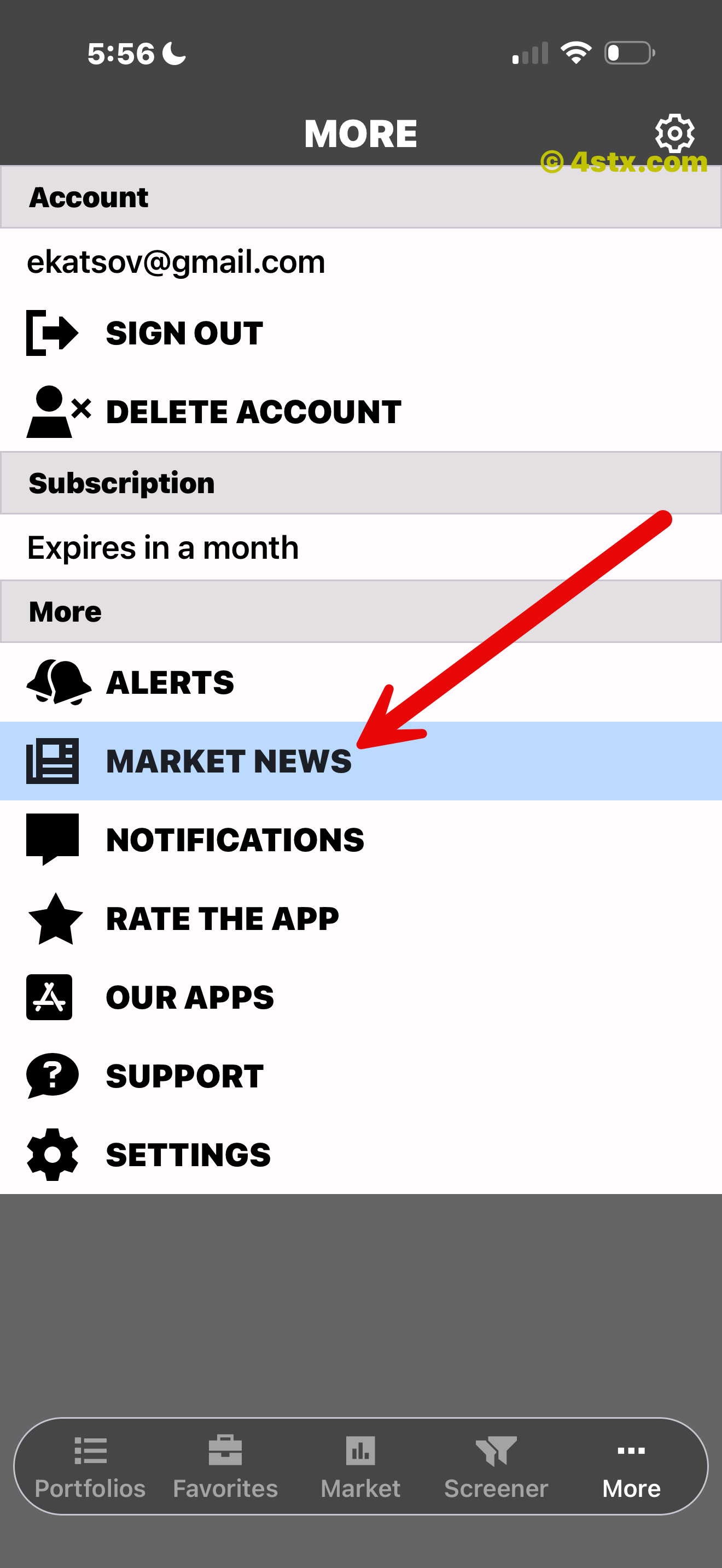
Recent headlines and publisher names make the broad feed easy to scan.
System messages remain distinct from alerts you created yourself.
More menu shortcuts
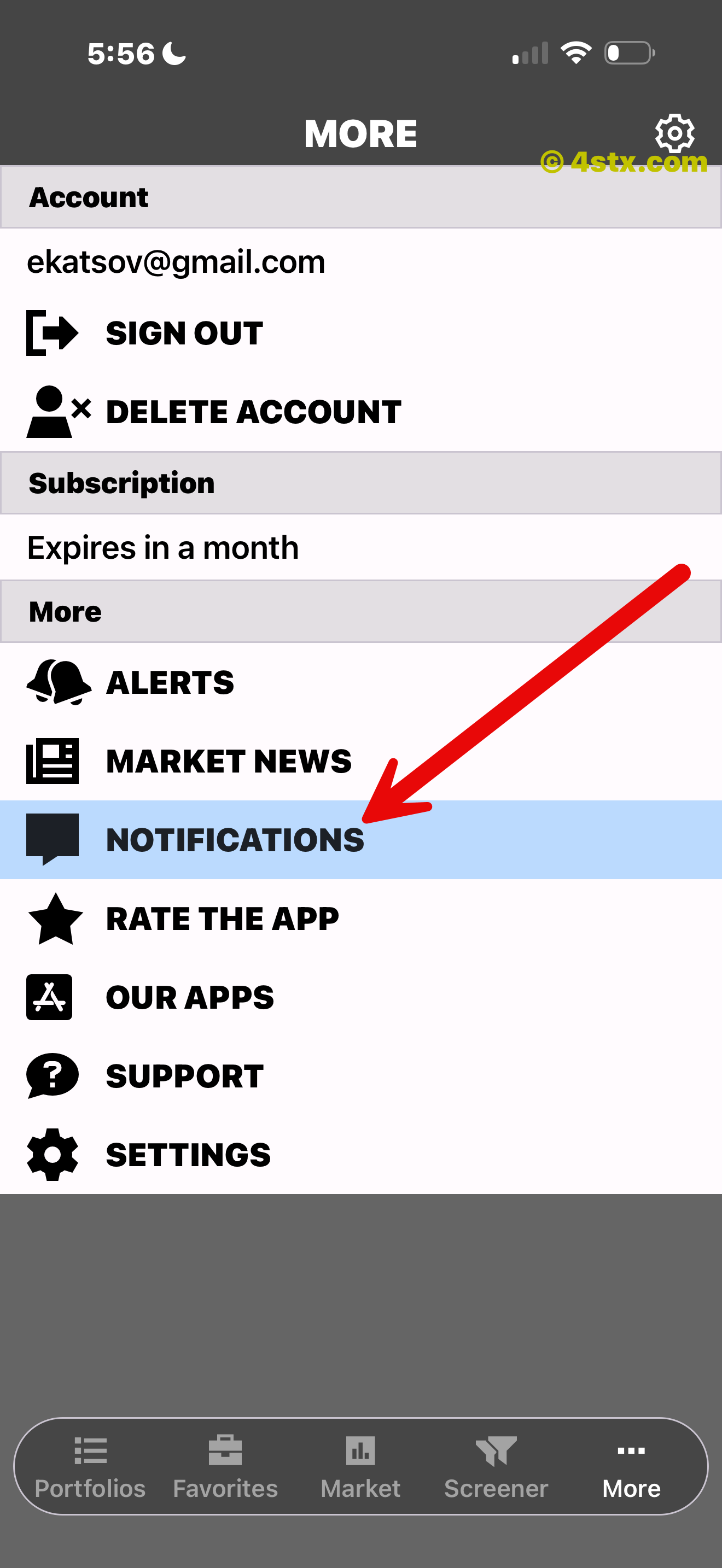
Open More from the bottom navigation, then use the highlighted option for the task you need.
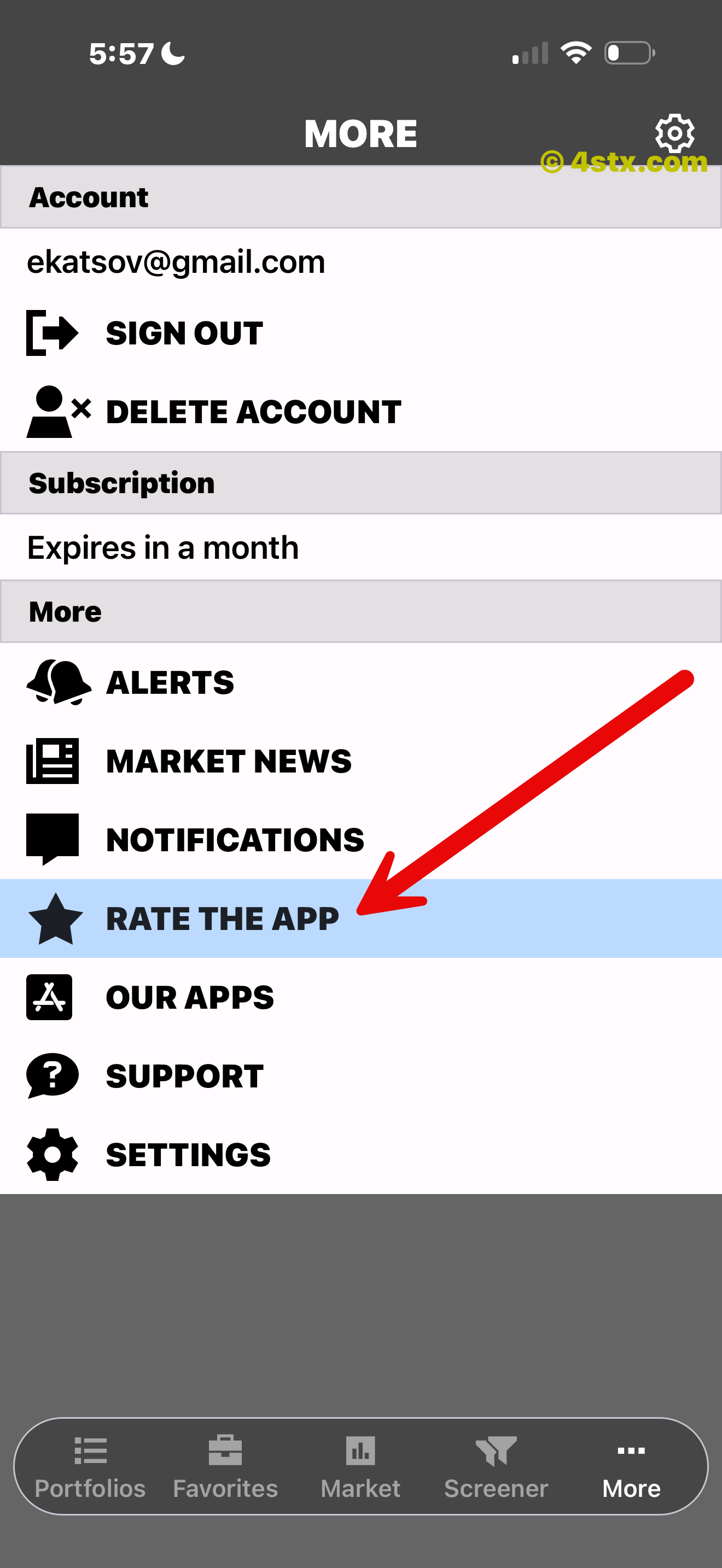
Open the rating option when you want to share feedback.
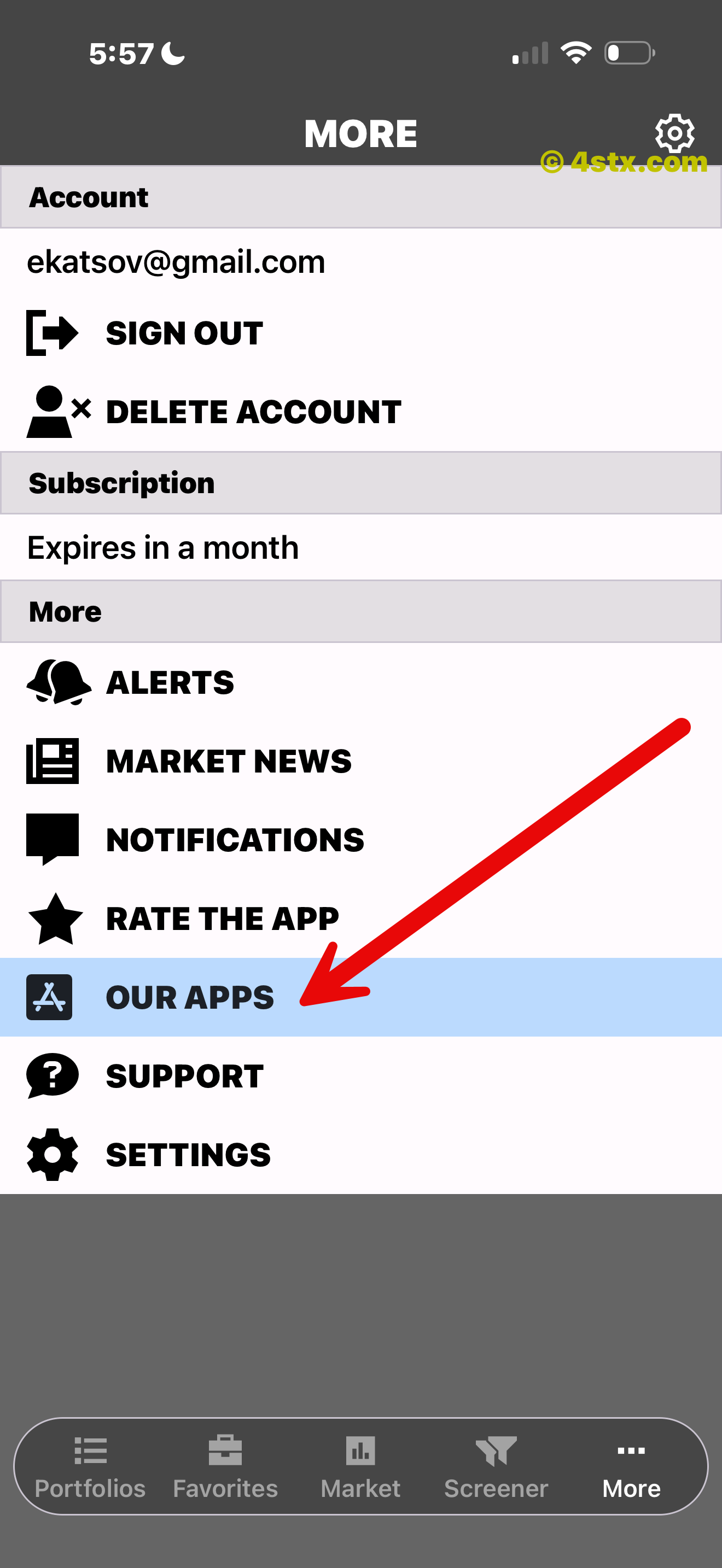
Explore other market apps from the same app shelf.
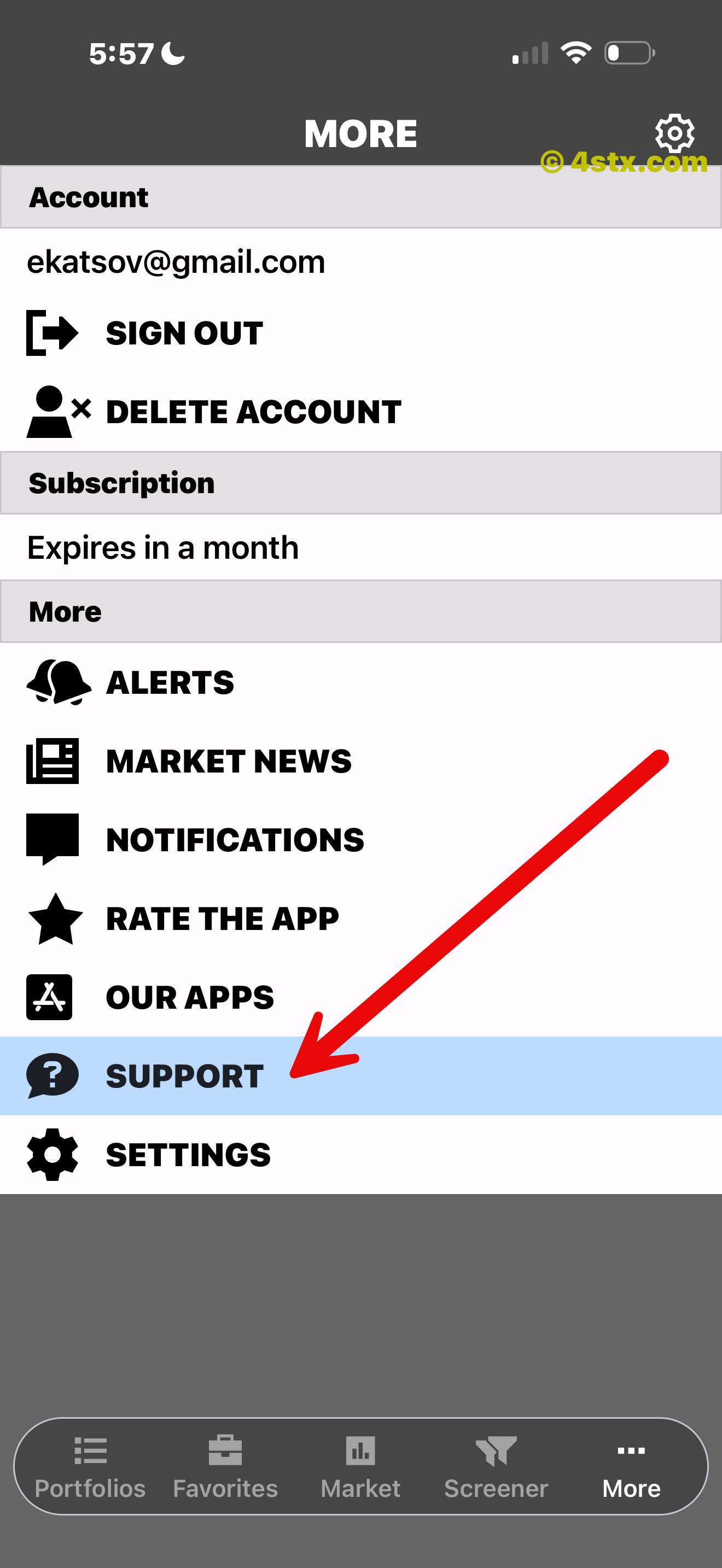
Open the guide for ratings, features, and common questions.
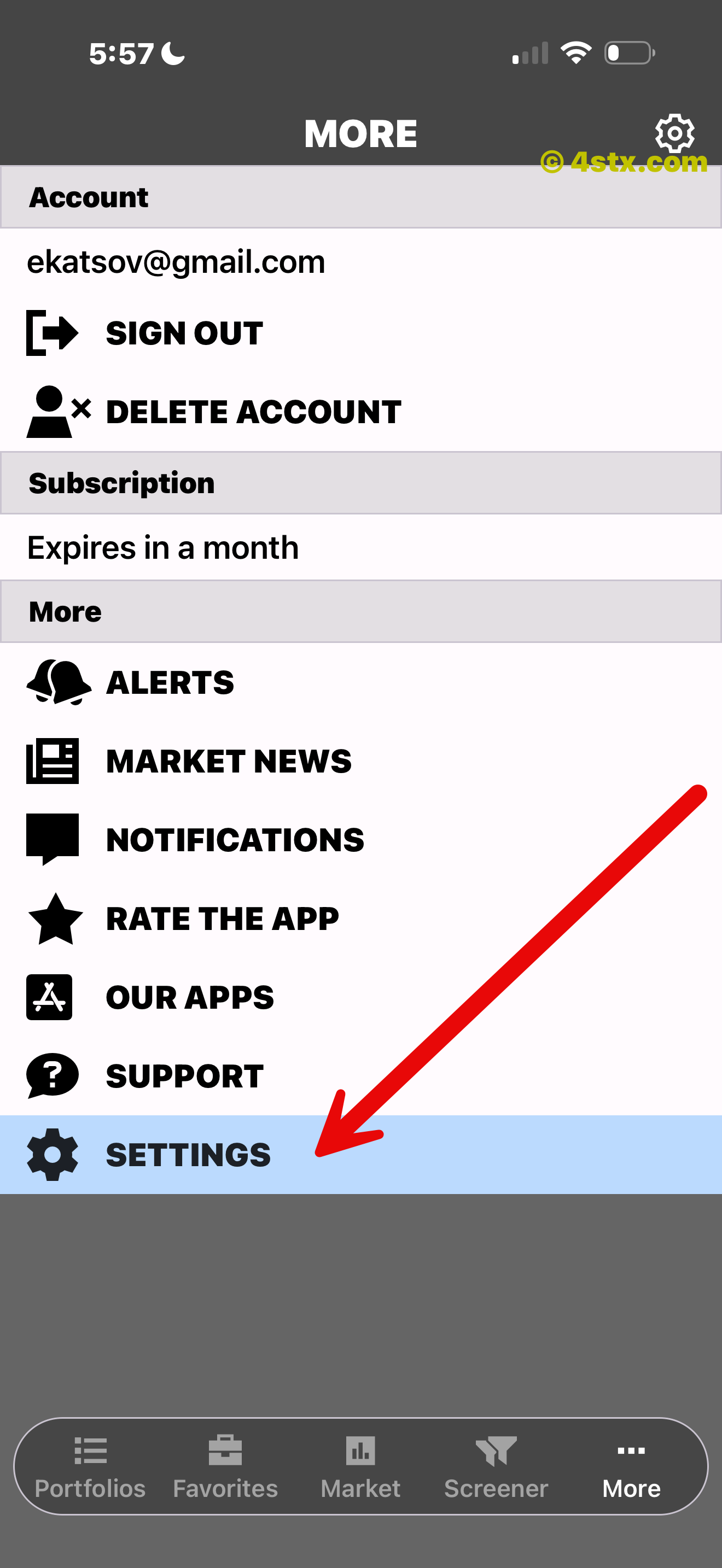
Control startup, appearance, language, files, and communication options.
Make it feel like yours
Choose the startup screen, follow the system appearance or select Light or Dark, manage Favorites files, and control push notifications and weekly email reports.
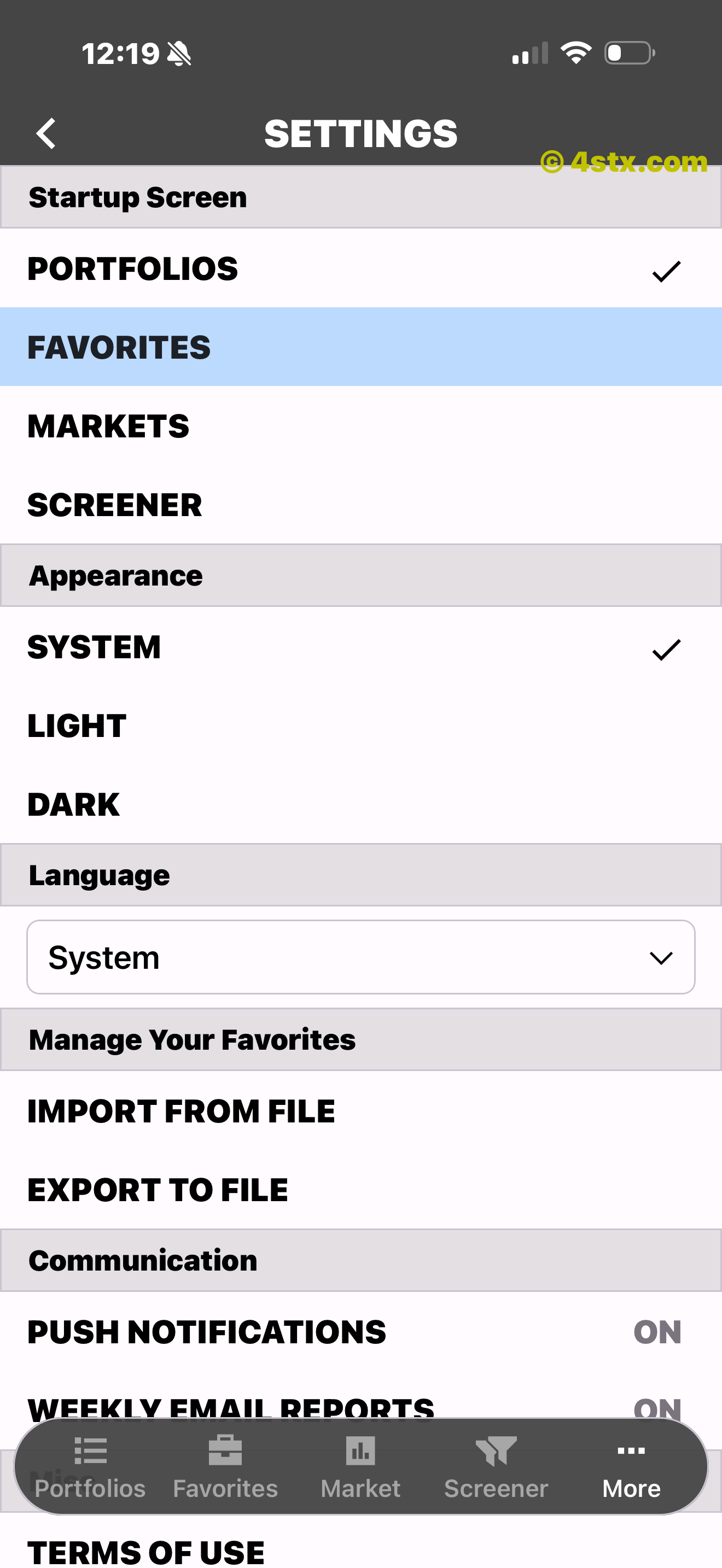
Startup, appearance, files, push, and weekly email controls.
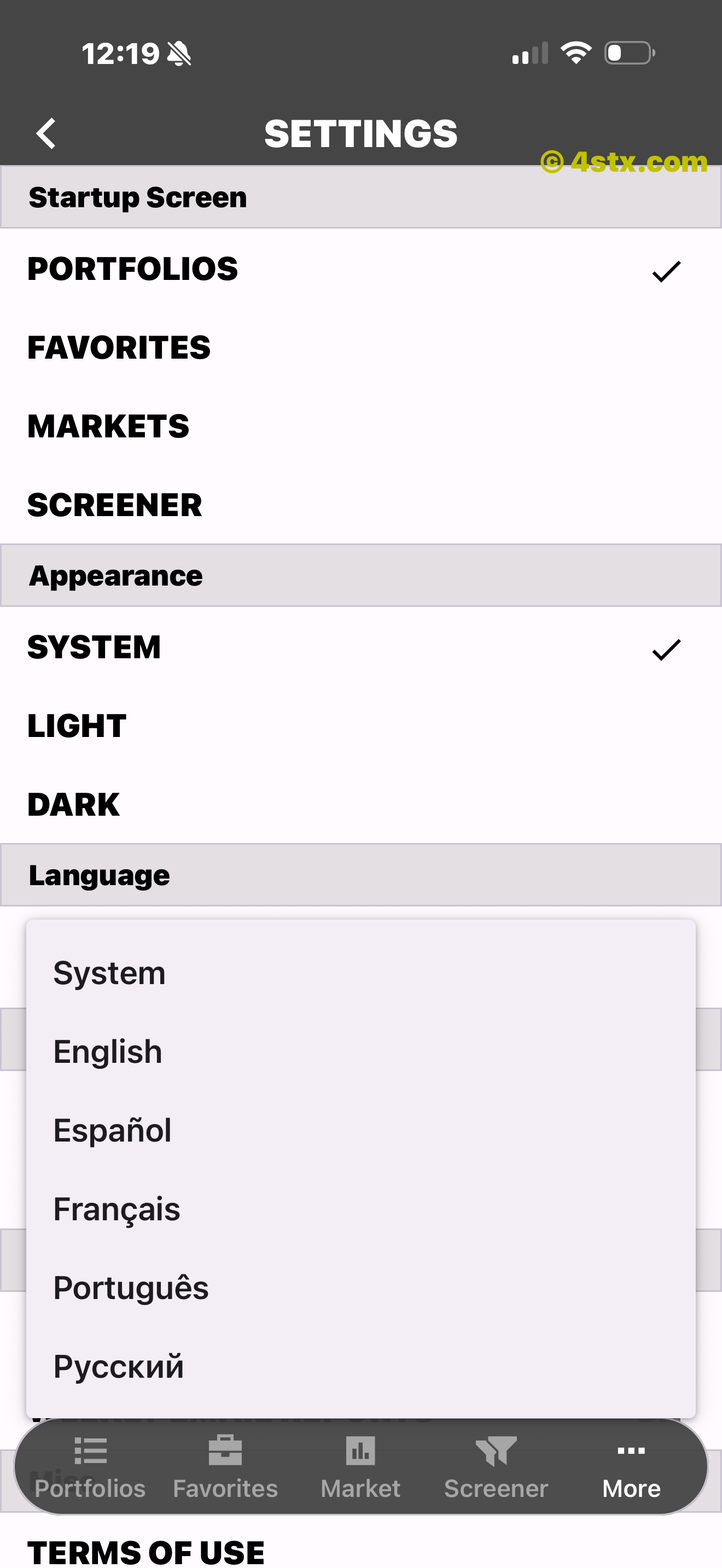
Use the system language or choose one of five named languages.
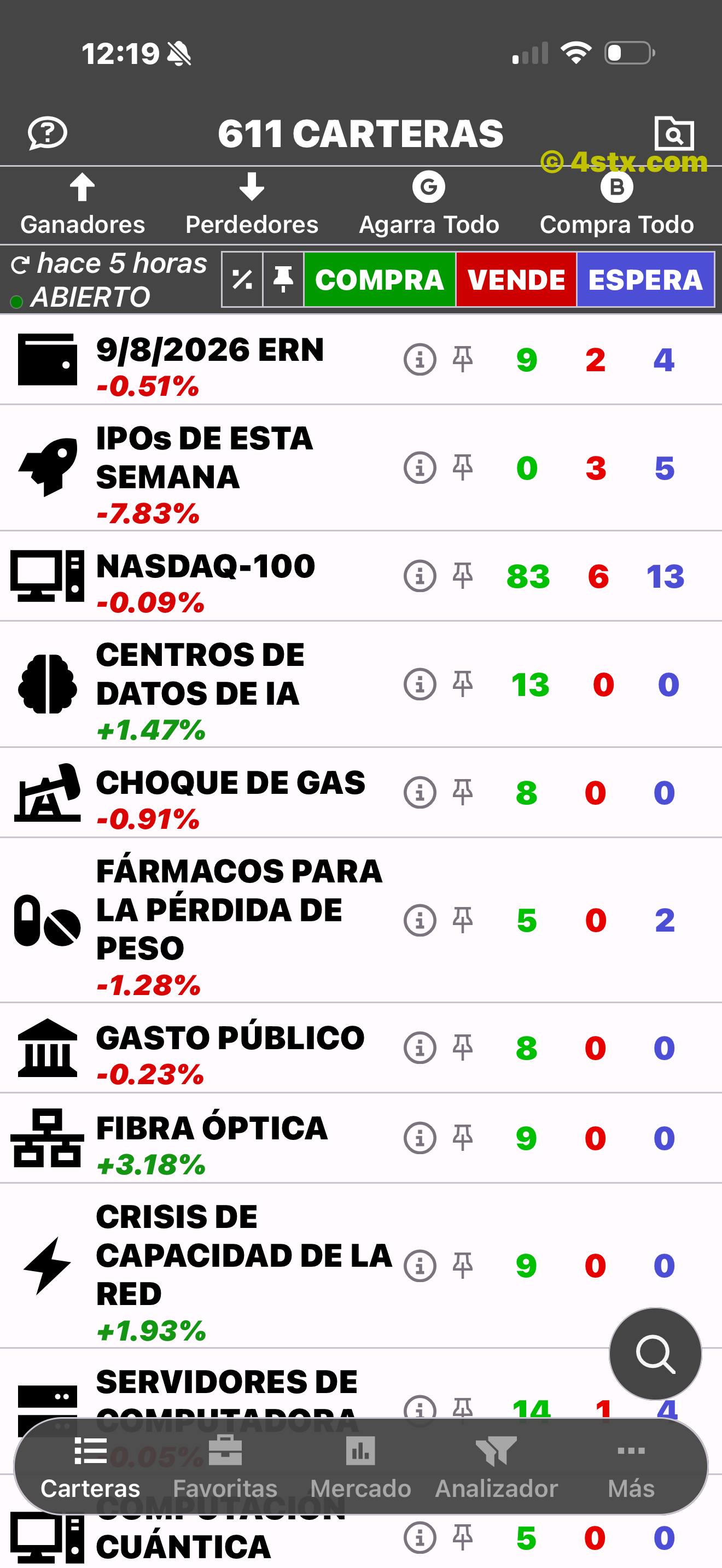
The portfolio title, filters, ratings, names, and navigation are translated.

The demonstrated Spanish experience continues through supporting controls.
More from the app shelf
StockRank’s Our Apps flow includes PennyGems, ETFon, CoinRank, OTCGems, S&P Stocks, and IPO Stocks, each with a visible Download handoff.

A related-app carousel card with Download.
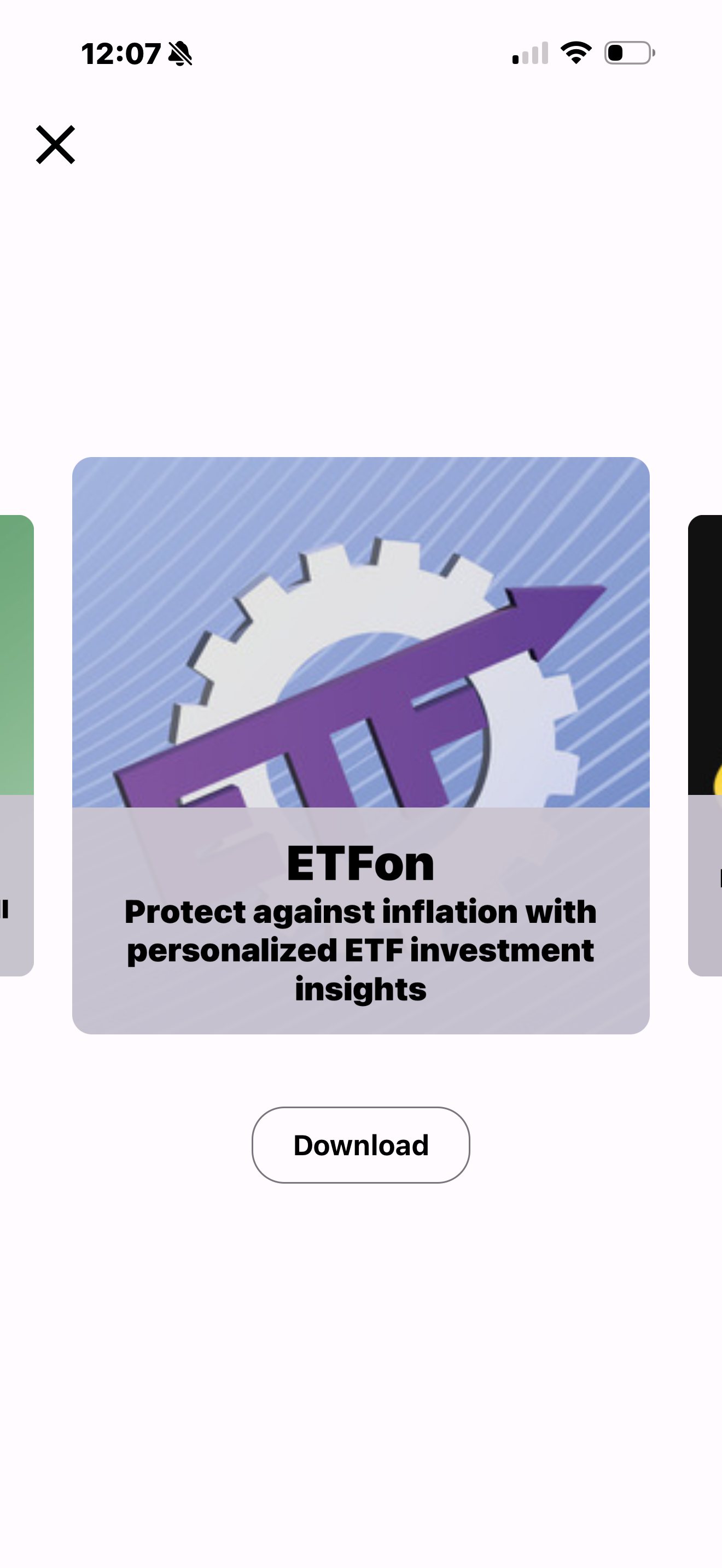
A related-app carousel card with Download.

A related-app carousel card with Download.
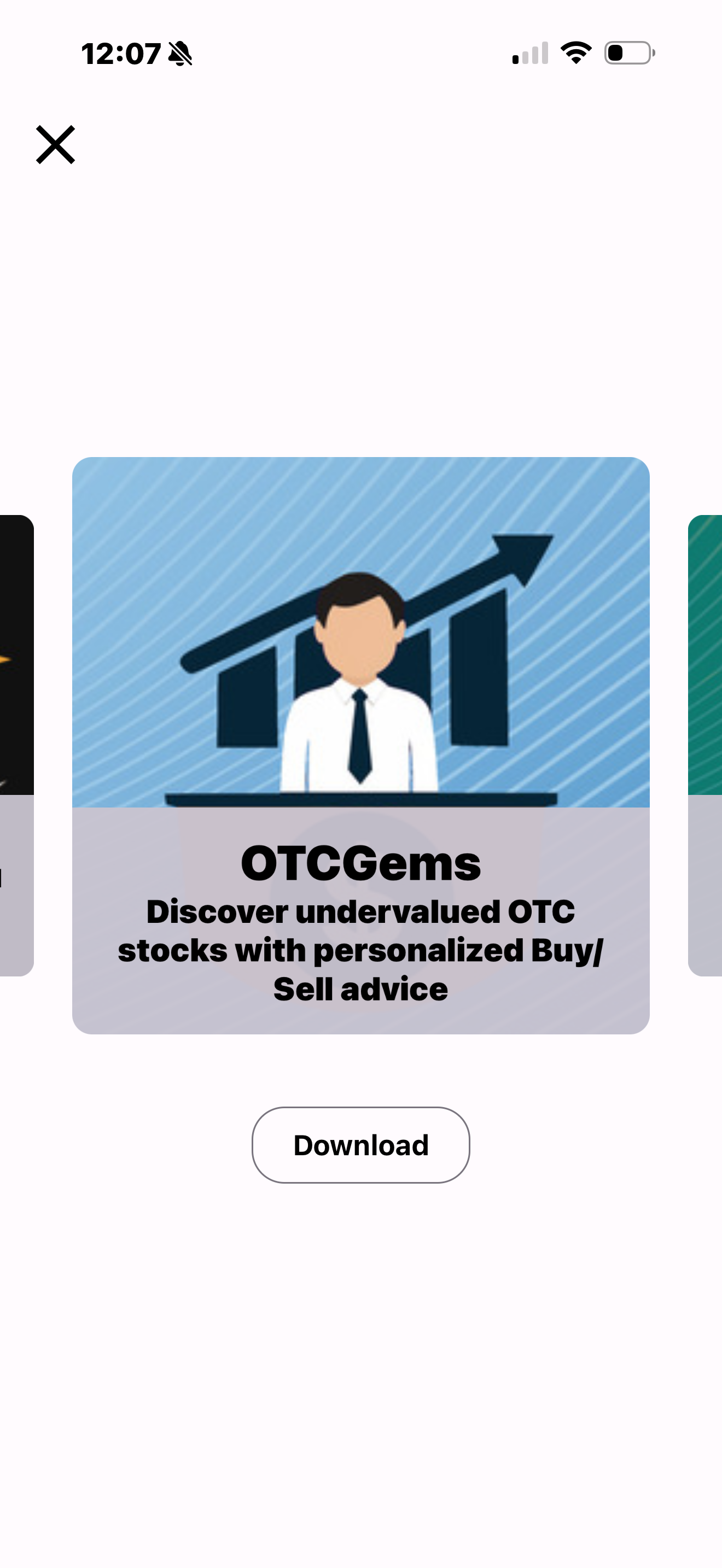
A related-app carousel card with Download.
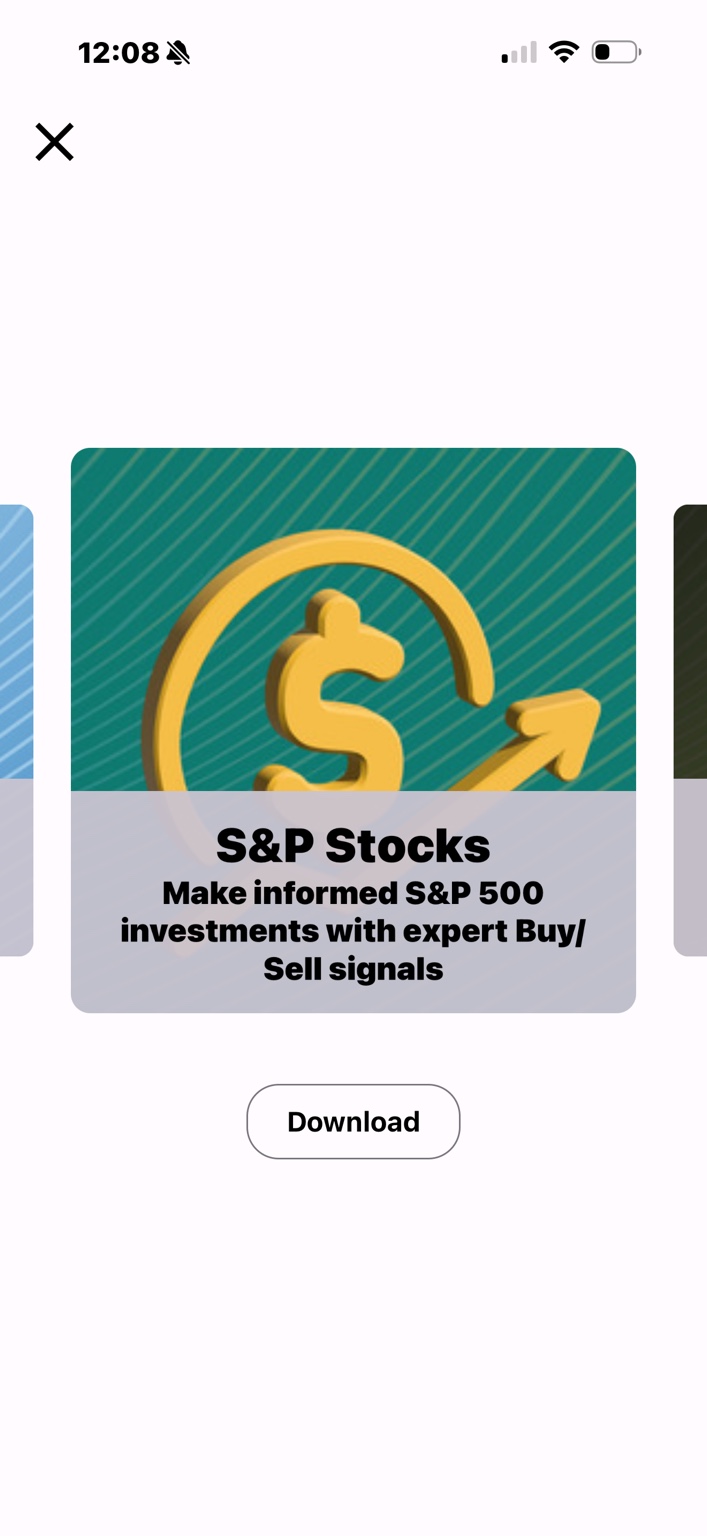
A related-app carousel card with Download.
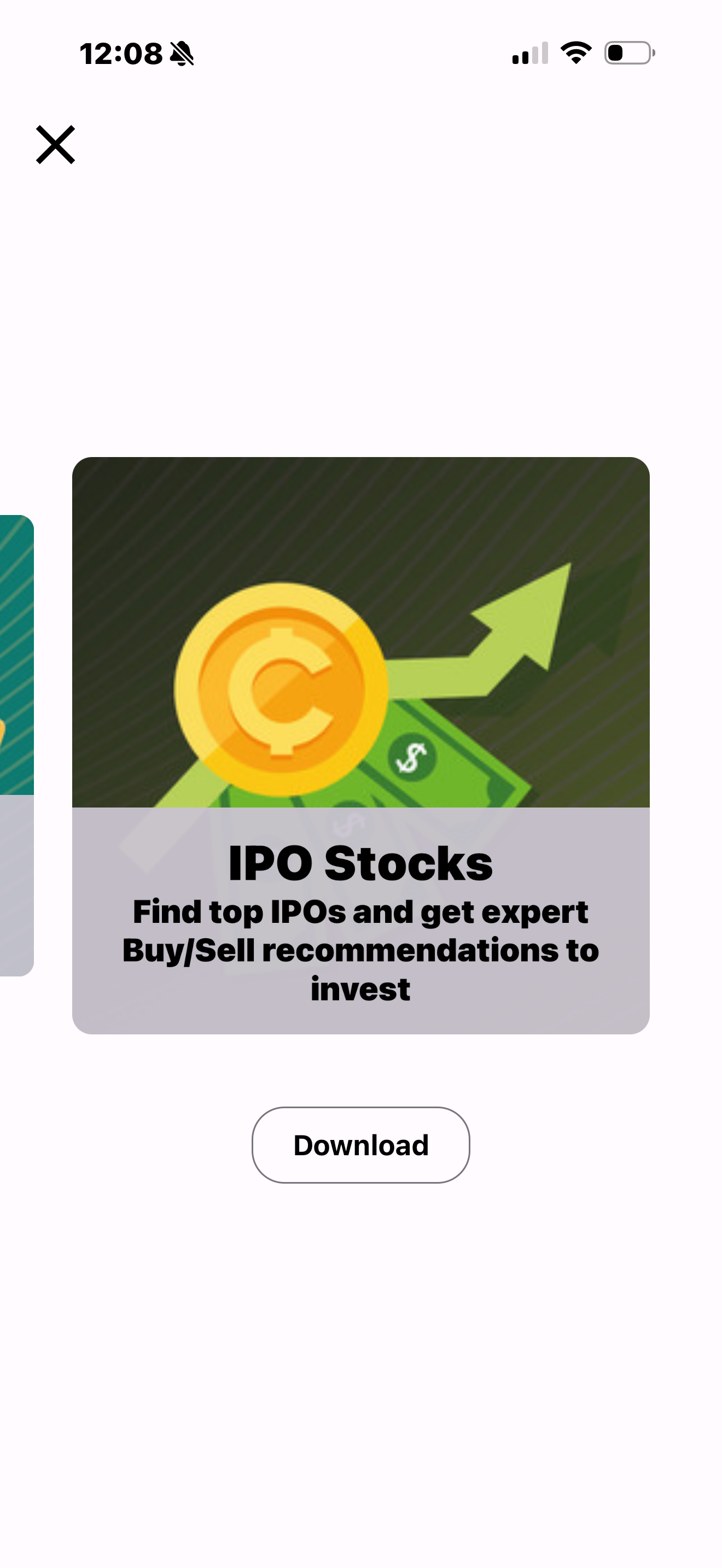
A related-app carousel card with Download.
The market is already telling a story
Start with a portfolio. Follow the rating. Open the chart, history, and company behind the ticker.